# Sentinel Overview

Sentinel makes PeopleSoft simple. You can manage user security, review access, and submit security requests from one easy-to-use platform.

Gain visibility into user access with on-demand information and tools that can be used by security administrators, managers, data owners, and functional users. <br>

Let's get started by reviewing Sentinel's core modules:&#x20;

<details>

<summary><a href="/sentinel-help-center/security-administration"><strong>Security Administration</strong></a></summary>

Manage access for users, roles, and permission lists.&#x20;

Includes tools for assigning direct access, dynamic security, temporary access, and interactive security reports.

**To be used by:**  Security Administrators&#x20;

</details>

<details>

<summary><a href="/sentinel-help-center/audit-review/audit-review-setup">Audit Review</a></summary>

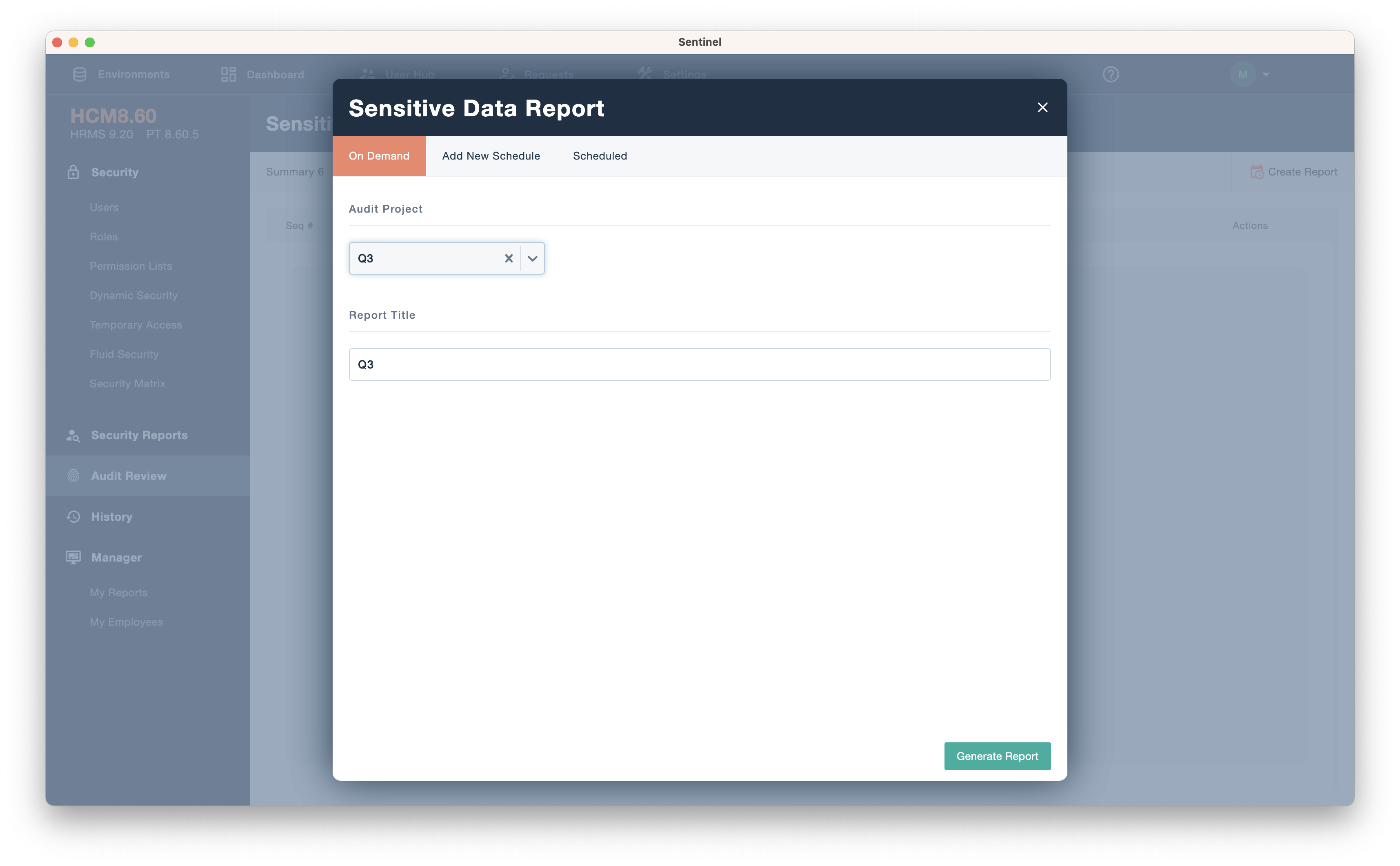
Review employee roles, sensitive data, privileged access, and segregation of duties.&#x20;

Includes on-demand audit reporting tools.&#x20;

**To be used by:** Supervisors, Data Owners, and Stakeholders

</details>

<details>

<summary><a href="/sentinel-help-center/access-requests"><strong>Access Requests</strong></a></summary>

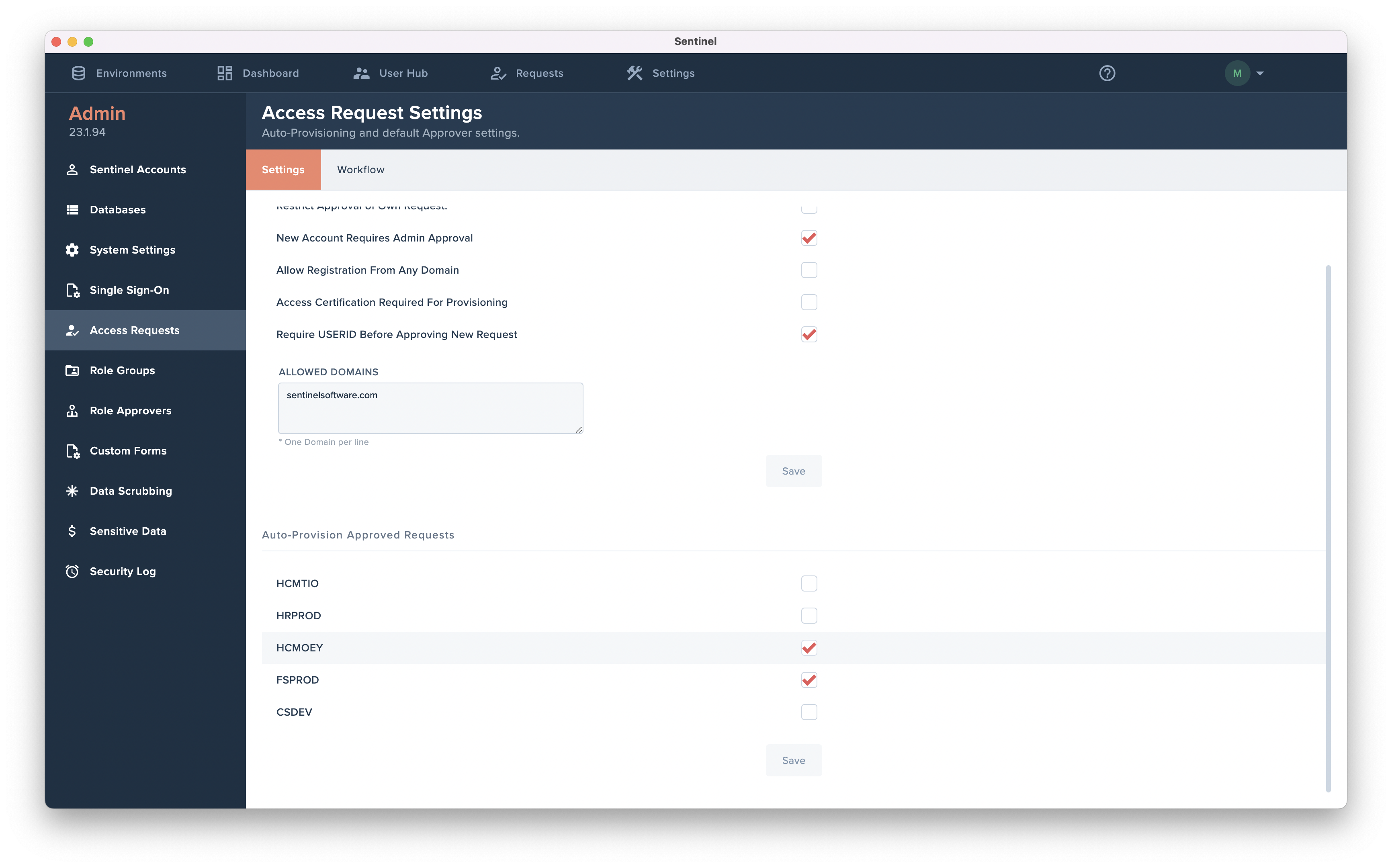
Submit, approve, and provision security requests.&#x20;

Includes settings for workflows, auto-provisioning, and tools to create custom forms.

**To be used by:** Supervisors, Functional Leads, and Security Administrators

</details>

### Application Fundamentals and Setup

There are two types of accounts in Sentinel: Admins and Non-admins.

* Admins have access to all PeopleSoft Environments and Sentinel Modules & Submenus.
* Non-admin users gain access to an Environment through an assigned Security Profile. Security Profiles determine access for Sentinel Modules & Submenus.

[**Learn more about Sentinel Accounts.** ](/sentinel-help-center/settings/sentinel-accounts)

### Environments&#x20;

Sentinel can simultaneously support multiple PeopleSoft pillars (HR, FS, CS) and PeopleTools versions. Each environment provides access to the following:&#x20;

* User Accounts
* Roles&#x20;
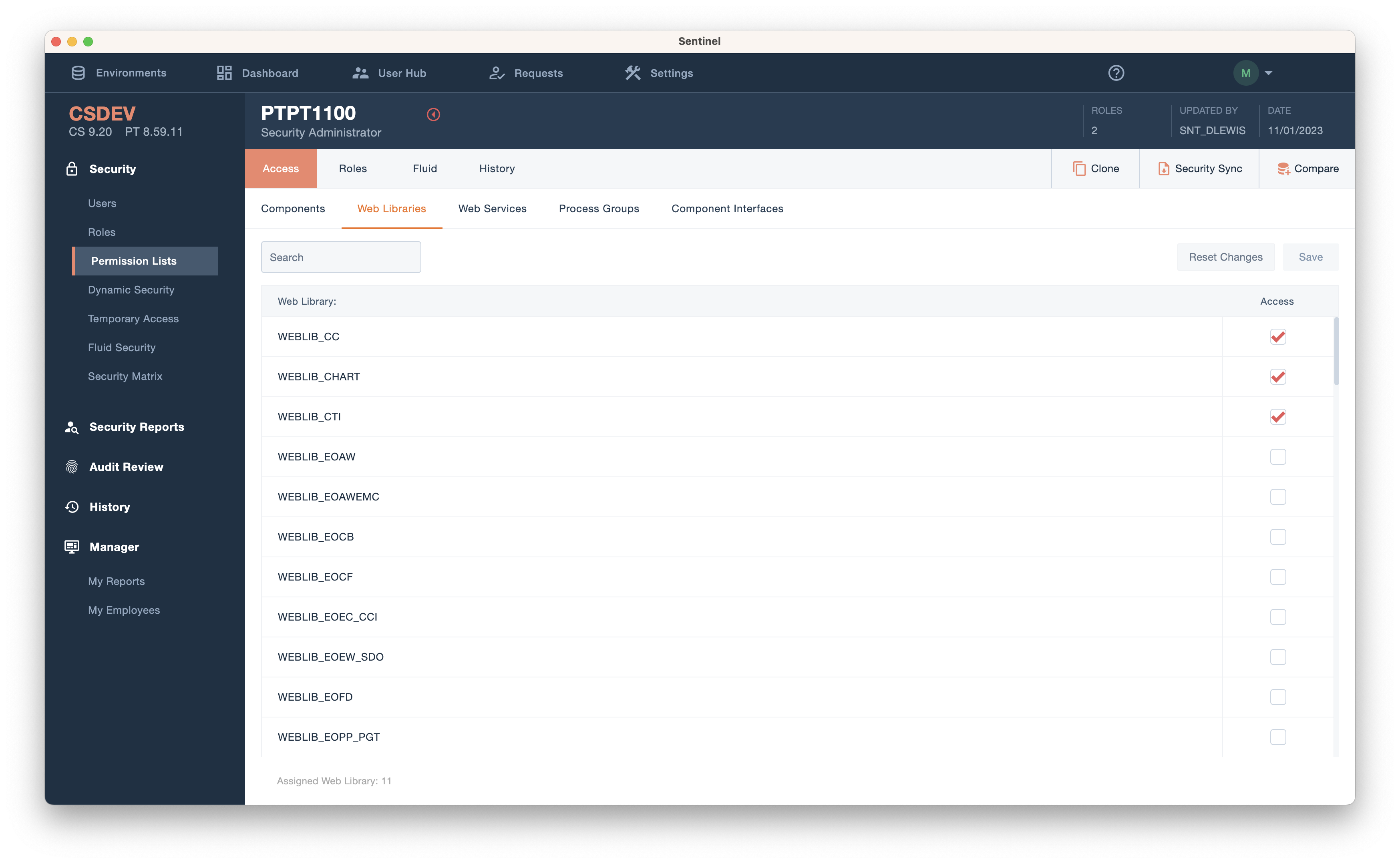
* Permission Lists
* Security, Audit, and Compare Reports

[**Learn more about Environments.** ](/sentinel-help-center/sentinel-overview/environments)

### Database Connections

Sentinel interacts with the PeopleSoft database using an ODBC or JDBC connection. A database account is required with the SYSADM type access for each PeopleSoft database.&#x20;

*The client is solely responsible for creating and maintaining their account credentials.*

[**Learn more about Database Connections.** ](/sentinel-help-center/settings/databases)&#x20;

### User Hub

Sentinel includes a consolidated list of users from all PeopleSoft environments, known as the User Hub. It provides the following benefits:&#x20;

* Global Search&#x20;
* Unified User List&#x20;
* Central Administration&#x20;
* Logins&#x20;

[**Learn more about the User Hub.** ](/sentinel-help-center/sentinel-overview/user-hub)

### Data Management&#x20;

Sentinel’s Cloud Solution is hosted on [**Oracle’s Gen2 Cloud Infrastructure**](https://www.oracle.com/cloud/) (OCI) and includes the following key security features:

* Data Encryption - All of the data that customers store with any of the OCI data services (Block Volumes including Boot Volumes, Object Storage, and File Storage) is protected by encryption keys that are securely stored and controlled by Oracle.
* Data Privacy - Sentinel **DOES NOT** transmit or store any PII/ PCI, health, insurance, academic, or financial-related information. The application is designed to be [**HIPAA and FERPA-compliant**](https://www.cdc.gov/phlp/publications/topic/healthinformationprivacy.html).

[**Learn more about Data Management.** ](/sentinel-help-center/resources/policies/data-privacy)&#x20;

### Maintenance & Updates

Sentinel automatically handles PeopleSoft application and PeopleTools updates. Additional configuration changes are **not** required.&#x20;

* Nightly Syncs - Identifies new objects, including customizations, and automatically recognizes new software and tools versions.&#x20;
* Real-Time Application Updates - Security updates between PeopleSoft and Sentinel are done in real-time. All security changes will be immediately visible in both systems.

[**Learn more about Database Settings.**](/sentinel-help-center/settings/databases#build)

### History Log

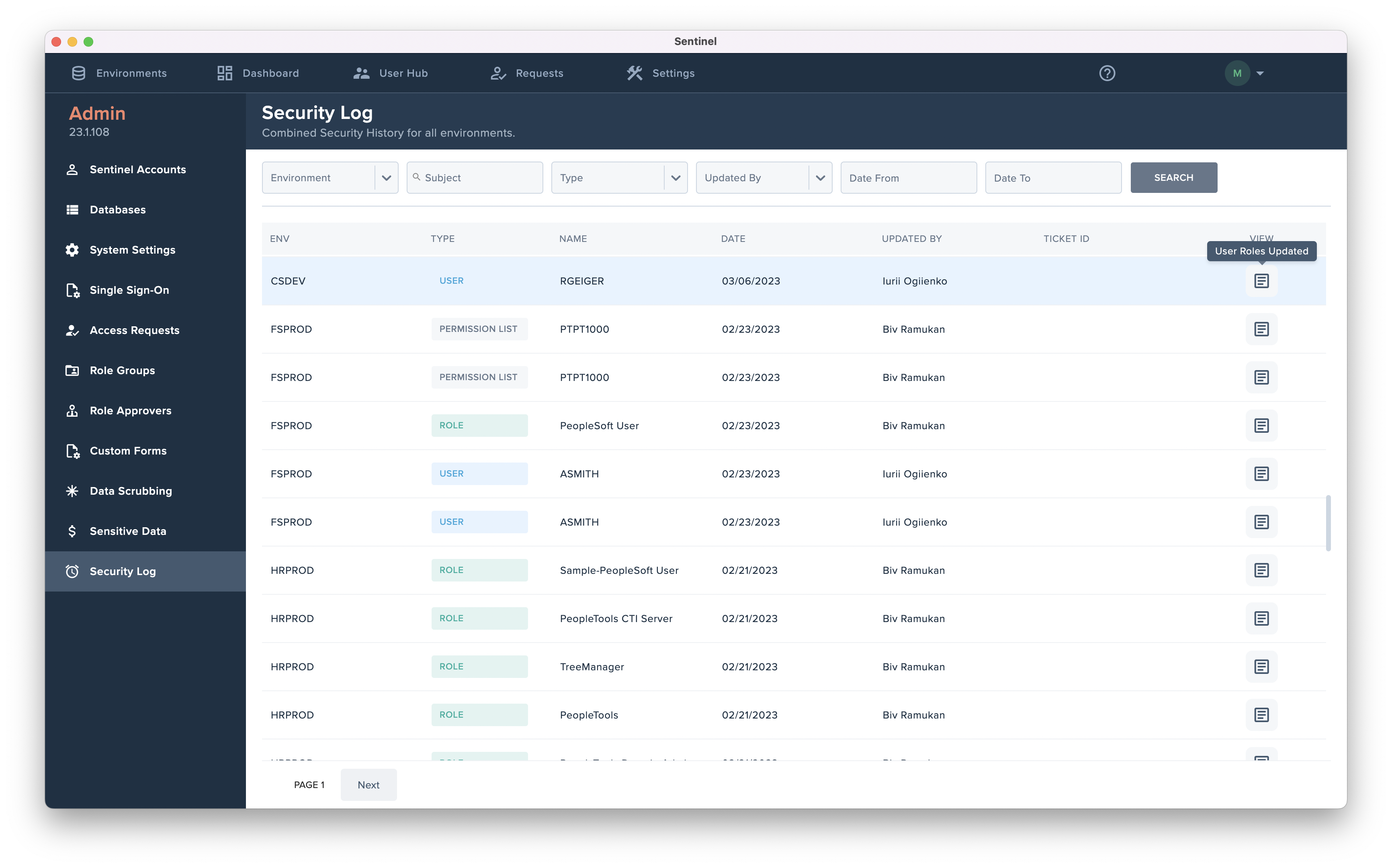
Sentinel keeps a detailed record of all updates to Users, Roles, and Permission Lists.&#x20;

* A History tab is provided for each respective object.&#x20;
* A History report is accessible for each environment.

Sentinel also keeps a combined record of security updates for all PeopleSoft environments connected to Sentinel, known as the Security Log.&#x20;

* The Security Log is accessible from the Dashboard or the Settings page.

[**Learn more about the Security Log.** ](/sentinel-help-center/settings/security-logging)


# Dashboard

**The** **Dashboard** provides a centralized pathway to Sentinel's modules, including Environments, User Hub, Access Requests, and the Security Log.

Shortcut menus and audit statistics can be configured for your most frequently used environments. (Default Environments).&#x20;

<details>

<summary>Configure Default Environments</summary>

1. Navigate to **Settings - System Settings.**&#x20;
2. Under the **'General'** tab, scroll to the **Insights Dashboard** section.&#x20;
3. Use the dropdown to select a default environment for each system. (HR, FS, CS)
4. Save changes.

   <figure><img src="https://4263253103-files.gitbook.io/~/files/v0/b/gitbook-x-prod.appspot.com/o/spaces%2Fe25a8u5fuAxDPpsekhB9%2Fuploads%2FaaUpWjmU7hFzxiG4Sjry%2FConfigure%20Dashboard%20Defaults.png?alt=media&amp;token=b07fb632-0c69-4915-9ab6-589c1c9634d4" alt=""><figcaption></figcaption></figure>

</details>

<figure><img src="https://4263253103-files.gitbook.io/~/files/v0/b/gitbook-x-prod.appspot.com/o/spaces%2Fe25a8u5fuAxDPpsekhB9%2Fuploads%2FkfN6CiZJDMiBwR8KPda1%2FSentinel%20Dashboard.png?alt=media&amp;token=2e253f83-d1e7-460c-8a55-4d7dae90a910" alt=""><figcaption></figcaption></figure>


# Environments

**The** **Environments** page provides access to all PeopleSoft Environments connected to Sentinel. \**Sentinel can simultaneously support multiple PeopleSoft Pillars (HR, FS, CS) and PeopleTools versions.\**&#x20;

<details>

<summary>Database Connections </summary>

Sentinel interacts with PeopleSoft using an ODBC or JDBC connection. A database account is required with the SYSADM type access for each PeopleSoft database. &#x20;

To add a Database in Sentinel, please refer [**here.**](/sentinel-help-center/settings/databases)

</details>

The Environments page shows a snapshot of total and active user accounts. It also serves as a tool to quickly de-provision access for users who are no longer active (inactive). Environments can be configured with individual database settings (info) and a PeopleSoft shortcut link. Compare reports can also be accessed from this page (actions).&#x20;

<figure><img src="https://4263253103-files.gitbook.io/~/files/v0/b/gitbook-x-prod.appspot.com/o/spaces%2Fe25a8u5fuAxDPpsekhB9%2Fuploads%2FXHpmF8c2LYXln5JqJ9wo%2FSentinel%20Environments.png?alt=media&amp;token=ba709422-08d1-40ed-ab98-8880437f7e39" alt=""><figcaption></figcaption></figure>


# User Hub

**The** **User Hub** is a consolidated list of users from all PeopleSoft environments. It provides a centralized way to view and manage accounts across all environments.

<details>

<summary>View / Manage PeopleSoft Accounts</summary>

#### View all PeopleSoft Accounts:

1. Navigate to the **User Hub** and select a **User** from the list.&#x20;

   <figure><img src="https://4263253103-files.gitbook.io/~/files/v0/b/gitbook-x-prod.appspot.com/o/spaces%2Fe25a8u5fuAxDPpsekhB9%2Fuploads%2FFOavIFFgo1Q3YIPUQ7I1%2FUser%20Hub%20-%20View%20Accounts%202.png?alt=media&amp;token=d066ff3e-f7b1-4165-87a5-f008320b2923" alt=""><figcaption><p><em>*A list of the PeopleSoft accounts associated with each environment will be shown.*</em></p></figcaption></figure>
2. Click the **'View Access'** icon to view the user's profile information and data access.

   <figure><img src="https://4263253103-files.gitbook.io/~/files/v0/b/gitbook-x-prod.appspot.com/o/spaces%2Fe25a8u5fuAxDPpsekhB9%2Fuploads%2FurtgKW6cgl5srIqMEgYf%2FUser%20Hub%20-%20View%20Profile%20Access.png?alt=media&amp;token=3f61ad46-e1f7-4a62-9428-9c306a12f438" alt=""><figcaption></figcaption></figure>

#### Manage all PeopleSoft Accounts:

3. Click the **'Edit'** button to modify access.
   * Use the dropdown to **assign an EMPLID** in an environment.&#x20;
   * Use the dropdown to **assign a Role Group** in an environment.&#x20;
   * Toggle on/off to **Lock or Disable** the user account in an environment.&#x20;
   * Click **'Remove'** to de-provision access in an environment.&#x20;
   * Click **'Create'** to create a user account in an environment.&#x20;

     <figure><img src="https://4263253103-files.gitbook.io/~/files/v0/b/gitbook-x-prod.appspot.com/o/spaces%2Fe25a8u5fuAxDPpsekhB9%2Fuploads%2FCFluAmeiqeiWtxqcXSo5%2FUser%20Hub%20-%20Edit%20Access.png?alt=media&amp;token=8ac6ee06-94d8-4518-80c7-0ae7d7f62846" alt=""><figcaption></figcaption></figure>

</details>

{% tabs %}
{% tab title="User Accounts" %}
User accounts are merged with job information to provide enhanced search capabilities. Search across all environments, or refine your search using various filters.&#x20;

<figure><img src="https://4263253103-files.gitbook.io/~/files/v0/b/gitbook-x-prod.appspot.com/o/spaces%2Fe25a8u5fuAxDPpsekhB9%2Fuploads%2FMZ9Arxpx3PuAKb8wREXb%2FUser%20Hub%20-%20User%20Accounts.png?alt=media&amp;token=2a949e47-bc64-483f-a731-4675e8cf62c8" alt=""><figcaption></figcaption></figure>
{% endtab %}

{% tab title="Employees" %}
View a list of all employees. Search by job information or HR Status.&#x20;

<figure><img src="https://4263253103-files.gitbook.io/~/files/v0/b/gitbook-x-prod.appspot.com/o/spaces%2Fe25a8u5fuAxDPpsekhB9%2Fuploads%2FeGUMJHpRIh2l8Gk3dLqC%2FUser%20Hub-%20Employees.png?alt=media&amp;token=21294100-c096-4e1c-8055-a29a9d858629" alt=""><figcaption></figcaption></figure>
{% endtab %}

{% tab title="Logins" %}
View a record of login sessions. Search across all environments, or refine your search using various filters.&#x20;

<figure><img src="https://4263253103-files.gitbook.io/~/files/v0/b/gitbook-x-prod.appspot.com/o/spaces%2Fe25a8u5fuAxDPpsekhB9%2Fuploads%2F0db5wsd7MxCGktyamlCd%2FUser%20Hub%20-%20Login%20Sessions.png?alt=media&amp;token=eab10302-3cc4-4213-85ca-b55ea585e460" alt=""><figcaption></figcaption></figure>
{% endtab %}
{% endtabs %}


# Requests

**Access Requests** is a platform to streamline requesting, approving, and applying security changes in PeopleSoft. \**It's intended for supervisors, functional leads & users, and security administrators.\**

<details>

<summary>Prerequisites</summary>

1\. Identify Access Request users and types of access.&#x20;

2\. Define approvers and criteria for workflows.

3\. Build workflows In Sentinel.

4\. Train user population.

</details>

<details>

<summary><a href="/sentinel-help-center/access-requests">Access Request Features</a></summary>

* Create New Requests
* Manage Existing Requests&#x20;
* Configurable Workflows for Routing&#x20;
* Auto-Provision Approved Requests

</details>

<figure><img src="https://4263253103-files.gitbook.io/~/files/v0/b/gitbook-x-prod.appspot.com/o/spaces%2Fe25a8u5fuAxDPpsekhB9%2Fuploads%2FPkx3To0opJ2d1jCu1s6F%2FScreen%20Shot%202023-06-23%20at%209.31.55%20AM.png?alt=media&amp;token=d85821d5-4ecb-4ce0-87b8-69240cfd92f2" alt=""><figcaption></figcaption></figure>


# Reports

Sentinel has three types of interactive reports: **Security, Audit, and Compare Reports.**&#x20;

Reports are available in each environment, and shortcut menus for the default environments are displayed on the Dashboard.

<details>

<summary><a href="/sentinel-help-center/security-reports">Security Reports</a></summary>

Security Reports provide detailed information about permissions assigned to Users, Roles, and Permission Lists.&#x20;

*The following reports can be used to analyze security quickly and accurately:*&#x20;

* Security Matrix
* Page Analysis
* User Access
* Role Access
* Permission List Access
* Query Analysis&#x20;
* Compare Users
* PeopleTools Access
* Portal Menus&#x20;

</details>

<details>

<summary><a href="/sentinel-help-center/audit-review">Audit Reports</a></summary>

Audit Reports highlight potential compliance risks and are used for periodic access reviews.

* Privileged Access
* Sensitive Data&#x20;
* Segregation of Duties&#x20;
* Correction Access
* Restricted Roles
* Role Changes&#x20;
* Notifications &#x20;

</details>

<details>

<summary><a href="/sentinel-help-center/security-administration/compare-reports">Compare Reports</a></summary>

Compare Reports are used to identify security differences and new application objects between a source and target environment.

* Environments
* User Profiles
* Roles
* Permissions

</details>


# Installation & Updates


# System Overview

System architecture and Connectivity

Sentinel is designed to integrate seamlessly with PeopleSoft environments, enhancing security management, compliance reporting, and workflow automation without modifying core PeopleSoft functionality. The architecture emphasizes security, scalability, and minimal footprint, typically deployed as a virtual machine (VM) appliance on customer infrastructure.

<figure><img src="https://4263253103-files.gitbook.io/~/files/v0/b/gitbook-x-prod.appspot.com/o/spaces%2Fe25a8u5fuAxDPpsekhB9%2Fuploads%2FCivjRT0T9jo5TZhKcJaY%2FUntitled%203.png?alt=media&amp;token=df0a08fb-61d3-4d89-90bc-8be3fd22ae90" alt=""><figcaption></figcaption></figure>

### **Application: Web-Based, Built for Chrome**

Sentinel is a fully web-based application, delivered as a modern, browser-accessible interface for PeopleSoft administrators and security teams. It leverages HTML5, JavaScript, and responsive design to provide interactive dashboards, reports, and workflows. The application is optimized for Google Chrome, ensuring compatibility with Chrome's rendering engine (Blink), security features (e.g., sandboxing, secure cookie handling), and performance for handling large datasets like user/role audits or permission analyses.

* **User Interface**: Fluid-like UI (inspired by PeopleSoft Fluid) with drag-and-drop elements, real-time filters, and export options (CSV, PDF, Excel). Supports role-based access control (RBAC) for viewing/editing security data.
* **Chrome Optimization**: Built with Chrome DevTools in mind for debugging; supports Chrome's extensions for productivity (e.g., session management). Avoids legacy browser dependencies like ActiveX or Flash, ensuring cross-platform use (Windows, macOS, Linux via Chrome).
* **Application Model**: Runs as a single-page application (SPA) for faster navigation, with API-driven backend calls to fetch PeopleSoft data on-demand.
* **Security Considerations**: The web app enforces HTTPS-only access and supports integration with SSO (e.g., SAML via PeopleSoft or external IdP). Regular updates from Sentinel Software address browser-specific vulnerabilities.

### Single Sign-On

The preferred and recommended login method is SAML 2.0 for exchanging authentication and The preferred and recommended login method is SAML 2.0 for exchanging authentication and authorization data between security domains—specifically, between an Identity Provider (IdP) (e.g., Okta, Azure AD/Entra ID, Ping Identity, OneLogin, or your enterprise IdP).

* **Cross-domain single sign-on**: Users authenticate once via their enterprise IdP and gain access to Sentinel without re-entering credentials.
* **Centralized identity management**: Leverages existing corporate credentials, reducing password fatigue and improving compliance.
* **Stronger security**: Supports federated authentication, attribute mapping (e.g., roles/groups), and protocols for secure assertion exchange (signed/encrypted as configured).
* **Web-based scenarios**: Enables SP-initiated (user accesses Sentinel directly) or IdP-initiated (starts from corporate portal) SSO flows.

### **Web Server**

Nginx serves as the web server and reverse proxy for Sentinel, handling incoming HTTP/HTTPS traffic, load balancing (if scaled), and SSL/TLS termination. It's chosen for its lightweight footprint, high performance, and robust security features compared to alternatives like Apache.

*
* **Reverse Proxy Role**: Binds to external ports (80 for HTTP redirect, 443 for HTTPS) and proxies requests to the internal Sentinel application (typically on localhost port 8787 or similar). This isolates the core app from direct internet exposure.
* **Encryption**: Mandatory use of SSL/TLS certificates (e.g., Let's Encrypt, self-signed for intranet, or commercial like DigiCert). Nginx config handles traffic encryption/decryption, supporting TLS 1.3 for modern ciphers (e.g., AES-256-GCM) and perfect forward secrecy.
* **Configuration Highlights**: Includes rate limiting to prevent DDoS, access logs for auditing, and headers for security (e.g., X-Frame-Options, Content-Security-Policy to mitigate XSS/CSRF).
* **Security Considerations**: Encrypt all traffic (no plain HTTP in production). Regularly patch Nginx for CVEs (e.g., via yum/apt updates). In DMZ setups, restrict inbound traffic to ports 80/443 via firewall rules.
* During VM deployment, Nginx is pre-configured but customizable via /etc/nginx/nginx.conf or site-specific files.
* **SSL Certificate**: Generate/install certs: Use openssl or Certbot for auto-renewal. Example config snippet:text

```
server {
    listen 443 ssl;
    server_name sentinel.your.domain;
    ssl_certificate /path/to/fullchain.pem;
    ssl_certificate_key /path/to/privkey.pem;
    location / {
        proxy_pass http://127.0.0.1:8787;
        proxy_set_header Host $host;
    }
}
```

### **Sentinel Database: PostgreSQL**

PostgreSQL is the internal database engine for Sentinel, storing its own configuration, audit logs, cached PeopleSoft data, and custom reports. It's an open-source relational database chosen for reliability, ACID compliance, and extensibility (e.g., JSONB for semi-structured data).

* **Schema and Storage**: Sentinel uses PostgreSQL to persist data like user sessions, security baselines, and workflow states. Binds to localhost (e.g., 127.0.0.1:5432) for security, with daily backups to filesystem or external storage (e.g., S3-compatible or NAS).
* **Performance**: Supports indexing for fast queries on large PeopleSoft-derived datasets (e.g., PSOPRDEFN table mirrors).
* **Version**: Typically PostgreSQL 13+ (or latest stable), with extensions like pg\_trgm for fuzzy searches in reports.
* **Security Considerations**: Use strong passwords for the sentinel\_user role. Enable row-level security if needed. Encrypt data at rest (e.g., via LUKS on VM disk) and in transit (SSL for connections, though localhost-only by default).

### **PeopleSoft Access: ODBC to Oracle Database**

Sentinel connects to PeopleSoft via ODBC (Open Database Connectivity) for read-only (or limited write) access to the Oracle database backend. This allows querying tables like PSOPRDEFN for user profiles, roles, and permissions without direct app server integration.

* **ODBC Driver**: Uses Oracle ODBC driver (e.g., Instant Client) to establish connections. Sentinel pulls data for analysis (e.g., risk scoring, SOD checks) and can push updates (e.g., role assignments) if configured.
* **Client-Managed Account**: Customers create a dedicated Oracle user (e.g., SENTINEL\_READ) with granular permissions. No default or vendor backdoors – all access is client-controlled.
* **Permissions**: Minimum grants include SELECT on security tables (e.g., PSOPRDEFN, PSROLEUSER, PSAUTHITEM); INSERT/UPDATE for provisioning workflows. Avoid SYSADM-like privileges to minimize risk.
* **Security Considerations**: Encrypt ODBC traffic (Oracle Net SSL). Use least-privilege principle; audit grants regularly. Client manages password rotation and revocation – Sentinel Software has no access post-deployment.

### **Client Domain**

Sentinel uses the client's custom domain (e.g., sentinel.yourcompany.com) for access, resolved via DNS to the VM's external IP. Deployment is flexible: in a DMZ for controlled external access or fully intranet for internal-only use.

* **DNS Resolution**: Client DNS server maps the domain to the Sentinel VM IP (e.g., A record: sentinel.your.domain → 192.168.7.8).
* **DMZ Placement**: Ideal for semi-external access (e.g., VPN users); isolates from core network with firewalls allowing only HTTPS ingress.
* **Intranet Placement**: For fully internal deployments; no public exposure, accessed via internal DNS.
* **Security Considerations**: Use split-DNS if DMZ-exposed (internal vs. external resolution). Implement WAF (e.g., ModSecurity with Nginx) for app-layer protection. Regular pen tests cover the domain endpoint.


# Client VM Requirements

On-premise VM specs and architecture.

#### Application Server Requirements

This server runs the web-based interface (Chrome-optimized), Nginx reverse proxy with SSL encryption, and Sentinel application services. The specs below are suitable for moderate deployments; adjust upward for high user volumes or concurrency.

| Requirement       | Specification                                                    | Notes / Recommendations                                                                                                                                       |
| ----------------- | ---------------------------------------------------------------- | ------------------------------------------------------------------------------------------------------------------------------------------------------------- |
| **Processor**     | 8+ cores recommended                                             | Use modern x86\_64 or ARM64 processors (e.g., Intel Xeon, AMD EPYC, or ARM equivalents) for optimal performance in report generation and concurrent sessions. |
| **Memory**        | 32 GB (Minimum)                                                  | Scale to 64 GB+ for environments with large security audits, multiple PeopleSoft instances, or heavy workflow usage.                                          |
| **Server OS**     | Linux x64/ARM64 – Red Hat Enterprise Linux 9+ or Oracle Linux 9+ | Latest stable release with all security patches applied. Sentinel VM appliance is pre-configured for compatibility.                                           |
| **Storage**       | 100 GB (Minimum)                                                 | SSD strongly preferred for faster I/O. Allocate additional space for logs, cached data, and temporary files in production.                                    |
| **Remote Access** | SSH (port 22)                                                    | Enable key-based authentication only; restrict to trusted IP ranges via firewall. Disable password auth for security.                                         |
| **Open Ports**    | Ports 80 (HTTP redirect), 443 (HTTPS), 22 (SSH)                  | Primary access via HTTPS (443). Use firewall to limit inbound traffic to trusted sources. No external exposure of internal Sentinel ports.                    |

### Database Server Requirements (PostgreSQL Backend for Sentinel)

This server hosts Sentinel's internal PostgreSQL database for storing configuration, audit logs, sessions, and reports. It is separate from the PeopleSoft Oracle DB.

| Requirement       | Specification                                                    | Notes / Recommendations                                                                                                                   |
| ----------------- | ---------------------------------------------------------------- | ----------------------------------------------------------------------------------------------------------------------------------------- |
| **Processor**     | 4+ logical cores recommended                                     | Scale to 8+ cores for complex queries, high-volume data mirroring, or frequent reporting.                                                 |
| **Memory**        | 16 GB (Minimum)                                                  | PostgreSQL caching benefits from more RAM—aim for 32 GB+ in larger setups to improve query speed on indexed PeopleSoft-derived data.      |
| **Server OS**     | Linux x64/ARM64 – Red Hat Enterprise Linux 9+ or Oracle Linux 9+ | Consistent with Application Server OS for easier management and patching.                                                                 |
| **Database**      | PostgreSQL 17+                                                   | Use the latest stable minor release. Enable relevant extensions (e.g., pg\_trgm for search) as needed by Sentinel features.               |
| **Storage**       | SSD 500 GB (Minimum) or enterprise-grade HDD                     | SSD recommended for best performance on indexes and backups. Use RAID for redundancy; provision extra space for daily backups and growth. |
| **Remote Access** | SSH (port 22)                                                    | Same security practices as Application Server (key-based, restricted IPs).                                                                |
| **Open Ports**    | Port 5432 (PostgreSQL), 22 (SSH)                                 | Bind PostgreSQL to localhost (127.0.0.1) only—no external exposure. Use SSH tunneling if remote admin access is required.                 |

### General Deployment and Scaling Guidance

* **Combined Setup**: In smaller environments, the Application and Database servers can be co-located on a single VM (e.g., 12+ cores / 48+ GB RAM total) to simplify management.
* **Scaling Factors**: Increase CPU, RAM, and storage for:
  * Larger PeopleSoft user profile volumes (>20,000–50,000).
  * Multiple connected PeopleSoft instances.
  * Intensive features like real-time SOD checks, provisioning workflows, or bulk report exports.
* **Performance Monitoring**: After deployment, use tools like top, htop, pg\_top, or Sentinel diagnostics to baseline usage during peak admin activity.
* **Security Best Practices**: Enforce HTTPS-only access, patch OS/PostgreSQL/Nginx regularly, and conduct periodic vulnerability scans/pen tests on the exposed domain.
* **Vendor Confirmation**: These align with typical on-premise Sentinel deployments. For tailored sizing based on your exact PeopleSoft setup (e.g., HCM/FSCM versions, user count), consult Sentinel Software support directly—they provide precise guidance post-demo or during onboarding.

###


# Host Server Setup RHEL/CentOS 8

### Installation Prerequisites &#x20;

* VM with Linux x64 installed - RedHat, CentOS, Oracle Linux 8
* Root access to the server
* The Domain name (For accessing the Sentinel Application)
* SSL Certificate for Domain&#x20;
* SMTP Server Credentials

<details>

<summary>NGINX Server Installation (Step One)</summary>

Download and install the [**Stable Nginx**](https://nginx.org/en/download.html) version. Sentinel supports version 1.16+.\
Install and issue the following commands:

```bash
sudo yum install yum-utils
```

#### Add NGINX yum repository. To do this, create the file named /etc/yum.repos.d/nginx.repo with the following contents:&#x20;

```ini
[nginx-stable]
name=nginx stable repo
baseurl=http://nginx.org/packages/centos/$releasever/$basearch/
gpgcheck=1
enabled=1
gpgkey=https://nginx.org/keys/nginx_signing.key
module_hotfixes=true
```

#### **Set NGINX-STABLE repository as the default in yum config manager:**

```shell
sudo yum-config-manager --enable nginx-stable
```

#### **To install NGINX, run the following command:** &#x20;

```bash
sudo yum install nginx
```

#### **Add NGINX to the firewall:**&#x20;

```bash
firewall-cmd --zone=public --add-service=http --permanent
firewall-cmd --zone=public --add-service=https --permanent
```

#### **Reload the firewall and verify that HTTP and HTTPS protocols are allowed:** &#x20;

```shell
firewall-cmd --reload
firewall-cmd --list-services –zone=public
```

#### **Update the  SELINUX Policy to allow interconnection from NGINX to Sentinel:**&#x20;

```shell
setsebool -P httpd_can_network_connect 1
```

#### **Create \`sentinel.conf\` in nginx config folder:**

```
touch /etc/nginx/conf.d/sentinel.conf
```

#### **Add the following:**

```nginx
upstream sentinel {
	server 127.0.0.1:8787;
}

proxy_cache_path /var/cache/nginx/sentinel levels=1:2 keys_zone=sentinel_cache:50m max_size=1g inactive=60m use_temp_path=off;

server {
	listen 80;
	listen [::]:80;
	server_name sentinel.yourdomain.com;

	return 301 https://$host$request_uri;
}

server {
	listen 443 ssl http2;
	listen [::]:443 ssl http2;
	server_name sentinel.yourdomain.com;

	ssl_certificate /path/to/sentinel.certificate;
	ssl_certificate_key /path/to/sentinel.certificate.private_key;

	ssl_session_timeout 1d;
	ssl_session_cache shared:MozSSL:30m;
	ssl_session_tickets off;

# curl https://ssl-config.mozilla.org/ffdhe2048.txt > /path/to/dhparam.pem
# ssl_dhparam /path/to/dhparam.pem;

	# intermediate configuration
	ssl_protocols TLSv1.2 TLSv1.3;
	ssl_ciphers ECDHE-ECDSA-AES128-GCM-SHA256:ECDHE-RSA-AES128-GCM-SHA256:ECDHE-ECDSA-AES256-GCM-SHA384:ECDHE-RSA-AES256-GCM-SHA384:ECDHE-ECDSA-CHACHA20-POLY1305:ECDHE-RSA-CHACHA20-POLY1305:DHE-RSA-AES128-GCM-SHA256:DHE-RSA-AES256-GCM-SHA384;
	ssl_prefer_server_ciphers off;

	# HSTS (ngx_http_headers_module is required) (63072000 seconds)
	add_header Strict-Transport-Security “max-age=63072000” always;

	# OCSP stapling
	#ssl_stapling on;
	#ssl_stapling_verify on;

	# verify chain of trust of OCSP response using Root CA and Intermediate certs
	#ssl_trusted_certificate /path/to/root_CA_cert_plus_intermediates;

	# replace with the IP address of your resolver
	resolver 8.8.8.8;

	gzip on;
	gzip_vary on;
	gzip_proxied any;
	gzip_comp_level 7;
	gzip_buffers 32 128k;
	gzip_http_version 1.1;
	gzip_types text/plain text/css application/json application/javascript text/xml application/xml application/xml+rss text/javascript;

	location /_ping {
		proxy_set_header Host $http_host;
		proxy_set_header X-Real-IP $remote_addr;
		proxy_set_header X-Forwarded-For $proxy_add_x_forwarded_for;
		proxy_set_header X-Forwarded-Proto $scheme;
		proxy_set_header Accept-Encoding $http_accept_encoding;

		proxy_pass http://sentinel;
	}

	location /static/ {
		proxy_set_header Host $http_host;
		proxy_set_header X-Real-IP $remote_addr;
		proxy_set_header X-Forwarded-For $proxy_add_x_forwarded_for;
		proxy_set_header X-Forwarded-Proto $scheme;
		proxy_set_header Accept-Encoding $http_accept_encoding;

		proxy_cache sentinel_cache;
		proxy_ignore_headers Cache-Control;
		proxy_cache_lock on;
		proxy_cache_valid any 24h;
		add_header X-Cache-Status $upstream_cache_status;

		proxy_pass http://sentinel;
	}

	location / {
		proxy_set_header Host $http_host;
		proxy_set_header X-Real-IP $remote_addr;
		proxy_set_header X-Forwarded-For $proxy_add_x_forwarded_for;
		proxy_set_header X-Forwarded-Proto $scheme;
		proxy_set_header Accept-Encoding $http_accept_encoding;

		if ($request_method = ‘OPTIONS’) {
			add_header ‘Access-Control-Allow-Origin’ ‘https://sentinel.yourdomain.com’;
			add_header ‘Access-Control-Allow-Methods’ ‘GET, POST, OPTIONS’;

			add_header ‘Access-Control-Allow-Headers’ ‘DNT,X-CustomHeader,Keep-Alive,User-Agent,X-Requested-With,If-Modified-Since,Cache-Control,Content-Type,Authorization’;
			add_header ‘Access-Control-Max-Age’ 1728000;
			add_header ‘Content-Type’ ‘text/plain charset=UTF-8’;
			add_header ‘Content-Length’ 0;
			return 204;
		}

		if ($request_method = ‘POST’) {
			add_header ‘Access-Control-Allow-Origin’ ‘https://sentinel.yourdomain.com’;
			add_header ‘Access-Control-Allow-Methods’ ‘GET, POST, OPTIONS’;
			add_header ‘Access-Control-Allow-Headers’ ‘DNT,X-CustomHeader,Keep-Alive,User-Agent,X-Requested-With,If-Modified-Since,Cache-Control,Content-Type,Authorization’;
		}

		proxy_pass http://sentinel;
	}
}

```

#### **Replace the following:**

* **Sentinel Domain –**  `sentinel.yourdomain.com`
* **Certificate / Chained Certificates –** `/path/to/sentinel.certificate`
* **Certificate Private Key –** `/path/to/sentinel.certificate.private_key`

#### **Verify that the folder exists and is owned by the NGINX User -** \`**/var/cache/nginx/sentinel\`**

```shell
mkdir -p /var/cache/nginx/sentinel
chown -R nginx:root /var/cache/nginx/sentinel
chmod 0700 /var/cache/nginx/sentinel
```

#### **Enable NGINX SYSTEMD Service: Start service / check status:**

```shell
systemctl enable nginx
systemctl restart nginx
systemctl status nginx
```

</details>

<details>

<summary><strong>Java Runtime Environment (Step Two)</strong></summary>

Sentinel requires Java Runtime Environment (JRE). Long Term Supported OpenJDK 21 or later is preferred.&#x20;

#### eInstall via Package Manager:

```shell
yum install java-21-openjdk
```

#### **Check Java Version:**&#x20;

```shell
java -version
```

</details>

<details>

<summary><strong>Time Synchronisation Daemon (Step Three)</strong> </summary>

The Sentinel VM should have the same time zone setting as your PeopleSoft environment. A time synchronization daemon, such as NTPD or Chrony, should be used.

#### **Install Chrony:**&#x20;

```shell
yum install chrony
```

#### **Enable and start SYSTEMD NTPD service:**&#x20;

```shell
systemctl enable chronyd
systemctl start chronyd
systemctl status chronyd
```

</details>

<details>

<summary><strong>PostgreSQL Database (Step Four)</strong>  </summary>

Sentinel requires the PostgreSQL 17+ database to be installed. Follow this article for [**PostgreSQL installation instructions**](https://www.postgresql.org/download/linux/redhat/).&#x20;

#### Run the following to add a PostgreSQL Repository to the package manager and install PostgreSQL:&#x20;

```shell
sudo dnf install -y https://download.postgresql.org/pub/repos/yum/reporpms/EL-8-x86_64/pgdg-redhat-repo-latest.noarch.rpm

# Disable the built-in PostgreSQL module:
sudo dnf -qy module disable postgresql

# Install PostgreSQL:
sudo dnf install -y postgresql17-server
```

#### **Check that the default SYSTEMD service is stopped:**

```
systemctl stop postgresql-17.service
systemctl status postgresql-17.service
```

#### **Copy the default service file into etc directory:** &#x20;

```shell
cp /usr/lib/systemd/system/postgresql-17.service /etc/systemd/system/postgre-snt.service
```

#### **Create PostgreSQL data directory and set owner to PostgreSQL User:**

```shell
mkdir -p /opt/pgdata17
chown postgres:postgres /opt/pgdata17
```

#### **Find and update the service file with the following:** &#x20;

```systemd
Environment=PGDATA=/opt/pgdata17/
```

#### **Reload the SYSTEMD Daemon and start Postgre-SNT service:** &#x20;

```shell
systemctl daemon-reload
systemctl status postgres-snt
```

#### **Init PostgreSQL data directory:** &#x20;

```shell
/usr/pgsql-17/bin/postgresql-17-setup initdb postgres-snt
```

#### **Navigate to the data directory and add the following directives to the `postgresql.conf` file:** &#x20;

```ini
# bind to localhost IP address or change to local network address in case
# Sentinel server and DB server uses separate VM
listen_addresses = ‘127.0.0.1’

# set strong password encryption
password_encryption = scram-sha-256
```

#### **Edit pg\_hba.conf file in PostgreSQL data directory to allow connections from the Sentinel server:** &#x20;

```ini
# Use localhost IP or local network address if separate VM’s are used
host sentinel dean 127.0.0.1/32 scram-sha-256
```

#### **Start PostgreSQL instance using SYSTEMD and check status:**&#x20;

```shell
systemctl start postgres-snt
systemctl status postgres-snt
```

#### **Create a database and list databases to ensure that it was created:** &#x20;

```shell
sudo -u postgres createdb sentinel
sudo -u postgres psql -l
sudo -u postgres psql sentinel -c "CREATE EXTENSION IF NOT EXISTS btree_gin;"
```

#### **Create a user dean, set a password, and grant access to the Sentinel database:** &#x20;

```bash
sudo -u postgres createuser dean
sudo -u postgres psql -c "ALTER USER dean WITH ENCRYPTED PASSWORD 'SetPassword';"
sudo -u postgres psql -c "GRANT ALL PRIVILEGES ON DATABASE sentinel to dean;"
```

#### PostgreSQL version 15+:

In case of PostgreSQL version 15 and above additional permissions should be granted:

```bash
sudo -u postgres psql -c "GRANT ALL ON SCHEMA public TO dean;"
```

#### **Replace '**&#x53;etPasswor&#x64;**' with a preferable password. Verify that users can connect:** &#x20;

```shell
psql -U dean --host 127.0.0.1 sentinel -c "Select 1;"
```

#### **Optional - Create a `.pgpass` file in `/root` folder to be able to automatically pass connection settings to backup scripts:**&#x20;

```shell
echo "127.0.0.1:5432:sentinel:dean:SetPassword" > /root/.pgpass
chmod 0600 /root/.pgpass
```

</details>

<details>

<summary><strong>Setup Sentinel Server (Step Five)</strong> </summary>

#### Create a folder for Sentinel Software, usually /opt/sentinel  :

```shell
mkdir -p /opt/sentinel
```

#### **Copy the Sentinel server file to /opt/sentinel/ and create SYMLINK:** &#x20;

```shell
cd /opt/sentinel
ln -sf sentinel-23.3.1.jar sentinel.jar
```

#### **Create a service file for the Sentinel server:** &#x20;

```
touch /etc/systemd/system/sentinel.service
```

#### **Add the following content to the file and set credentials for PostgreSQL:**  &#x20;

```systemd
[Unit]
Description=Seninel Server daemon

[Service]
#User=userowner
Type=simple
Restart=always
# Use following line for local PostgreSQL
After=postgres-snt.service

Environment=DB_NAME=sentinel
Environment=DB_USER=dean
Environment=DB_PASSWORD=SetPassword
Environment=DB_HOST=127.0.0.1
Environment=DB_PORT=5432

ExecStart=/usr/bin/java -Xms4g -Xmx16g -jar /opt/sentinel/sentinel.jar start --port 8787 --hostname 127.0.0.1

[Install]
WantedBy=multi-user.target
```

#### **Update SYSTEMD configuration and enable the Sentinel server:** &#x20;

```shell
systemctl daemon-reload
systemctl enable sentinel.service
```

#### **Using your License Key and PostgreSQL database credentials, run Sentinel's INIT job:**&#x20;

```
DB_NAME=sentinel DB_PASSWORD=SetPassword DB_HOST=127.0.0.1 DB_PORT=5432 \ 
java -jar sentinel.jar register --license-key "Your-licence-key"
```

#### **Using an email, create the first account with admin level access:**&#x20;

```shell
DB_NAME=sentinel DB_PASSWORD=SetPassword DB_HOST=127.0.0.1 DB_PORT=5432 \
java -jar sentinel.jar create_user --email "admin@your.domain"
```

#### **Start the Sentinel server and check status:** &#x20;

```shell
systemctl start sentinel.service
systemctl status sentinel.service
```

#### **Using a Chrome browser (required), enter the Sentinel domain to load the application.** &#x20;

</details>


# Host Server Setup RHEL/CentOS 9

### Installation Prerequisites &#x20;

* VM with Linux x64 installed - RedHat, CentOS, Oracle Linux 9
* Root access to the server
* The Domain name (For accessing the Sentinel Application)
* SSL Certificate for Domain&#x20;
* SMTP Server Credentials

<details>

<summary>NGINX Server Installation (Step One)</summary>

#### **To install NGINX, run the following command:** &#x20;

```bash
sudo dnf install nginx
```

#### **Add NGINX to the firewall:**&#x20;

```bash
firewall-cmd --zone=public --add-service=http --permanent
firewall-cmd --zone=public --add-service=https --permanent
```

#### **Reload the firewall and verify that HTTP and HTTPS protocols are allowed:** &#x20;

```shell
firewall-cmd --reload
firewall-cmd --list-services –zone=public
```

#### **Update the  SELINUX Policy to allow interconnection from NGINX to Sentinel:**&#x20;

```shell
setsebool -P httpd_can_network_connect 1
```

#### **Create \`sentinel.conf\` in nginx config folder:**

```
touch /etc/nginx/conf.d/sentinel.conf
```

#### **Add the following:**

```nginx
upstream sentinel {
	server 127.0.0.1:8787;
}

proxy_cache_path /var/cache/nginx/sentinel levels=1:2 keys_zone=sentinel_cache:50m max_size=1g inactive=60m use_temp_path=off;

server {
	listen 80;
	listen [::]:80;
	server_name sentinel.yourdomain.com;

	return 301 https://$host$request_uri;
}

server {
	listen 443 ssl http2;
	listen [::]:443 ssl http2;
	server_name sentinel.yourdomain.com;

	ssl_certificate /path/to/sentinel.certificate;
	ssl_certificate_key /path/to/sentinel.certificate.private_key;

	ssl_session_timeout 1d;
	ssl_session_cache shared:MozSSL:30m;
	ssl_session_tickets off;

# curl https://ssl-config.mozilla.org/ffdhe2048.txt > /path/to/dhparam.pem
# ssl_dhparam /path/to/dhparam.pem;

	# intermediate configuration
	ssl_protocols TLSv1.2 TLSv1.3;
	ssl_ciphers ECDHE-ECDSA-AES128-GCM-SHA256:ECDHE-RSA-AES128-GCM-SHA256:ECDHE-ECDSA-AES256-GCM-SHA384:ECDHE-RSA-AES256-GCM-SHA384:ECDHE-ECDSA-CHACHA20-POLY1305:ECDHE-RSA-CHACHA20-POLY1305:DHE-RSA-AES128-GCM-SHA256:DHE-RSA-AES256-GCM-SHA384;
	ssl_prefer_server_ciphers off;

	# HSTS (ngx_http_headers_module is required) (63072000 seconds)
	add_header Strict-Transport-Security “max-age=63072000” always;

	# OCSP stapling
	#ssl_stapling on;
	#ssl_stapling_verify on;

	# verify chain of trust of OCSP response using Root CA and Intermediate certs
	#ssl_trusted_certificate /path/to/root_CA_cert_plus_intermediates;

	# replace with the IP address of your resolver
	resolver 8.8.8.8;

	gzip on;
	gzip_vary on;
	gzip_proxied any;
	gzip_comp_level 7;
	gzip_buffers 32 128k;
	gzip_http_version 1.1;
	gzip_types text/plain text/css application/json application/javascript text/xml application/xml application/xml+rss text/javascript;

	location /_ping {
		proxy_set_header Host $http_host;
		proxy_set_header X-Real-IP $remote_addr;
		proxy_set_header X-Forwarded-For $proxy_add_x_forwarded_for;
		proxy_set_header X-Forwarded-Proto $scheme;
		proxy_set_header Accept-Encoding $http_accept_encoding;

		proxy_pass http://sentinel;
	}

	location /static/ {
		proxy_set_header Host $http_host;
		proxy_set_header X-Real-IP $remote_addr;
		proxy_set_header X-Forwarded-For $proxy_add_x_forwarded_for;
		proxy_set_header X-Forwarded-Proto $scheme;
		proxy_set_header Accept-Encoding $http_accept_encoding;

		proxy_cache sentinel_cache;
		proxy_ignore_headers Cache-Control;
		proxy_cache_lock on;
		proxy_cache_valid any 24h;
		add_header X-Cache-Status $upstream_cache_status;

		proxy_pass http://sentinel;
	}

	location / {
		proxy_set_header Host $http_host;
		proxy_set_header X-Real-IP $remote_addr;
		proxy_set_header X-Forwarded-For $proxy_add_x_forwarded_for;
		proxy_set_header X-Forwarded-Proto $scheme;
		proxy_set_header Accept-Encoding $http_accept_encoding;

		if ($request_method = ‘OPTIONS’) {
			add_header ‘Access-Control-Allow-Origin’ ‘https://sentinel.yourdomain.com’;
			add_header ‘Access-Control-Allow-Methods’ ‘GET, POST, OPTIONS’;

			add_header ‘Access-Control-Allow-Headers’ ‘DNT,X-CustomHeader,Keep-Alive,User-Agent,X-Requested-With,If-Modified-Since,Cache-Control,Content-Type,Authorization’;
			add_header ‘Access-Control-Max-Age’ 1728000;
			add_header ‘Content-Type’ ‘text/plain charset=UTF-8’;
			add_header ‘Content-Length’ 0;
			return 204;
		}

		if ($request_method = ‘POST’) {
			add_header ‘Access-Control-Allow-Origin’ ‘https://sentinel.yourdomain.com’;
			add_header ‘Access-Control-Allow-Methods’ ‘GET, POST, OPTIONS’;
			add_header ‘Access-Control-Allow-Headers’ ‘DNT,X-CustomHeader,Keep-Alive,User-Agent,X-Requested-With,If-Modified-Since,Cache-Control,Content-Type,Authorization’;
		}

		proxy_pass http://sentinel;
	}
}

```

#### **Replace the following:**

* **Sentinel Domain –**  `sentinel.yourdomain.com`
* **Certificate / Chained Certificates –** `/path/to/sentinel.certificate`
* **Certificate Private Key –** `/path/to/sentinel.certificate.private_key`

#### **Verify that the folder exists and is owned by the NGINX User -** \`**/var/cache/nginx/sentinel\`**

```shell
mkdir -p /var/cache/nginx/sentinel
chown -R nginx:root /var/cache/nginx/sentinel
chmod 0700 /var/cache/nginx/sentinel
```

#### **Enable NGINX SYSTEMD Service: Start service / check status:**

```shell
systemctl enable nginx
systemctl restart nginx
systemctl status nginx
```

</details>

<details>

<summary><strong>Java Runtime Environment (Step Two)</strong></summary>

Sentinel requires Java Runtime Environment (JRE). Long Term Supported OpenJDK 21 or later is preferred.&#x20;

#### eInstall via Package Manager:

```shell
dnf install jdk-21-headless
```

#### **Check Java Version:**&#x20;

```shell
java -version
```

</details>

<details>

<summary><strong>PostgreSQL Database (Step Four)</strong>  </summary>

Sentinel requires the PostgreSQL 17+ database to be installed. Follow this article for [**PostgreSQL installation instructions**](https://www.postgresql.org/download/linux/redhat/).&#x20;

#### Run the following to add a PostgreSQL Repository to the package manager and install PostgreSQL:

```shell
# Add postgresql repo
sudo dnf install -y https://download.postgresql.org/pub/repos/yum/reporpms/EL-9-x86_64/pgdg-redhat-repo-latest.noarch.rpm

# Disable the built-in PostgreSQL module
sudo dnf -qy module disable postgresql

# Install PostgreSQL:
sudo dnf install -y postgresql17-server postgresql17-contrib postgresql17

sudo /usr/pgsql-17/bin/postgresql-17-setup initdb
sudo systemctl enable postgresql-17
sudo systemctl start postgresql-17

```

#### **Check that the default SYSTEMD service is stopped:**

```
systemctl stop postgresql-17.service
systemctl status postgresql-17.service
```

#### **Copy the default service file into etc directory:** &#x20;

```shell
sudo systemctl edit postgresql-17.service

# Add following lines to configure data directory for postgresql
# For example /opt/pgdata/
[Service]
Environment=PGDATA=/opt/pgdata/
```

#### **Create PostgreSQL data directory and set owner to PostgreSQL User:**

```shell
mkdir -p /opt/pgdata
chown postgres:postgres /opt/pgdata
```

#### **Reload the SYSTEMD Daemon and start Postgre-SNT service:** &#x20;

```shell
systemctl daemon-reload
systemctl status postgresql-17
```

#### **Init PostgreSQL data directory:** &#x20;

```shell
sudo /usr/pgsql-17/bin/postgresql-17-setup initdb postgresql-17
```

#### **Navigate to the data directory and add the following directives to the `postgresql.conf` file:** &#x20;

```ini
# bind to localhost IP address or change to local network address in case
# Sentinel server and DB server uses separate VM
listen_addresses = ‘127.0.0.1’

# set strong password encryption
password_encryption = scram-sha-256
```

#### **Edit pg\_hba.conf file in PostgreSQL data directory to allow connections from the Sentinel server:** &#x20;

```ini
# Use localhost IP or local network address if separate VM’s are used
host sentinel dean 127.0.0.1/32 scram-sha-256
```

#### **Start PostgreSQL instance using SYSTEMD and check status:**&#x20;

```shell
systemctl start postgresql-17
systemctl status postgresql-17
systemctl enable postgresql-17
```

#### **Create a database and list databases to ensure that it was created:** &#x20;

```shell
sudo -u postgres createdb sentinel
sudo -u postgres psql -l
sudo -u postgres psql sentinel -c "CREATE EXTENSION IF NOT EXISTS btree_gin;"
```

#### **Create a user dean, set a password, and grant access to the Sentinel database:** &#x20;

```bash
sudo -u postgres createuser dean
sudo -u postgres psql -c "ALTER USER dean WITH ENCRYPTED PASSWORD 'SetPassword';"
sudo -u postgres psql -c "GRANT ALL PRIVILEGES ON DATABASE sentinel to dean;"
```

#### PostgreSQL version 15+:

In case of PostgreSQL version 15 and above additional permissions should be granted:

<pre class="language-bash"><code class="lang-bash"><strong>sudo -u postgres psql -c "GRANT ALL ON SCHEMA public TO dean;"
</strong></code></pre>

#### **Replace '**&#x53;etPasswor&#x64;**' with a preferable password. Verify that users can connect:** &#x20;

```shell
psql -U dean --host 127.0.0.1 sentinel -c "Select 1;"
```

#### **Optional - Create a `.pgpass` file in `/root` folder to be able to automatically pass connection settings to backup scripts:**&#x20;

```shell
echo "127.0.0.1:5432:sentinel:dean:SetPassword" > /root/.pgpass
chmod 0600 /root/.pgpass
```

</details>

<details>

<summary><strong>Setup Sentinel Server (Step Five)</strong> </summary>

#### Create a folder for Sentinel Software, usually /opt/sentinel  :

```shell
mkdir -p /opt/sentinel
```

#### **Copy the Sentinel server file to /opt/sentinel/ and create SYMLINK:** &#x20;

```shell
cd /opt/sentinel
ln -sf sentinel-23.3.1.jar sentinel.jar
```

#### **Create a service file for the Sentinel server:** &#x20;

```
touch /etc/systemd/system/sentinel.service
```

#### **Add the following content to the file and set credentials for PostgreSQL:**  &#x20;

```systemd
[Unit]
Description=Seninel Server daemon

[Service]
#User=userowner
Type=simple
Restart=always
# Use following line for local PostgreSQL
After=postgres-snt.service

Environment=DB_NAME=sentinel
Environment=DB_USER=dean
Environment=DB_PASSWORD=SetPassword
Environment=DB_HOST=127.0.0.1
Environment=DB_PORT=5432

ExecStart=/usr/bin/java -Xms4g -Xmx16g -jar /opt/sentinel/sentinel.jar start --port 8787 --hostname 127.0.0.1

[Install]
WantedBy=multi-user.target
```

#### **Update SYSTEMD configuration and enable the Sentinel server:** &#x20;

```shell
systemctl daemon-reload
systemctl enable sentinel.service
```

#### **Using your License Key and PostgreSQL database credentials, run Sentinel's INIT job:**&#x20;

```
DB_NAME=sentinel DB_PASSWORD=SetPassword DB_HOST=127.0.0.1 DB_PORT=5432 \ 
java -jar sentinel.jar register --license-key "Your-licence-key"
```

#### **Using an email, create the first account with admin level access:**&#x20;

```shell
DB_NAME=sentinel DB_PASSWORD=SetPassword DB_HOST=127.0.0.1 DB_PORT=5432 \
java -jar sentinel.jar create_user --email "admin@your.domain"
```

#### **Start the Sentinel server and check status:** &#x20;

```shell
systemctl start sentinel.service
systemctl status sentinel.service
```

#### **Using a Chrome browser (required), enter the Sentinel domain to load the application.** &#x20;

</details>


# Sentinel Install Guide

### Before you start: terminal basics

You will be connecting to the server over SSH (using a tool like PuTTY, Terminal, or a similar SSH client) and typing commands into a black screen called the **terminal**. A few things to know:

* **Commands are case-sensitive.** `Sentinel` and `sentinel` are different.
* **Type or paste commands exactly as written**, including all punctuation (`-`, `/`, `.`, quotes). If a screenshot or copy/paste changes a character (e.g. a smart quote `'` instead of a plain `'`), the command may fail with a confusing error.
* **Multi-line commands** (ones with a `\` at the end of a line, or wrapped in `<< 'EOF' ... EOF`) must be pasted as one block, all at once. If you only paste part of it, your terminal will show a `>` prompt waiting for the rest — press `Ctrl` + `C` to cancel and start over if that happens.
* **You need "root" (administrator) access** for almost every command below. If a command fails with `Permission denied`, you are not running as root — see the next section.
* **To edit a text file directly** (a few steps ask you to), this guide uses `nano`, a simple in-terminal editor:
  * Move the cursor with arrow keys.
  * Type to insert text.
  * Press `Ctrl` + `O` then `Enter` to save.
  * Press `Ctrl` + `X` to exit.

#### Becoming root

If you logged in as a regular user, switch to root before continuing:

```
sudo -i
```

Enter your password if prompted. Your terminal prompt should now end in `#` instead of `$`, confirming you are root. All commands in this guide assume you are root from this point forward.

### Fill in your values first

Before you begin, decide on the values below and **write them down somewhere** (a text file, notepad, password manager). You will reuse the exact same values in multiple steps — using a different password or name in one step than another is one of the most common causes of a broken install.

| What                          | Example used in this guide | Your actual value              |
| ----------------------------- | -------------------------- | ------------------------------ |
| Database name                 | `sentinel`                 | \_\_\_\_\_\_\_\_\_\_\_\_\_\_\_ |
| Database username             | `dean`                     | \_\_\_\_\_\_\_\_\_\_\_\_\_\_\_ |
| Database password             | `SetPasswordHere`          | \_\_\_\_\_\_\_\_\_\_\_\_\_\_\_ |
| Your domain name for Sentinel | `sentinel.yourcompany.com` | \_\_\_\_\_\_\_\_\_\_\_\_\_\_\_ |
| Your Sentinel license key     | `YOUR-LICENSE-KEY-HERE`    | \_\_\_\_\_\_\_\_\_\_\_\_\_\_\_ |
| Admin login email             | `admin@yourdomain.com`     | \_\_\_\_\_\_\_\_\_\_\_\_\_\_\_ |

Everywhere this guide shows one of the **example** values above in a command, replace it with **your actual value** from the table. This guide will always show example values in this exact same style so they're easy to spot.

You will also need, before starting:

* The Sentinel `.jar` installation file, given to you by Sentinel support.
* Your SSL certificate files for your domain (two files: a certificate and a private key), either from your IT/security team or a certificate authority. If you don't have these yet, stop here and obtain them before continuing — step 11 needs them.
* Confirmation that your domain name's DNS already points at this server's IP address.

### Prerequisites checklist

* A Virtual Machine running Oracle Linux, CentOS, or RHEL version 9 (64-bit)
* Root access (see above)
* Domain name already pointing at this VM (via DNS)
* SSL certificate files for that domain
* The Sentinel software requires **Java 21 or newer** and **PostgreSQL 17 or newer** — this guide installs both correctly from scratch; you don't need to source these separately.
* This server must be able to reach the internet (specifically `license.sentinelsoftware.com` on ports 80 and 443) — most VMs can do this by default, but if your organization has a strict outbound firewall or proxy, mention this requirement to whoever manages it now, so it isn't a surprise in step 8.

### Step 1: Create the application folder

```
mkdir -p /opt/sentinel
```

This creates a folder where all Sentinel files will live. No output means it worked.

### Step 2 (optional/advanced): Use a separate disk for the database

**Skip this entire step if your server has one single disk** (most small/standard VMs do) — go straight to Step 3. Only follow this step if you were specifically given a second disk or volume to store the database on.

If you're unsure whether you have a second disk, check with this command:

```
lsblk
```

This lists all disks attached to the server. If you only see one disk (usually named `sda`), skip to Step 3. If you see a second, unused disk (e.g. `sdb` with no partitions), continue:

```
# Format the entire second disk with a filesystem (replace sdb if your disk has a different name)mkfs.xfs /dev/sdb# Create a mount point and mount itmkdir -p /data01mount /dev/sdb /data01# Make this mount survive a reboot: find the disk's unique IDblkid /dev/sdb
```

The last command prints a line containing `UUID="....."`. Copy that UUID value, then open the filesystem table file for editing:

```
nano /etc/fstab
```

Add this as a new line at the bottom (replace `<uuid-here>` with the UUID you copied), then save (`Ctrl+O`, `Enter`) and exit (`Ctrl+X`):

```
UUID=<uuid-here>  /data01  xfs  defaults  0 0
```

Finally, create a folder for the database and link it into place:

```
mkdir -p /data01/pgdata17chown postgres:postgres /data01/pgdata17ln -s /data01/pgdata17 /opt/sentinel/pgdata17
```

### Step 3: Install Java

```
dnf install -y java-21-openjdk.x86_64
```

You'll see a lot of text scroll by ending in `Complete!` — that means it succeeded.

Now confirm it installed correctly:

```
java -version
```

**You must see `21` somewhere in the output** (e.g. `openjdk version "21.0.x"`). If you see a lower number, do not continue — something is wrong with the install and Sentinel will not run correctly on an older Java version.

### Step 4: Install PostgreSQL (the database)

```
# Add PostgreSQL's official software sourcednf install -y https://download.postgresql.org/pub/repos/yum/reporpms/EL-9-x86_64/pgdg-redhat-repo-latest.noarch.rpm# Turn off the older built-in version so the correct one installsdnf -qy module disable postgresql# Install PostgreSQL version 17dnf install -y postgresql17-server postgresql17-contrib
```

Each command should end with `Complete!`.

#### If you did Step 2 (separate disk) — set up a custom database location

**If you skipped Step 2, skip this box and go to "Otherwise" below.**

```
cp /usr/lib/systemd/system/postgresql-17.service /etc/systemd/system/postgres-snt.servicesed -i 's+Environment=PGDATA=.*+Environment=PGDATA=/opt/sentinel/pgdata17/+g' /etc/systemd/system/postgres-snt.servicesystemctl daemon-reloadchown postgres:postgres /opt/sentinel/pgdata17 -Rchmod 700 /opt/sentinel/pgdata17/usr/pgsql-17/bin/postgresql-17-setup initdb postgres-sntsystemctl enable postgres-sntsystemctl start postgres-sntsystemctl status postgres-snt
```

The last command should show a line reading `Active: active (running)` in green. Press `q` to exit the status screen. **Everywhere else in this guide, wherever you see `postgres-snt` used as the service name, keep using `postgres-snt`.**

#### Otherwise — use the standard default location

```
systemctl enable --now postgresql-17systemctl status postgresql-17
```

Again, look for `Active: active (running)` in green, then press `q`. **Everywhere else in this guide, wherever you see `postgres-snt` used as the service name, use `postgresql-17` instead** since you're using the default setup.

> The rest of this guide uses `postgres-snt` in examples for brevity — substitute `postgresql-17` throughout if you used the default location.

#### Step 4a: Basic database security settings

Find your database's data folder (this is `/opt/sentinel/pgdata17` if you did Step 2, or `/var/lib/pgsql/17/data` if you used the default):

```
echo "listen_addresses = '127.0.0.1'" >> /var/lib/pgsql/17/data/postgresql.confecho "password_encryption = scram-sha-256" >> /var/lib/pgsql/17/data/postgresql.conf
```

(If you did Step 2, replace `/var/lib/pgsql/17/data` in both lines above with `/opt/sentinel/pgdata17`.)

#### Step 4b: Allow Sentinel to connect

Open the connection permissions file for editing (adjust the path the same way as above if you did Step 2):

```
nano /var/lib/pgsql/17/data/pg_hba.conf
```

Scroll to the bottom using the arrow keys, and add this new line (using **your actual database name and username** from the table you filled in earlier — this example uses `sentinel` and `dean`):

```
host  sentinel  dean  127.0.0.1/32  scram-sha-256
```

Save (`Ctrl+O`, `Enter`) and exit (`Ctrl+X`). Then apply the change:

```
systemctl restart postgres-snt
```

(Use `systemctl restart postgresql-17` instead if you used the default location.)

#### Step 4c: Create the database, the username, and the password

Replace `sentinel`, `dean`, and `SetPasswordHere` below with **your actual values** from the table:

```
sudo -u postgres createdb sentinelsudo -u postgres createuser deansudo -u postgres psql -c "ALTER USER dean WITH ENCRYPTED PASSWORD 'SetPasswordHere';"sudo -u postgres psql -c "GRANT ALL PRIVILEGES ON DATABASE sentinel TO dean;"sudo -u postgres psql -d sentinel -c "GRANT ALL ON SCHEMA public TO dean;"sudo -u postgres psql -d sentinel -c "CREATE EXTENSION IF NOT EXISTS btree_gin;"
```

Each `psql -c` command should print `ALTER ROLE`, `GRANT`, or `CREATE EXTENSION` confirming success — if you instead see a line starting with `ERROR:`, stop and re-check the command for typos before continuing.

**Now test the connection** — this is the most important check in this whole step:

```
psql -U dean --host 127.0.0.1 -d sentinel -c "SELECT 1;"
```

(Replace `dean` and `sentinel` with your actual username/database name.) You will be prompted for the password you set above. If it works, you'll see:

```
 ?column?----------        1(1 row)
```

**If instead you see `password authentication failed` or `could not connect`, do not proceed to later steps** — go back and re-check Steps 4a–4c; a mistake here will cause confusing failures much later in the install.

### Step 5: Get the Sentinel software file onto the server

You need to transfer the `.jar` file you were given (something like `sentinel-25.1.2445-standalone.jar`) into the `/opt/sentinel` folder on this server. Pick **one** of these methods:

**Option A — if you have the file on your own computer**, use a file-transfer tool like WinSCP (Windows) or Cyberduck (Mac) to connect to the server with the same login you use for SSH, and drag the `.jar` file into `/opt/sentinel`.

**Option B — if the file is hosted at a URL you were given**, download it directly on the server:

```
cd /opt/sentinelwget "PASTE_THE_DOWNLOAD_URL_HERE"
```

Once the file is in `/opt/sentinel`, confirm it's there and note its exact filename:

```
ls -lh /opt/sentinel/*.jar
```

Now create a shortcut named `sentinel.jar` pointing at it — **replace `sentinel-25.1.2445-standalone.jar` below with the exact filename you just saw**:

```
cd /opt/sentinelln -sf sentinel-25.1.2445-standalone.jar sentinel.jar
```

### Step 6: Set up Sentinel as a background service (but don't start it yet)

This creates a configuration so Sentinel runs automatically and restarts itself if it ever crashes. Paste this entire block as one piece — replace `sentinel`, `dean`, and `SetPasswordHere` with your actual values from the table:

```
cat > /etc/systemd/system/sentinel.service << 'EOF'[Unit]Description=Sentinel Server daemonAfter=network.target postgres-snt.service[Service]Type=simpleRestart=alwaysRestartSec=3Environment=PORT=8080Environment=DB_NAME=sentinelEnvironment=DB_USER=deanEnvironment=DB_PASSWORD=SetPasswordHereEnvironment=DB_HOST=127.0.0.1Environment=DB_PORT=5432ExecStart=/usr/bin/java -Xmx8g -Xms4g -jar /opt/sentinel/sentinel.jar start -P 8080 -H 0.0.0.0[Install]WantedBy=multi-user.targetEOFsystemctl daemon-reloadsystemctl enable sentinel.service
```

No visible errors means this worked.

> **Important — do not run `systemctl start sentinel.service` yet.** The next step (Step 7) must run first, or Sentinel will crash repeatedly with a database error. This is the single most common mistake in this install — Steps 6 and 7 must happen in this exact order.

### Step 7: Initialize Sentinel's database (the step that actually builds everything)

This step creates all of Sentinel's internal database tables and registers your license. It is the step most likely to have a typo cause a confusing failure, so go slowly and check the output at each command.

Replace `sentinel`, `dean`, `SetPasswordHere`, and `YOUR-LICENSE-KEY-HERE` with your actual values:

```
cd /opt/sentineljava -Ddb-host=127.0.0.1 -Ddb-port=5432 -Ddb-name=sentinel -Ddb-user=dean -Ddb-password=SetPasswordHere \  -jar sentinel.jar register --license-key "YOUR-LICENSE-KEY-HERE" 2>&1 | tee /tmp/register-output.log
```

> **Why this exact command form?** You may see other guides show this using `DB_HOST=...` written before `java` instead of `-Ddb-host=...` after it. Both look reasonable, but in practice the `DB_HOST=...` style has been observed to silently fail to reach the app's settings — the app then quietly tries to connect to a meaningless placeholder address instead of your real database, and hangs for a long time before failing with a confusing error. Using `-Ddb-host=...` (exactly as written above) has been reliable. Always use this exact style for the commands in this step and the next.

This will print many lines of text — that's normal and expected, it's creating dozens of database tables one by one. You may see a couple of lines containing the word `WARN` — those are expected on a brand-new database and are not a problem.

**Scroll to the very last two lines of the output. You must see:**

```
Migrations DONEClient registered with license key
```

If you don't see both of those exact lines at the end, something failed — do not continue to the next command. Instead, read through `/tmp/register-output.log` for a line containing `ERROR` or `Exception`, and stop here to get help before proceeding, quoting that line.

**Now double-check it actually worked** by asking the database directly (replace `dean`/ `sentinel` with your values):

```
psql -U dean --host 127.0.0.1 -d sentinel -c "SELECT * FROM client;"
```

You should see one row of output (not `(0 rows)`). If you see `(0 rows)`, the previous command did not actually succeed even if it looked like it did — get help before continuing.

#### Create your admin login

Still using your actual values, and a real email address you'll use to log in:

```
java -Ddb-host=127.0.0.1 -Ddb-port=5432 -Ddb-name=sentinel -Ddb-user=dean -Ddb-password=SetPasswordHere \  -jar sentinel.jar create_user --email "admin@yourdomain.com" 2>&1 | tee /tmp/create-user-output.log
```

Look for a line near the end that says:

```
Admin user created with password:SOMETHING
```

**Copy that password down right now** — this is the only time it will be shown. You'll use it to log in for the first time once the site is live.

### Step 8: Confirm this server can reach the license server

Sentinel needs to check in with its licensing server over the internet every time someone logs in. Test that now, before going further:

```
curl -4 -v --max-time 10 https://license.sentinelsoftware.com
```

**If this shows any lines starting with `<` or `HTTP`, or text mentioning a certificate**, the connection succeeded — you're good, move to Step 9.

**If instead the command just sits there for about 10 seconds and then prints something like `Connection timed out`**, this server's network is blocking the connection. This is not something you can fix from inside Sentinel's configuration — you (or whoever manages this server's network/firewall/security settings) need to allow **outgoing** connections from this server to `license.sentinelsoftware.com` on ports 80 and 443. Without this fixed, **every login attempt will fail later with a confusing "License is not valid" message**, even with the correct password. Get this resolved before moving on if possible; if you can't resolve it immediately, continue with the rest of the setup and revisit this before expecting logins to work.

### Step 9: Start Sentinel

```
systemctl start sentinel.servicesystemctl status sentinel.service
```

Look for `Active: active (running)` in green. Press `q` to exit the status screen. Now watch the live log for about 30 seconds to make sure nothing is crashing:

```
journalctl -u sentinel.service -f
```

If you see it settle down without repeating error messages or restarting, press `Ctrl+C` to stop watching, and continue. If you see the same error repeating every few seconds, stop here and get help, including a copy of the repeating error text.

### Step 10: Set the correct time

Accurate time matters for Sentinel to work correctly, and the server's time zone should usually match the time zone of the systems it's monitoring.

```
dnf install -y chronysystemctl enable --now chronydchronyc tracking
```

The last command should print several lines of information without any obvious error. To set the time zone (replace `America/New_York` with the correct zone for your organization — ask if unsure):

```
timedatectl set-timezone America/New_York
```

### Step 11: Set up the web address and secure connection (NGINX)

```
dnf install -y nginx
```

You need your two SSL certificate files uploaded to this server first — use the same file-transfer method from Step 5 to copy them somewhere like `/etc/ssl/sentinel/`:

```
mkdir -p /etc/ssl/sentinel# then transfer your certificate file and private key file into that folder
```

Now create the web server configuration — replace `sentinel.yourcompany.com` with your actual domain name, and the two certificate file paths with your actual uploaded filenames:

```
cat > /etc/nginx/conf.d/sentinel.conf << 'EOF'server {    listen 80;    server_name sentinel.yourcompany.com;    return 301 https://$host$request_uri;}server {    listen 443 ssl;    server_name sentinel.yourcompany.com;    ssl_certificate     /etc/ssl/sentinel/your-certificate.crt;    ssl_certificate_key /etc/ssl/sentinel/your-private-key.key;    client_max_body_size 100M;    location / {        proxy_pass http://127.0.0.1:8080;        proxy_set_header Host $host;        proxy_set_header X-Real-IP $remote_addr;        proxy_set_header X-Forwarded-For $proxy_add_x_forwarded_for;        proxy_set_header X-Forwarded-Proto $scheme;    }}EOF
```

Check the configuration for mistakes before turning it on:

```
nginx -t
```

You must see:

```
nginx: configuration file /etc/nginx/nginx.conf test is successful
```

If you see an error instead, re-check the domain name and certificate file paths you typed above. Once it passes, turn everything on:

```
systemctl enable nginxsystemctl start nginx
```

Open the firewall so the outside world can reach the site over HTTP/HTTPS:

```
firewall-cmd --permanent --add-service=httpfirewall-cmd --permanent --add-service=httpsfirewall-cmd --reload
```

### Step 12: Final check — visit the site

Test the connection from the server itself first:

```
curl -k -i https://sentinel.yourcompany.com/_ping
```

(Replace with your actual domain.) You should see `HTTP/1.1 200 OK` near the top, and the word `pong` at the very end.

If that works, open a web browser on your own computer and go to `https://sentinel.yourcompany.com` (your actual domain). Log in with the admin email and the temporary password you saved in Step 7.

### If login doesn't work

Compare the exact wording of the error message on the login screen to this table:

| What the error says                             | What it means                                                                                                   | What to do                                                                                                                                                           |
| ----------------------------------------------- | --------------------------------------------------------------------------------------------------------------- | -------------------------------------------------------------------------------------------------------------------------------------------------------------------- |
| Something about the email not being confirmed   | Account setup issue                                                                                             | Re-run the `create_user` command from Step 7                                                                                                                         |
| Something about the account being locked        | Too many failed attempts, or an admin locked it                                                                 | Wait and try again, or get help unlocking it                                                                                                                         |
| Something about a password reset being required | The account needs a new password set                                                                            | Re-run the `create_user` command from Step 7 — this safely resets the password                                                                                       |
| "User name or Password does not match"          | Simply a wrong password                                                                                         | Double check you copied the temp password from Step 7 exactly, with no extra spaces; if unsure, re-run the `create_user` command from Step 7 to get a fresh password |
| "License is not valid" or "License is expired"  | **This is almost never a real credentials problem** — it means this server still can't reach the license server | Go back to Step 8 and get the outbound network connection fixed                                                                                                      |

### If something in this guide gave an unexpected error

1. Copy the exact error message — do not paraphrase it.
2. Note which step number you were on.
3. Note the exact command you ran, character for character.

With those three things, get help from Sentinel support or whoever provided this guide — having the exact text dramatically speeds up diagnosis.


# Oracle Database Account

Sentinel server requires various PeopleSoft tables for Security, Reporting and Analytics .&#x20;

Each PeopleSoft environment should provide Oracle Database account for Sentinel. Production environment should have dedicated sentinel account with fine grained access.

{% hint style="danger" %}
Sentinel is [**HIPAA**](https://www.cdc.gov/phlp/publications/topic/hipaa.html#:~:text=The%20Health%20Insurance%20Portability%20and,the%20patient's%20consent%20or%20knowledge.) and [**FERPA**](https://www2.ed.gov/policy/gen/guid/fpco/ferpa/index.html) compliant and DOES NOT transmit or store PII/ PCI, Health, Insurance, Academic, or Financial related information.&#x20;
{% endhint %}

### Production Account&#x20;

&#x20;For example, account for Sentinel will have name - `snt_user`

Create it user with:

```sql
CREATE USER snt_user identified by "YourStrongPassword";
```

&#x20;Grant ability to connect to database:

```sql
GRANT CREATE SESSION to snt_user;
GRANT ALTER SESSION to snt_user;
```

### Read Access

Login as `PSADMIN` user and grant read access to all tables and views:

<pre class="language-sql"><code class="lang-sql"><strong>GRANT SELECT_CATALOG_ROLE to snt_user;
</strong>
GRANT SELECT ON SYSADM.PSTREENODE TO snt_user;
GRANT SELECT ON SYSADM.PS_ROLEXLATOPR TO snt_user;
GRANT SELECT ON SYSADM.PSVERSION TO snt_user;
GRANT SELECT ON SYSADM.PSOPERATION TO snt_user;
GRANT SELECT ON SYSADM.PSPRSMHPASGPGLT TO snt_user;
GRANT SELECT ON SYSADM.PSRECDEFN TO snt_user;
GRANT SELECT ON SYSADM.PSPGEACCESSDESC TO snt_user;
GRANT SELECT ON SYSADM.PS_EOCC_HDR_EXCROL TO snt_user;
GRANT SELECT ON SYSADM.PSPNLGROUP TO snt_user;
GRANT SELECT ON SYSADM.PSAUTHSIGNON TO snt_user;
GRANT SELECT ON SYSADM.PSAUTHBUSCOMP TO snt_user;
GRANT SELECT ON SYSADM.PSMENUITEM TO snt_user;
GRANT SELECT ON SYSADM.PSUSEREMAIL TO snt_user;
GRANT SELECT ON SYSADM.PSACCESSPROFILE TO snt_user;
GRANT SELECT ON SYSADM.PS_SCRTY_QUERY TO snt_user;
GRANT SELECT ON SYSADM.PSROLECLASS TO snt_user;
GRANT SELECT ON SYSADM.PSPNLFIELD TO snt_user;
GRANT SELECT ON SYSADM.PSPRSMDEFN TO snt_user;
GRANT SELECT ON SYSADM.PS_PRCSDEFNPNL TO snt_user;
GRANT SELECT ON SYSADM.PS_PRCSJOBGRP TO snt_user;
GRANT SELECT ON SYSADM.PSDBFIELD TO snt_user;
GRANT SELECT ON SYSADM.PSQRYACCLSTRECS TO snt_user;
GRANT SELECT ON SYSADM.PSRECFIELDDB TO snt_user;
GRANT SELECT ON SYSADM.PSRECFIELD TO snt_user;
GRANT SELECT ON SYSADM.PSOPRALIAS TO snt_user;
GRANT SELECT ON SYSADM.PSPNLGRPDEFN TO snt_user;
GRANT SELECT ON SYSADM.PSOPRDEFN TO snt_user;
GRANT SELECT ON SYSADM.PS_EOCC_CONFIG_HDR TO snt_user;
GRANT SELECT ON SYSADM.PSBCDEFN TO snt_user;
GRANT SELECT ON SYSADM.PS_EOCC_EX_USR_LST TO snt_user;
GRANT SELECT ON SYSADM.PSPRSMSYSATTRVL TO snt_user;
GRANT SELECT ON SYSADM.PS_INSTALLATION_HR TO snt_user;
GRANT SELECT ON SYSADM.PSSTATUS TO snt_user;
GRANT SELECT ON SYSADM.PSAUTHWS TO snt_user;
GRANT SELECT ON SYSADM.PS_PRCSDEFNGRP TO snt_user;
GRANT SELECT ON SYSADM.PSROLEDEFN TO snt_user;
GRANT SELECT ON SYSADM.PSQRYDEFN TO snt_user;
GRANT SELECT ON SYSADM.PSROLEUSER TO snt_user;
GRANT SELECT ON SYSADM.PS_EOCC_USER_LST TO snt_user;
GRANT SELECT ON SYSADM.PSPRSMPERM TO snt_user;
GRANT SELECT ON SYSADM.PSAUTHITEM TO snt_user;
GRANT SELECT ON SYSADM.PSCLASSDEFN TO snt_user;
GRANT SELECT ON SYSADM.PSRELEASE TO snt_user;
GRANT SELECT ON SYSADM.PSPTSCRTY_ADS_P TO snt_user;
GRANT SELECT ON SYSADM.PS_MAINTENANCE_LOG TO snt_user;
GRANT SELECT ON SYSADM.PSPCMPROG TO snt_user;
GRANT SELECT ON SYSADM.PSPTPN_MSG_TBL TO snt_user;
GRANT SELECT ON SYSADM.PSMENUDEFN TO snt_user;
GRANT SELECT ON SYSADM.PS_SCRTY_ACC_GRP TO snt_user;
GRANT SELECT ON SYSADM.PS_JOB TO snt_user;
GRANT SELECT ON SYSADM.PSAUTHPRCS TO snt_user;
GRANT SELECT ON SYSADM.PSQRYFIELD TO snt_user;
GRANT SELECT ON SYSADM.PSPRCSPRFL TO snt_user;
GRANT SELECT ON SYSADM.PSUSERATTR TO snt_user;
GRANT SELECT ON SYSADM.PS_ARCH_SECURITY TO snt_user;
GRANT SELECT ON SYSADM.PSROLECANGRANT TO snt_user;
</code></pre>

Tables specific to `HRMS` systems

```sql
GRANT SELECT ON SYSADM.PS_SCRTY_TBL_DEPT TO snt_user;
```

### Write Access - PeopleTools Tables

Sentinel can simplify access changes for Users, Roles and Permission Lists. To be able to provide such functionality write access is required to following tables:

```sql
GRANT SELECT, INSERT, UPDATE, DELETE ON PS_ARCH_SECURITY TO snt_user ;
GRANT SELECT, INSERT, UPDATE, DELETE ON PS_ROLEXLATOPR   TO snt_user ;
GRANT SELECT, INSERT, UPDATE, DELETE ON PS_SCRTY_QUERY   TO snt_user ;
GRANT SELECT, INSERT, UPDATE, DELETE ON PSAUTHBUSCOMP    TO snt_user ;
GRANT SELECT, INSERT, UPDATE, DELETE ON PSAUTHITEM       TO snt_user ;
GRANT SELECT, INSERT, UPDATE, DELETE ON PSAUTHPRCS       TO snt_user ;
GRANT SELECT, INSERT, UPDATE, DELETE ON PSAUTHSIGNON     TO snt_user ;
GRANT SELECT, INSERT, UPDATE, DELETE ON PSAUTHWS         TO snt_user ;
GRANT SELECT, INSERT, UPDATE, DELETE ON PSCLASSDEFN      TO snt_user ;
GRANT SELECT, INSERT, UPDATE, DELETE ON PSOPRALIAS       TO snt_user ;
GRANT SELECT, INSERT, UPDATE, DELETE ON PSOPRDEFN        TO snt_user ;
GRANT SELECT, INSERT, UPDATE, DELETE ON PSPRCSPRFL       TO snt_user ;
GRANT SELECT, INSERT, UPDATE, DELETE ON PSPRSMPERM       TO snt_user ;
GRANT SELECT, INSERT, UPDATE, DELETE ON PSPTSCRTY_ADS_P  TO snt_user ;
GRANT SELECT, INSERT, UPDATE, DELETE ON PSROLECLASS      TO snt_user ;
GRANT SELECT, INSERT, UPDATE, DELETE ON PSROLEDEFN       TO snt_user ;
GRANT SELECT, INSERT, UPDATE, DELETE ON PSROLEUSER       TO snt_user ;
GRANT SELECT, INSERT, UPDATE, DELETE ON PSUSERATTR       TO snt_user ;
GRANT SELECT, INSERT, UPDATE, DELETE ON PSUSEREMAIL      TO snt_user ;
GRANT SELECT, INSERT, UPDATE, DELETE ON PSVERSION        TO snt_user ; 
```

Please note, these tables are subject to change based on current/feature Sentinel functionality. Check environment build log for any access errors.&#x20;

Tables specific to `HRMS` systems

```sql
GRANT SELECT, INSERT, UPDATE, DELETE ON PS_HCSCM_AUTHROLE  TO snt_user ; 
GRANT SELECT, INSERT, UPDATE, DELETE ON PS_INSTALLATION_HR TO snt_user ; 
```

**SACR** security related tables for `Campus Solutions` only

```sql
GRANT SELECT, INSERT, UPDATE, DELETE ON  PS_OPR_COMM_SPDKEY  TO snt_user ;
GRANT SELECT, INSERT, UPDATE, DELETE ON  PS_OPR_DEF_TBL_CS   TO snt_user ;
GRANT SELECT, INSERT, UPDATE, DELETE ON  PS_OPR_GRP_3C_TBL.  TO snt_user ;
GRANT SELECT, INSERT, UPDATE, DELETE ON  PS_OPR_SPDKEY_FUNC  TO snt_user ;
GRANT SELECT, INSERT, UPDATE, DELETE ON  PS_SAA_SCRTY_AARPT  TO snt_user ;
GRANT SELECT, INSERT, UPDATE, DELETE ON  PS_SAD_TEST_SCTY    TO snt_user ;
GRANT SELECT, INSERT, UPDATE, DELETE ON  PS_SCC_GE_SCRTY     TO snt_user ;
GRANT SELECT, INSERT, UPDATE, DELETE ON  PS_SCC_SCRTY_RLCAT  TO snt_user ;
GRANT SELECT, INSERT, UPDATE, DELETE ON  PS_SCC_SL_TRN_SCTY  TO snt_user ;
GRANT SELECT, INSERT, UPDATE, DELETE ON  PS_SCC_STY_TBL_CMP  TO snt_user ;
GRANT SELECT, INSERT, UPDATE, DELETE ON  PS_SCCPU_SRTY_TBL   TO snt_user ;
GRANT SELECT, INSERT, UPDATE, DELETE ON  PS_SCRTY_ADM_ACTN   TO snt_user ;
GRANT SELECT, INSERT, UPDATE, DELETE ON  PS_SCRTY_APPL_CTR   TO snt_user ;
GRANT SELECT, INSERT, UPDATE, DELETE ON  PS_SCRTY_PROG_ACTN  TO snt_user ;
GRANT SELECT, INSERT, UPDATE, DELETE ON  PS_SCRTY_RECR_CTR   TO snt_user ;
GRANT SELECT, INSERT, UPDATE, DELETE ON  PS_SCRTY_TBL_ACAD   TO snt_user ;
GRANT SELECT, INSERT, UPDATE, DELETE ON  PS_SCRTY_TBL_CAR    TO snt_user ;
GRANT SELECT, INSERT, UPDATE, DELETE ON  PS_SCRTY_TBL_INST   TO snt_user ;
GRANT SELECT, INSERT, UPDATE, DELETE ON  PS_SCRTY_TBL_MLSTN  TO snt_user ;
GRANT SELECT, INSERT, UPDATE, DELETE ON  PS_SCRTY_TBL_PLAN   TO snt_user ;
GRANT SELECT, INSERT, UPDATE, DELETE ON  PS_SCRTY_TBL_PROG   TO snt_user ;
GRANT SELECT, INSERT, UPDATE, DELETE ON  PS_SCRTY_TBL_SRVC   TO snt_user ;
GRANT SELECT, INSERT, UPDATE, DELETE ON  PS_SCRTY_TBL_STGP   TO snt_user ;
GRANT SELECT, INSERT, UPDATE, DELETE ON  PS_SCRTY_TSCRPT     TO snt_user ;
GRANT SELECT, INSERT, UPDATE, DELETE ON  PS_SEC_CC_OPR       TO snt_user ;
GRANT SELECT, INSERT, UPDATE, DELETE ON  PS_SEC_CSHOFF_OPR   TO snt_user ;
GRANT SELECT, INSERT, UPDATE, DELETE ON  PS_SEC_ISET_OPR     TO snt_user ;
GRANT SELECT, INSERT, UPDATE, DELETE ON  PS_SEC_ITEM_OPDATA  TO snt_user ;
GRANT SELECT, INSERT, UPDATE, DELETE ON  PS_SEC_ITEM_SU_OPR  TO snt_user ;
GRANT SELECT, INSERT, UPDATE, DELETE ON  PS_SEC_ORIGIN_OPR   TO snt_user ;
GRANT SELECT, INSERT, UPDATE, DELETE ON  PS_SEC_SETID_OPR    TO snt_user ;
GRANT SELECT, INSERT, UPDATE, DELETE ON  PS_SEC_UNITSF_OPR   TO snt_user ;
GRANT SELECT, INSERT, UPDATE, DELETE ON  PS_SEV_PRG_SP_SCTY  TO snt_user ;
GRANT SELECT, INSERT, UPDATE, DELETE ON  PS_SEV_SCHLCD_SCTY  TO snt_user ;
GRANT SELECT, INSERT, UPDATE, DELETE ON  PS_SSR_AIR_OPRSCTY  TO snt_user ;
GRANT SELECT, INSERT, UPDATE, DELETE ON  PS_SSR_ANID_SCRTY   TO snt_user ;
GRANT SELECT, INSERT, UPDATE, DELETE ON  PS_SSR_APT_ACT_SCR  TO snt_user ;
GRANT SELECT, INSERT, UPDATE, DELETE ON  PS_SSR_SCRTY_EXAM   TO snt_user ;
GRANT SELECT, INSERT, UPDATE, DELETE ON  PS_SSR_SCRTY_GRSTA  TO snt_user ;
GRANT SELECT, INSERT, UPDATE, DELETE ON  PS_SSR_SCRTY_TSRPT  TO snt_user ;
```

### Job Description

Sentinel uses `job source` query which gathers main job information for each employee. Settings located in Admin / Settings / Job Source in your sentinel installation. By default this query fetching data from `HRMS` environment. Based on organization needs, query can be customised to use different tables and any type of environment.&#x20;

Access to these tables should be granted for default query in `HRMS` environment.&#x20;

```sql
GRANT SELECT ON PS_CURRENT_JOB TO snt_user ;
GRANT SELECT ON PS_BUSUNIT_HR_VW TO snt_user ;
GRANT SELECT ON PS_REG_REGION_TBL TO snt_user ;
GRANT SELECT ON PS_NAMES TO snt_user ;
GRANT SELECT ON PS_DEPT_TBL TO snt_user ;
GRANT SELECT ON PS_JOBCODE_TBL TO snt_user ;
GRANT SELECT ON PS_POSITION_DATA TO snt_user ;
GRANT SELECT ON PS_COMPANY_TBL TO snt_user ;
GRANT SELECT ON PS_LOCATION_VW TO snt_user ;
GRANT SELECT ON PS_EMAIL_ADDRESSES TO snt_user ;

```

### Verify Access

To verify that the `snt_user` has been granted permission for the tables by querying the "DBA\_TAB\_PRIVS" data dictionary view. Use the following SQL query to display the permissions granted to `snt_user` for the tables:

```sql
SELECT owner, table_name, grantee, privilege
FROM dba_tab_privs
WHERE owner = 'SYSADM' AND grantee = 'snt_user';
```


# Job Info Query

Job information for users

Job Information is appended to the PeopleSoft account in Sentinel to provide enhanced search and reporting capability within the application.&#x20;

This is a sample query that is designed to work across any PeopleSoft HCM system. The output fields are required, but the filters can be customized as needed.

**Job Query Required Fields**

Sentinel reads the following Job Information fields through a default query. If the information is not accurate, a custom query can be defined.

* **`EMPLID string30` Unique Employee ID**
* `REPORTS_TO string12` Reports to position ID
* `SUPERVISOR_ID string8` Supervisor ID
* `BUDESCR string30`  Buiness Unit Description
* `BUID string10` Buiness Unit ID
* `COMPANY string12` Company ID
* `COMPANYDESCR string30` Company Description
* `DEPTDESCR string50` Department Name
* `DEPTID string10` Department ID
* `EFFDT date` Effective Date
* `EMAIL string100` Primary Email Address
* `EMPLID string30` Unique EMPLID
* `ESTABDESCR string30` Establishment Description
* `ESTABID string12` Establishment ID
* `HRSTATUS string1` Job status on current date
* `JOBCODE string50` Job Code ID
* `JOBDESCR string50` Job Code Description
* `LOCATION string12` Location
* `LOCATIONDESCR string12` Location Description
* `NAME string50` Person name: \<First name, Last name>
* `POSDESCR string30` Position Description
* `POSITION string8` Position
* `REG_REGION string12` Region
* `REGDESCR string12` Region Description
* `ALT_EMPLID string30`  EMPLID (Optional External System ID)&#x20;

<details>

<summary>Oracle - Job Info Query</summary>

{% code title="" overflow="wrap" %}

```

WITH
job_cur AS (
  SELECT *
  FROM (
    SELECT j.*,
           ROW_NUMBER() OVER (
             PARTITION BY j.EMPLID, j.EMPL_RCD
             ORDER BY j.EFFDT DESC, j.EFFSEQ DESC
           ) AS rcd_rnk
    FROM PS_JOB j
    WHERE j.EFFDT <= SYSDATE
  )
  WHERE rcd_rnk = 1
),
job_pick AS (
  SELECT jc.*,
         ROW_NUMBER() OVER (
           PARTITION BY jc.EMPLID
           ORDER BY CASE WHEN jc.HR_STATUS = 'A' THEN 0 ELSE 1 END,
                    jc.EMPL_RCD
         ) AS rnk
  FROM job_cur jc
),
names_cur AS (
  SELECT EMPLID, NAME
  FROM (
    SELECT EMPLID, NAME, EFF_STATUS,
           ROW_NUMBER() OVER (PARTITION BY EMPLID ORDER BY EFFDT DESC) AS rnk
    FROM PS_NAMES
    WHERE NAME_TYPE = 'PRI'
      AND EFFDT <= SYSDATE
  )
  WHERE rnk = 1 AND EFF_STATUS = 'A'
),
dept_cur AS (
  SELECT SETID, DEPTID, DESCR
  FROM (
    SELECT SETID, DEPTID, DESCR, EFF_STATUS,
           ROW_NUMBER() OVER (PARTITION BY SETID, DEPTID ORDER BY EFFDT DESC) AS rnk
    FROM PS_DEPT_TBL
    WHERE EFFDT <= SYSDATE
  )
  WHERE rnk = 1 AND EFF_STATUS = 'A'
),
jobc_cur AS (
  SELECT SETID, JOBCODE, DESCR
  FROM (
    SELECT SETID, JOBCODE, DESCR, EFF_STATUS,
           ROW_NUMBER() OVER (PARTITION BY SETID, JOBCODE ORDER BY EFFDT DESC) AS rnk
    FROM PS_JOBCODE_TBL
    WHERE EFFDT <= SYSDATE
  )
  WHERE rnk = 1 AND EFF_STATUS = 'A'
),
pos_cur AS (
  SELECT POSITION_NBR, DESCR
  FROM (
    SELECT POSITION_NBR, DESCR, EFF_STATUS,
           ROW_NUMBER() OVER (PARTITION BY POSITION_NBR ORDER BY EFFDT DESC) AS rnk
    FROM PS_POSITION_DATA
    WHERE EFFDT <= SYSDATE
  )
  WHERE rnk = 1 AND EFF_STATUS = 'A'
),
co_cur AS (
  SELECT COMPANY, DESCR
  FROM (
    SELECT COMPANY, DESCR, EFF_STATUS,
           ROW_NUMBER() OVER (PARTITION BY COMPANY ORDER BY EFFDT DESC) AS rnk
    FROM PS_COMPANY_TBL
    WHERE EFFDT <= SYSDATE
  )
  WHERE rnk = 1 AND EFF_STATUS = 'A'
),
loc_cur AS (
  SELECT SETID, LOCATION, DESCR
  FROM (
    SELECT SETID, LOCATION, DESCR, EFF_STATUS,
           ROW_NUMBER() OVER (PARTITION BY SETID, LOCATION ORDER BY EFFDT DESC) AS rnk
    FROM PS_LOCATION_TBL
    WHERE EFFDT <= SYSDATE
  )
  WHERE rnk = 1 AND EFF_STATUS = 'A'
),
estab_cur AS (
  SELECT ESTABID, DESCR
  FROM (
    SELECT ESTABID, DESCR, EFF_STATUS,
           ROW_NUMBER() OVER (PARTITION BY ESTABID ORDER BY EFFDT DESC) AS rnk
    FROM PS_ESTAB_TBL
    WHERE EFFDT <= SYSDATE
  )
  WHERE rnk = 1 AND EFF_STATUS = 'A'
),
email_cur AS (
  SELECT EMPLID, EMAIL_ADDR
  FROM (
    SELECT EMPLID, EMAIL_ADDR,
           ROW_NUMBER() OVER (
             PARTITION BY EMPLID
             ORDER BY CASE WHEN PREF_EMAIL_FLAG = 'Y' THEN 0 ELSE 1 END,
                      E_ADDR_TYPE
           ) AS rnk
    FROM PS_EMAIL_ADDRESSES
  )
  WHERE rnk = 1
)
SELECT
    A.EMPLID,
    NVL(N.NAME, ' ')        AS NAME,
    A.EFFDT,
    A.DEPTID,
    B.DESCR                 AS DEPTDESCR,
    A.JOBCODE,
    C.DESCR                 AS JOBDESCR,
    A.HR_STATUS             AS HRSTATUS,
    A.BUSINESS_UNIT         AS BUID,
    E.DESCR                 AS BUDESCR,
    A.POSITION_NBR          AS POSITION,
    PD.DESCR                AS POSDESCR,
    A.SUPERVISOR_ID,
    A.REPORTS_TO,
    A.COMPANY,
    PSC.DESCR               AS COMPANYDESCR,
    A.ESTABID,
    ES.DESCR                AS ESTABDESCR,
    A.REG_REGION,
    RR.DESCR50              AS REGDESCR,
    A.LOCATION,
    LOC.DESCR               AS LOCATIONDESCR,
    EA.EMAIL_ADDR           AS EMAIL
FROM job_pick A
LEFT JOIN names_cur         N   ON N.EMPLID = A.EMPLID
LEFT JOIN PS_BUSUNIT_HR_VW  E   ON E.BUSINESS_UNIT = A.BUSINESS_UNIT
LEFT JOIN PS_REG_REGION_TBL RR  ON RR.REG_REGION = A.REG_REGION
LEFT JOIN dept_cur          B   ON B.SETID = A.SETID_DEPT
                               AND B.DEPTID = A.DEPTID
LEFT JOIN jobc_cur          C   ON C.SETID = A.SETID_JOBCODE
                               AND C.JOBCODE = A.JOBCODE
LEFT JOIN pos_cur           PD  ON PD.POSITION_NBR = A.POSITION_NBR
LEFT JOIN co_cur            PSC ON PSC.COMPANY = A.COMPANY
LEFT JOIN loc_cur           LOC ON LOC.SETID = A.SETID_LOCATION
                               AND LOC.LOCATION = A.LOCATION
LEFT JOIN estab_cur         ES  ON ES.ESTABID = A.ESTABID
LEFT JOIN email_cur         EA  ON EA.EMPLID = A.EMPLID
WHERE A.rnk = 1;
```

{% endcode %}

</details>

<details>

<summary>Microsoft Sql Server - Job info Query</summary>

{% code title="" overflow="wrap" %}

```
WITH
job_cur AS (
 SELECT *
 FROM (
   SELECT j.*,
          ROW_NUMBER() OVER (
            PARTITION BY j.EMPLID, j.EMPL_RCD
            ORDER BY j.EFFDT DESC, j.EFFSEQ DESC
          ) AS rcd_rnk
   FROM PS_JOB j
   WHERE j.EFFDT <= GETDATE()
 ) x
 WHERE rcd_rnk = 1
),
job_pick AS (
 SELECT jc.*,
        ROW_NUMBER() OVER (
          PARTITION BY jc.EMPLID
          ORDER BY CASE WHEN jc.HR_STATUS = 'A' THEN 0 ELSE 1 END,
                   jc.EMPL_RCD
        ) AS rnk
 FROM job_cur jc
),
names_cur AS (
 SELECT EMPLID, NAME
 FROM (
   SELECT EMPLID, NAME, EFF_STATUS,
          ROW_NUMBER() OVER (PARTITION BY EMPLID ORDER BY EFFDT DESC) AS rnk
   FROM PS_NAMES
   WHERE NAME_TYPE = 'PRI'
     AND EFFDT <= GETDATE()
 ) x
 WHERE rnk = 1 AND EFF_STATUS = 'A'
),
dept_cur AS (
 SELECT SETID, DEPTID, DESCR
 FROM (
   SELECT SETID, DEPTID, DESCR, EFF_STATUS,
          ROW_NUMBER() OVER (PARTITION BY SETID, DEPTID ORDER BY EFFDT DESC) AS rnk
   FROM PS_DEPT_TBL
   WHERE EFFDT <= GETDATE()
 ) x
 WHERE rnk = 1 AND EFF_STATUS = 'A'
),
jobc_cur AS (
 SELECT SETID, JOBCODE, DESCR
 FROM (
   SELECT SETID, JOBCODE, DESCR, EFF_STATUS,
          ROW_NUMBER() OVER (PARTITION BY SETID, JOBCODE ORDER BY EFFDT DESC) AS rnk
   FROM PS_JOBCODE_TBL
   WHERE EFFDT <= GETDATE()
 ) x
 WHERE rnk = 1 AND EFF_STATUS = 'A'
),
pos_cur AS (
 SELECT POSITION_NBR, DESCR
 FROM (
   SELECT POSITION_NBR, DESCR, EFF_STATUS,
          ROW_NUMBER() OVER (PARTITION BY POSITION_NBR ORDER BY EFFDT DESC) AS rnk
   FROM PS_POSITION_DATA
   WHERE EFFDT <= GETDATE()
 ) x
 WHERE rnk = 1 AND EFF_STATUS = 'A'
),
co_cur AS (
 SELECT COMPANY, DESCR
 FROM (
   SELECT COMPANY, DESCR, EFF_STATUS,
          ROW_NUMBER() OVER (PARTITION BY COMPANY ORDER BY EFFDT DESC) AS rnk
   FROM PS_COMPANY_TBL
   WHERE EFFDT <= GETDATE()
 ) x
 WHERE rnk = 1 AND EFF_STATUS = 'A'
),
loc_cur AS (
 SELECT SETID, LOCATION, DESCR
 FROM (
   SELECT SETID, LOCATION, DESCR, EFF_STATUS,
          ROW_NUMBER() OVER (PARTITION BY SETID, LOCATION ORDER BY EFFDT DESC) AS rnk
   FROM PS_LOCATION_TBL
   WHERE EFFDT <= GETDATE()
 ) x
 WHERE rnk = 1 AND EFF_STATUS = 'A'
),
estab_cur AS (
 SELECT ESTABID, DESCR
 FROM (
   SELECT ESTABID, DESCR, EFF_STATUS,
          ROW_NUMBER() OVER (PARTITION BY ESTABID ORDER BY EFFDT DESC) AS rnk
   FROM PS_ESTAB_TBL
   WHERE EFFDT <= GETDATE()
 ) x
 WHERE rnk = 1 AND EFF_STATUS = 'A'
),
email_cur AS (
 SELECT EMPLID, EMAIL_ADDR
 FROM (
   SELECT EMPLID, EMAIL_ADDR,
          ROW_NUMBER() OVER (
            PARTITION BY EMPLID
            ORDER BY CASE WHEN PREF_EMAIL_FLAG = 'Y' THEN 0 ELSE 1 END,
                     E_ADDR_TYPE
          ) AS rnk
   FROM PS_EMAIL_ADDRESSES
 ) x
 WHERE rnk = 1
)
SELECT
   A.EMPLID,
   ISNULL(N.NAME, ' ')     AS NAME,
   A.EFFDT,
   A.DEPTID,
   B.DESCR                 AS DEPTDESCR,
   A.JOBCODE,
   C.DESCR                 AS JOBDESCR,
   A.HR_STATUS             AS HRSTATUS,
   A.BUSINESS_UNIT         AS BUID,
   E.DESCR                 AS BUDESCR,
   A.POSITION_NBR          AS POSITION,
   PD.DESCR                AS POSDESCR,
   A.SUPERVISOR_ID,
   A.REPORTS_TO,
   A.COMPANY,
   PSC.DESCR               AS COMPANYDESCR,
   A.ESTABID,
   ES.DESCR                AS ESTABDESCR,
   A.REG_REGION,
   RR.DESCR50              AS REGDESCR,
   A.LOCATION,
   LOC.DESCR               AS LOCATIONDESCR,
   EA.EMAIL_ADDR           AS EMAIL
FROM job_pick A
LEFT JOIN names_cur         N   ON N.EMPLID = A.EMPLID
LEFT JOIN PS_BUSUNIT_HR_VW  E   ON E.BUSINESS_UNIT = A.BUSINESS_UNIT
LEFT JOIN PS_REG_REGION_TBL RR  ON RR.REG_REGION = A.REG_REGION
LEFT JOIN dept_cur          B   ON B.SETID = A.SETID_DEPT
                              AND B.DEPTID = A.DEPTID
LEFT JOIN jobc_cur          C   ON C.SETID = A.SETID_JOBCODE
                              AND C.JOBCODE = A.JOBCODE
LEFT JOIN pos_cur           PD  ON PD.POSITION_NBR = A.POSITION_NBR
LEFT JOIN co_cur            PSC ON PSC.COMPANY = A.COMPANY
LEFT JOIN loc_cur           LOC ON LOC.SETID = A.SETID_LOCATION
                              AND LOC.LOCATION = A.LOCATION
LEFT JOIN estab_cur         ES  ON ES.ESTABID = A.ESTABID
LEFT JOIN email_cur         EA  ON EA.EMPLID = A.EMPLID
WHERE A.rnk = 1;
```

{% endcode %}

</details>


# PostgreSQL Backups

Basic steps to create bare minimum backups.

Sentinel is using PostgreSQL database for all analytics/reports/history data. PostgreSQL should be done on regular bases to eliminate possible data losses in case of disasters.

## Standalone Hot Backup

This is the standalone backups which provide fast and consistent data snapshot. These are backups that cannot be used for point-in-time recovery, yet are typically much faster to backup and restore than `pg_dump` dumps. This backups can not be used for PostgreSQL version migration and can created and restored only on the same major version.&#x20;

**1. Find your PostgreSQL service name** (if you don't already have it):

```
sudo systemctl list-units --type=service | grep -i postgres
```

**2. Stop Sentinel and PostgreSQL:**

```
sudo systemctl stop sentinelsudo systemctl stop [YOUR_POSTGRES_SERVICE]
```

**3. Find your PGDATA path:**

```
sudo -u postgres psql -c "SHOW data_directory;"
```

**4. Clear the existing data directory** (replace the path with your PGDATA path from step 3):

```
sudo -u postgres rm -rf /your/pgdata/folder/*
```

**5. Go to your backup folder** (replace the date with your backup folder name):

```
cd /data/pg_backup/2025-07-17
```

**6. Extract the base backup:**

```
sudo -u postgres tar -xzf base.tar.gz -C /your/pgdata/folder/
```

**7. Extract the WAL files into the `pg_wal` subfolder:**

```
sudo -u postgres tar -xzf pg_wal.tar.gz -C /your/pgdata/folder/pg_wal/
```

**8. Remove the standby marker file:**

```
sudo -u postgres rm -f /your/pgdata/folder/standby.signal
```

> Without this step, PostgreSQL will start in read-only replica mode and refuse all writes. There is no obvious error — the service appears healthy but nothing can be saved.

**9. Fix permissions:**

```
sudo chown -R postgres:postgres /your/pgdata/folder/sudo chmod 700 /your/pgdata/folder/
```

**10. Start the services:**

```
sudo systemctl start [YOUR_POSTGRES_SERVICE]sudo systemctl start sentinel
```

<br>


# Migrating PostgreSql DB

Migrate an existing PostgreSQL db to another environme

### Use this when migrating Sentinel to a new machine.

> <mark style="color:$danger;background-color:red;">⚠️ The PostgreSQL</mark> <mark style="color:$danger;background-color:red;"></mark><mark style="color:$danger;background-color:red;">**major version**</mark> <mark style="color:$danger;background-color:red;"></mark><mark style="color:$danger;background-color:red;">on the new server must match the original.</mark>\ <mark style="color:$danger;background-color:red;">(e.g. if the backup came from PG16, restore to PG16 — not PG17)</mark>

**Step 1.** Install PostgreSQL on the new server (same major version as the source):

```
sudo apt install postgresql-16    # adjust version number to match source
```

**Step 2.** Find your service name and PGDATA path on the new server:

{% code overflow="wrap" %}

```
sudo systemctl list-units --type=service | grep -i postgressudo -u postgres psql -c "SHOW data_directory;"
```

{% endcode %}

**Step 3.** Stop PostgreSQL on the new server:

```
sudo systemctl stop [YOUR_POSTGRES_SERVICE]
```

**Step 4.** Transfer the backup files from the source server:

```
scp -r /data/pg_backup/2025-07-17/ newserver:/data/pg_backup/
```

Or copy from your off-site storage to the new server.

**Step 5.** Clear the data directory on the new server:

```
sudo -u postgres rm -rf /your/pgdata/folder/*
```

**Step 6.** Extract the base backup:

{% code overflow="wrap" %}

```
sudo -u postgres tar -xzf /data/pg_backup/2025-07-17/base.tar.gz \  -C /your/pgdata/folder/
```

{% endcode %}

**Step 7.** Extract the WAL files into the `pg_wal` subfolder:

{% code overflow="wrap" %}

```
sudo -u postgres tar -xzf /data/pg_backup/2025-07-17/pg_wal.tar.gz \  -C /your/pgdata/folder/pg_wal/
```

{% endcode %}

**Step 8.** Remove the standby marker file:

```
sudo -u postgres rm -f /your/pgdata/folder/standby.signal
```

**Step 9.** Fix permissions:

```
sudo chown -R postgres:postgres /your/pgdata/folder/sudo chmod 700 /your/pgdata/folder/
```

**Step 10.** Start PostgreSQL on the new server:

```
sudo systemctl start [YOUR_POSTGRES_SERVICE]
```

**Step 11.** Copy the Sentinel JAR to the new server:

```
scp /apps/sentinel/sentinel.jar newserver:/apps/sentinel/
```

**Step 12.** Configure Sentinel's environment variables on the new server.\
Edit Sentinel's environment config (commonly `/etc/sentinel/env` or a systemd override):

{% code overflow="wrap" %}

```
DB_HOST=localhostDB_PORT=5432DB_NAME=heliumdbDB_USER=postgresDB_PASSWORD=[your database password]JWT_SECRET=[copy from the original server, or set a new one]
```

{% endcode %}

> If you set a new `JWT_SECRET`, all users will be logged out on first login\
> after the migration. Everything else continues to work normally.

**Step 13.** Copy SAML certificates to the new server (only if you use SSO):

{% code overflow="wrap" %}

```
scp /apps/sentinel/saml-cert.pem newserver:/apps/sentinel/scp /apps/sentinel/saml-key.pem  newserver:/apps/sentinel/
```

{% endcode %}

**Step 14.** Start Sentinel:

```
sudo systemctl start sentinel
```

**Step 15.** Log into Sentinel and confirm users, reports, and history are present.

**Step 16 — Only if the domain name changed:**\
The license key is tied to your domain. If the new server uses a different URL,\
re-register before or after starting Sentinel:

```
java -jar /apps/sentinel/sentinel.jar register --license-key [YOUR_KEY]
```

<br>


# Postgres - Lift and Shift

Moving your existing (old) Sentinel environment to a new server without upgrading PostgreSQL database version.

This guide describes how to migrate a Sentinel installation to a new server using a "lift and shift" approach — copying the binaries, configuration, and database from the old server to the new one and restarting services.

There are two methods for backing up and restoring the PostgreSQL database. Choose the one that fits your situation:

|                        | Physical Backup (`pg_basebackup`)                        | Logical Backup (`pg_dump`)                          |
| ---------------------- | -------------------------------------------------------- | --------------------------------------------------- |
| **Speed**              | Faster restore                                           | Slower restore                                      |
| **PostgreSQL version** | Same major version only                                  | Works across major versions                         |
| **Use when**           | Old and new server run the same PostgreSQL major version | Upgrading PostgreSQL, or a dump file already exists |

***

Prerequisites

Before you begin, ensure the new server has the following installed:

* Java (same major version as the old server)
* PostgreSQL (same major version for physical backup; any supported version for logical backup)
* Nginx

***

### **Part 1 — On the Old Server**

### **Step 1 — Find Your PostgreSQL Service Name**

```
sudo systemctl list-units --type=service | grep -i postgres
```

Note the service name (e.g. `postgres-snt` or `postgresql`). You will need it throughout this guide.

### Step 2 — Stop Services

Stop services in this order to ensure a clean shutdown before taking backups:

```
sudo systemctl list-units --type=service | grep -i postgres
```

### Step 3 — Back Up the Sentinel Installation

```
sudo tar -czf /tmp/sentinel-backup.tar.gz /opt/sentinel /u01/psmnt/sentinel
```

> Adjust the paths if your installation uses different directories.

Also back up your environment or service file, as it contains secrets that are not inside the installation directory:

```
sudo cp /etc/systemd/system/sentinel.service /tmp/sentinel.service.bak
```

### Step 4 — Back Up PostgreSQL

Choose **one** of the two methods below.

***

**Method A — Physical Backup (`pg_basebackup`)**

> **Use this when:** the old and new server run the **same PostgreSQL major version**.

Run this on the **database server** (not the application server):

```
sudo -u postgres pg_basebackup \  -P -Ft -z -Z5 -v -Xs \  -D /data/pg_backup/$(date +%Y-%m-%d)/
```

> **Do not include the `-R` flag.** That flag is for replication standbys and will cause PostgreSQL to start in recovery mode on the new server instead of running normally.

This creates a dated directory (e.g. `/data/pg_backup/2026-07-20/`) containing `base.tar.gz` and `pg_wal.tar.gz`.

***

**Method B — Logical Backup (`pg_dump`)**

> **Use this when:** you are upgrading PostgreSQL to a newer major version, or a dump file already exists from a previous backup.

```
sudo -u postgres pg_dump \  -Fd \  -j 4 \  -v \  -f /data/pg_backup/$(date +%Y-%m-%d)/ \  sentinel
```

> If a recent dump file already exists (e.g. `sentinel-2026-07-17.dump`), you can skip this step and use that file directly.

***

### Step 5 — Copy Files to the New Server

```
# Copy Sentinel binaries and service filersync -avz /tmp/sentinel-backup.tar.gz newserver:/tmp/rsync -avz /tmp/sentinel.service.bak newserver:/tmp/# Copy the database backup (adjust the path to match your backup method and date)rsync -avz /data/pg_backup/$(date +%Y-%m-%d)/ newserver:/tmp/pg_backup/
```

***

### Part 2 — On the New ServerStep 6 — Restore the Sentinel Installation

```
sudo tar -xzf /tmp/sentinel-backup.tar.gz -C /
```

Restore the service file and update any values specific to the old server (hostnames, IP addresses, file paths):

```
sudo cp /tmp/sentinel.service.bak /etc/systemd/system/sentinel.servicesudo systemctl daemon-reload
```

### Step 7 — Restore PostgreSQL

Choose the method that matches how you took the backup in Step 4.

***

**Method A — Restore from Physical Backup (`pg_basebackup`)**

```
sudo systemctl stop <postgres-service># Find your PostgreSQL data directory if you're unsure of the pathsudo -u postgres psql -c "SHOW data_directory;"# Clear the existing data directory and restoresudo rm -rf /your/pgdata/path/*cd /tmp/pg_backup/sudo -u postgres tar -xzf base.tar.gz -C /your/pgdata/path/sudo -u postgres tar -xzf pg_wal.tar.gz -C /your/pgdata/path/pg_wal/sudo chown -R postgres:postgres /your/pgdata/pathsudo chmod 700 /your/pgdata/path
```

If the new server is on a different subnet or the application server has a new IP address, update `pg_hba.conf` before starting:

```
sudo nano /your/pgdata/path/pg_hba.conf
```

**Then start PostgreSQL:**

```
sudo systemctl start <postgres-service>
```

***

**Method B — Restore from Logical Backup (`pg_dump`)**

{% code overflow="wrap" %}

```
# Start PostgreSQL on the new server firstsudo systemctl start <postgres-service># Create the target databasesudo -u postgres createdb sentinel# Restore from the dump (adjust the path to your dump file)sudo -u postgres pg_restore \  -d sentinel \  -j 4 \  -v \  /tmp/pg_backup/sentinel-2026-07-17.dump
```

{% endcode %}

> `-j 4` runs the restore in parallel across 4 workers for significantly faster performance on large databases.

***

**Step 8 — Update Configuration**

Review and update any configuration values in the Sentinel service file or environment file that reference the old server:

* Database host (`DB_HOST`) if the database is on a separate server
* Oracle / PeopleSoft connection strings if the application server hostname changed
* Any hardcoded IP addresses or hostnames

Step 9 — Start All Services

{% code overflow="wrap" %}

```
sudo systemctl start <postgres-service>
sudo systemctl start sentinel
sudo systemctl start nginx
```

{% endcode %}

***

### Part 3 — Verify

**Confirm PostgreSQL is running as a normal primary (not in standby/recovery):**

```
sudo -u postgres psql -c "SELECT pg_is_in_recovery();"# Should return: f
```

**Check Sentinel logs for errors:**

```
sudo journalctl -u sentinel -n 50
```

**Test the Sentinel UI** in a browser and confirm login works.

**Test the database connection** by loading a page that pulls live data.

***

Troubleshooting

| Symptom                                                       | Likely Cause                                                                               | Fix                                                                           |
| ------------------------------------------------------------- | ------------------------------------------------------------------------------------------ | ----------------------------------------------------------------------------- |
| `pg_basebackup: connection failed: No such file or directory` | Command is running on the app server, not the DB server                                    | Run on the DB server, or add `-h <db-server-ip>` to the command               |
| PostgreSQL starts but is read-only                            | `-R` flag was used — server is in standby mode                                             | Remove `standby.signal` from the data directory and restart PostgreSQL        |
| Sentinel fails with a license error                           | License is not valid on the new hostname                                                   | Run `lein run register --license-key <KEY>`                                   |
| Sentinel cannot connect to the database                       | `pg_hba.conf` does not allow the new app server IP, or DB env vars point to the old server | Update `pg_hba.conf` and/or the service/environment file                      |
| Sentinel starts but shows no data                             | Oracle/PeopleSoft connection strings point to the old server                               | Update environment connection config in the Sentinel admin UI or service file |


# Single Sign-On

Single Sign-On Setup

The preferred and recommended login method is SAML 2.0 for exchanging authentication and authorization data between security domains—specifically, between an Identity Provider (IdP) (e.g., Okta, Azure AD/Entra ID, Ping Identity, OneLogin, or your enterprise IdP).

* **Cross-domain single sign-on**: Users authenticate once via their enterprise IdP and gain access to Sentinel without re-entering credentials.
* **Centralized identity management**: Leverages existing corporate credentials, reducing password fatigue and improving compliance.
* **Stronger security**: Supports federated authentication, attribute mapping (e.g., roles/groups), and protocols for secure assertion exchange (signed/encrypted as configured).
* **Web-based scenarios**: Enables SP-initiated (user accesses Sentinel directly) or IdP-initiated (starts from corporate portal) SSO flows.
* Sentinel acts as the **SAML Service Provider (SP)**.
* Integration requires configuring Sentinel with your IdP's metadata (or vice versa) — typically involving:
  * Entity IDs
  * Assertion Consumer Service (ACS) URLs
  * Signing certificates
  * Attribute mappings (e.g., for user provisioning or role assignment)
* Once set up, Sentinel redirects unauthenticated users to the IdP for login; successful authentication returns a SAML assertion, granting access with appropriate permissions.
* Fallback to local Sentinel credentials remains available if needed (e.g., for admin recovery).
* No custom code or modifications to PeopleSoft core are required — Sentinel handles SAML independently via its web layer (Nginx-proxied).

{% hint style="info" %}
An IDP Certificate and IDP URL are required to complete the setup.
{% endhint %}

<details>

<summary>IDP Attributes</summary>

* The following data attributes should be sent from your IDP Provider:&#x20;

  <figure><img src="https://4263253103-files.gitbook.io/~/files/v0/b/gitbook-x-prod.appspot.com/o/spaces%2Fe25a8u5fuAxDPpsekhB9%2Fuploads%2F5hAA9jEAZyTQ7YkJ6gKg%2FIDP%20Attributes.png?alt=media&amp;token=3e0b8bbb-5bbd-48b9-8a43-d4ea5150d27c" alt=""><figcaption></figcaption></figure>

</details>

<details>

<summary>Set Up Single Sign-On</summary>

1. Navigate to **Settings - Single Sign-On.**
2. Input the '**Identity Provider URL.'**
3. Input the ' **Identity Provider Certificate.'**
4. Once a configuration is saved, Sentinel will generate a **Metadata URL, Sentinel Callback URL,** and **Sentinel Direct Login Link.** *\*These are used to complete the IDP setup and service connection.*&#x20;
5. Set up attributes mapping on your IDP to match Sentinel IDP attributes:

   <figure><img src="https://4263253103-files.gitbook.io/~/files/v0/b/gitbook-x-prod.appspot.com/o/spaces%2Fe25a8u5fuAxDPpsekhB9%2Fuploads%2FZXw4dZVlfPzYfsDqAr8A%2FIDP%20Attributes%202.png?alt=media&amp;token=cc17fe65-0fa2-483f-82bb-2c3e2a000b84" alt=""><figcaption><p><em>*If your IDP uses different field names in the Attributes section, map the IDP field names to the corresponding Sentinel field names.</em> </p></figcaption></figure>
6. Save changes.
7. Toggle the **'SAML ON/OFF'** switch after updating settings.

* *After a successful configuration,* a new SSO Login button will appear on the login screen. Sentinel also provides a direct SSO login URL that can be used to initiate login through your IDP. This URL can be found under the **Sentinel Direct Login Link.**

  <figure><img src="https://4263253103-files.gitbook.io/~/files/v0/b/gitbook-x-prod.appspot.com/o/spaces%2Fe25a8u5fuAxDPpsekhB9%2Fuploads%2Fk31gYOnSID69gc9JglQ8%2FSingle%20Sign-On.png?alt=media&amp;token=9deecb82-8d70-4bec-8adb-46799e919ba5" alt=""><figcaption></figcaption></figure>

</details>

<details>

<summary>Assign Default Access for New SSO Users </summary>

**First-time** users that use the single sign-on (SSO) login may be automatically given access to one or more PeopleSoft environments in Sentinel.&#x20;

&#x20;A Sentinel user will only receive access to environments for which they have [**access profiles**](broken://pages/9cRPM0iQbHunOujEQnQj).&#x20;

* Default Profiles will be assigned to all signed-up users via SAML integration.

  <figure><img src="https://4263253103-files.gitbook.io/~/files/v0/b/gitbook-x-prod.appspot.com/o/spaces%2Fe25a8u5fuAxDPpsekhB9%2Fuploads%2F3kSPVzn6mAfFGMhEPLBz%2FSingle%20Sign-On%20Access%20Profiles.png?alt=media&amp;token=3aaf30b4-1903-4acd-b944-0dde00bedf38" alt=""><figcaption></figcaption></figure>

</details>


# Software Updates

Instructions for updating existing Sentinel applications.

{% hint style="info" %}
Sentinel applications are backwards compatible. Updates between versions shall not exceed one (1) year to ensure continued functionality, security, and compatibility with supported platforms.
{% endhint %}

#### Download the Sentinel application package to your folder, using your email and password:

```shell
cd /home/user/Downloads/

wget --ask-password https://data.sentinelsoftware.com/releases/sentinel-21.x.x.jar \
--user=<user-email>
```

#### **Copy the Sentinel server file to the installation folder. opt/sentinel/  :**&#x20;

```shell
cp /home/user/Downloads/sentinel-21.x.x.jar /opt/sentinel/
```

#### **Create a SYMLINK to the new package:**&#x20;

```shell
ln -sf sentinel-21.x.x.jar sentinel.jar
```

#### **Restart related Sentinel service:** &#x20;

```shell
systemctl restart sentinel
```

#### **Restart NGINX service:**&#x20;

```shell
systemctl restart nginx
```

#### **Using a Chrome browser (require), enter the Sentinel domain to load the application.** &#x20;


# Settings


# Sentinel Shortcuts \[From PS]

Sentinel is accessible from PeopleSoft by adding a Sentinel shortcut as a Fluid Tile or Navigation Menu in PeopleSoft.&#x20;

### How to Add a Sentinel Shortcut as a Fluid Tile&#x20;

In PeopleSoft, Navigate to **PeopleTools** - **Portal** - **Structure and Content.**&#x20;

1. Select '**Fluid Structure Content**'.
2. Select '**Fluid Pages**'.
3. Scroll down and click '**Add Folder**'.&#x20;
4. Input '**SENTINEL\_FOLDER**' in Name, and '**Sentinel Pages**' in Label.
5. Save changes.

![](https://4263253103-files.gitbook.io/~/files/v0/b/gitbook-x-prod.appspot.com/o/spaces%2Fe25a8u5fuAxDPpsekhB9%2Fuploads%2FveU7ubIpowoijTVJPqJ8%2FFLUID%20TILE%201.png?alt=media\&token=5087d09e-0280-4b06-b79b-4a85de0508e3)

&#x20;Once complete, Navigate to **Root - Fluid Structure Content- Fluid Pages - Sentinel Pages.** &#x20;

1. Click 'Add Content Reference', located at the bottom of the page. Input the following:\
   **Name -** SNT\_DASHBOARD \
   **Label -** Sentinel\
   **Fluid Mode -** Select box \
   **Target -** Usage Type
2. Under URL Information, input the following: \
   **URL TYPE -** Non-PeopleSoft URL\
   **Portal URL -** Copy and paste your Sentinel URL.&#x20;
3. Save changes.&#x20;

![](https://4263253103-files.gitbook.io/~/files/v0/b/gitbook-x-prod.appspot.com/o/spaces%2Fe25a8u5fuAxDPpsekhB9%2Fuploads%2FBIGUxoMiP2VOSLISuASR%2FFLUID%20TILE%202.png?alt=media\&token=5cec18b1-a54c-45c1-b499-02d8d08a1064)

### Fluid Tile - Content Reference Security

&#x20;On the Security tab, you can add a Permission List that provides access to the Sentinel shortcut. You can select 'public' for testing purposes. The tile must still be added to a homepage.

{% hint style="info" %}
The shortcut is only a link to Sentinel. The user must have a Sentinel user account to log in.
{% endhint %}

![](https://4263253103-files.gitbook.io/~/files/v0/b/gitbook-x-prod.appspot.com/o/spaces%2Fe25a8u5fuAxDPpsekhB9%2Fuploads%2FGR34GRQB7aEsnkdrwAue%2FFLUID%20TILE%20-%20SECURITY.png?alt=media\&token=3cdb7377-4878-4104-b2e1-bd4e6a9bb585)

### Fluid Tile Attributes&#x20;

![](https://4263253103-files.gitbook.io/~/files/v0/b/gitbook-x-prod.appspot.com/o/spaces%2Fe25a8u5fuAxDPpsekhB9%2Fuploads%2Fg6d6eRc7yL8W5wA1wm1U%2FFLUID%20TILE%20-%20ATTRIBUTES.png?alt=media\&token=4870f726-34f0-4ba7-aad1-9a9b91f77baf)

### How to Add Sentinel to Your PeopleSoft Homepage&#x20;

In PeopleSoft, Navigate to the homepage.&#x20;

1. Select the '**Menu**' icon, located at the top right, and click '**Personalized Homepage**'.&#x20;
2. Select your desired homepage, located on the left menu.&#x20;
3. Click '**Add Tile**', located in the top right.&#x20;
4. Select '**Sentinel Pages**' and click '**Sentinel**'.&#x20;
5. Save changes.&#x20;

{% hint style="info" %}
The user must have a Sentinel user account to log in and will remain logged in while the session is active.&#x20;
{% endhint %}

![](https://4263253103-files.gitbook.io/~/files/v0/b/gitbook-x-prod.appspot.com/o/spaces%2Fe25a8u5fuAxDPpsekhB9%2Fuploads%2FEZ5vreQkeEc9qZta8Zaf%2FSENTINEL%20SHORTCUT%20HOMEPAGE%201.png?alt=media\&token=50de3281-2f35-450f-bab2-b5f7d4fdddb7)

![](https://4263253103-files.gitbook.io/~/files/v0/b/gitbook-x-prod.appspot.com/o/spaces%2Fe25a8u5fuAxDPpsekhB9%2Fuploads%2FcisYQIr75HWvkuw5VCEl%2FSENTINEL%20SHORTCUT%20HOMEPAGE%202.png?alt=media\&token=624b906d-1ea7-40a8-9bd8-7073a04f6448)


# Sentinel Accounts

Settings - Sentinel Accounts

There are two types of accounts in Sentinel: Admins and Non-admins.

* Admins can access *all* PeopleSoft environments and Sentinel modules & submenus. &#x20;
* Non-admin users can only access the modules defined in their Security Profile for each PeopleSoft environment.

Security changes made in Sentinel and PeopleSoft are automatically synced after they occur. To differentiate between PeopleSoft and Sentinel updates, each update from Sentinel is prefixed by SNT\_(User ID) in the PeopleSoft database.

<details>

<summary>Create A Sentinel Account </summary>

*\*A valid PeopleSoft UserID and Email Address are required to create a Sentinel account.*

1. Navigate to **Settings** - **Sentinel Accounts**.&#x20;
2. Click '**Add**,' located at the top right.&#x20;
3. Search and select the user.&#x20;
4. Verify the PeopleSoft UserID, Email, and First & Last Name of the user.&#x20;
5. Click **'Create Account.'** <br>

   <figure><img src="https://4263253103-files.gitbook.io/~/files/v0/b/gitbook-x-prod.appspot.com/o/spaces%2Fe25a8u5fuAxDPpsekhB9%2Fuploads%2FO6R0mSrC2SYtSOltZ7A5%2FCreate%20Sentinel%20Account.png?alt=media&amp;token=88a5210e-cd5b-491a-a314-88836f1dfbfa" alt=""><figcaption></figcaption></figure>
6. Once created, the new user will appear in the **'Users'** tab.&#x20;
7. Select the user and click **'Promote to Admin'** to grant administrative privileges or give access to specific environments by assigning a **Security Profile**.  <br>

   <figure><img src="https://4263253103-files.gitbook.io/~/files/v0/b/gitbook-x-prod.appspot.com/o/spaces%2Fe25a8u5fuAxDPpsekhB9%2Fuploads%2FtSKfcI5V1BmtOOABdgqc%2FAssign%20User%20Profiles%20Access.png?alt=media&amp;token=54790b9a-7702-4060-a6b3-ba33c6c129ec" alt=""><figcaption></figcaption></figure>

#### Delete a Sentinel Account:&#x20;

1. Navigate to **Settings - Sentinel Accounts.**&#x20;
2. Select the user and click **'Delete Account.'** \
   *\*Audit logs will be retained, and any open Access Requests associated with the deleted user will be replaced with an **'Account Inactive'** label.* &#x20;

   <figure><img src="https://4263253103-files.gitbook.io/~/files/v0/b/gitbook-x-prod.appspot.com/o/spaces%2Fe25a8u5fuAxDPpsekhB9%2Fuploads%2F4PbRTHRURmxLor6znB2t%2FDelete%20Account.png?alt=media&amp;token=5447c9de-c2a4-44bd-86c5-7d1fe8aff63e" alt=""><figcaption></figcaption></figure>

</details>

<details>

<summary>Security Profiles </summary>

Security Profiles are used to manage access to Sentinel modules and submenus. Non-admin users can only access a PeopleSoft environment if given an Access Profile for the environment.

Sentinel includes delivered profiles that can be modified, or new profiles can be created.

#### 'Default' Access Profiles  <a href="#default-access-profiles" id="default-access-profiles"></a>

A 'Default Profile' is assigned to a user who registers for an account on the Login page ([**SSO**](https://sentinelsoftware.gitbook.io/sentinel-help-center/settings/configuration/saml-config#how-to-assign-access-profiles-for-sso-users)). This profile only grants access to the Request module unless otherwise modified.

#### Create a New Security Profile:&#x20;

1. Navigate to **Settings - Sentinel Accounts.** &#x20;
2. Under the **'Security Profiles'** tab, click **'Add.'**&#x20;
3. Input a **Profile Name** and **Description**.
4. Click **'Create.'** <br>

   <figure><img src="https://4263253103-files.gitbook.io/~/files/v0/b/gitbook-x-prod.appspot.com/o/spaces%2Fe25a8u5fuAxDPpsekhB9%2Fuploads%2FwvTIVW90XxHqxuTNH0K0%2FCreate%20Access%20Profile.png?alt=media&amp;token=b662ada6-8fa5-4d0e-a5e7-3dc2c2c30e3b" alt=""><figcaption></figcaption></figure>
5. Once created, check the boxes to specify which modules and submenus the profile will grant 'View' or 'Edit/Update' permissions.  *\*Select 'X' to remove module access.*&#x20;

   <figure><img src="https://4263253103-files.gitbook.io/~/files/v0/b/gitbook-x-prod.appspot.com/o/spaces%2Fe25a8u5fuAxDPpsekhB9%2Fuploads%2FLA3e4LH5kn4wohomkqoK%2FUpdate%20Security%20Profiles.png?alt=media&amp;token=4b952664-a6e8-49cc-9758-c50a3eb0b78a" alt=""><figcaption></figcaption></figure>

</details>

{% tabs %}
{% tab title="Environments" %}
Non-admin users can only access a PeopleSoft environment if they've been assigned a profile for the environment. &#x20;

#### Grant Non-Admin Users Access to Environments:   &#x20;

1. Navigate to **Settings - Sentinel Accounts.**&#x20;
2. Search and select a user.&#x20;
3. Use the dropdown to assign a profile for each environment applicable.&#x20;
4. Save changes.

   <figure><img src="https://4263253103-files.gitbook.io/~/files/v0/b/gitbook-x-prod.appspot.com/o/spaces%2Fe25a8u5fuAxDPpsekhB9%2Fuploads%2F8RccsxY43xZW3JJ8vxFi%2FAssign%20Access%20Profile.png?alt=media&amp;token=03efdd52-7123-42a3-bbb1-30f19db2a881" alt=""><figcaption></figcaption></figure>

{% endtab %}

{% tab title="Admin Menus" %}
Non-admin users can be given access to individual Admin Menus (Settings).

#### Grant Non-Admin Users Access to Admin Menus: &#x20;

1. Navigate to **Settings - Sentinel Accounts.**&#x20;
2. Search and select a user.&#x20;
3. Under the **'Admin Menus'** tab, check the boxes to specify which menus to grant 'View' or 'Edit' permissions.&#x20;
4. Save changes.&#x20;

   <figure><img src="https://4263253103-files.gitbook.io/~/files/v0/b/gitbook-x-prod.appspot.com/o/spaces%2Fe25a8u5fuAxDPpsekhB9%2Fuploads%2FUUlkCd7ZSM5nV6Okk1k7%2FAdmin%20Menus.png?alt=media&amp;token=eb1bacb3-912a-4fe6-b436-6c63c86153b6" alt=""><figcaption></figcaption></figure>

{% endtab %}

{% tab title="Role Access" %}
Non-admin users can be restricted access to view only specific Roles. This applies to the following pages in Sentinel:

* \[Environment] Security - Users - Edit Roles&#x20;
* \[Environment] Security - Roles&#x20;
* Requests - Create New Request - Select Roles<br>

#### Restrict Non-Admin Users' Access to View Roles:

1. Navigate to **Settings - Sentinel Accounts.**&#x20;
2. Search and select a user.&#x20;
3. Under the '**Role Access**' tab, check the box to grant *All Access* or restrict visibility to only the *underlying Roles* of a Role Group.&#x20;
4. Save changes.&#x20;

   <figure><img src="https://4263253103-files.gitbook.io/~/files/v0/b/gitbook-x-prod.appspot.com/o/spaces%2Fe25a8u5fuAxDPpsekhB9%2Fuploads%2FrgdWi6onDilcn1LNPJtt%2FRole%20Access.png?alt=media&amp;token=62170824-d2fd-4131-a128-9dcda86622df" alt=""><figcaption></figcaption></figure>

{% endtab %}

{% tab title="User Access" %}
Non-admin users can be restricted access to view only select PeopleSoft users. Visibility can be restricted by one or more fields: **Business Unit, Department, Location, Company, or Region.**&#x20;

<mark style="color:green;">**EXAMPLE 1**</mark>\
Business Unit  = GBIBU\
Users will only see employees in 'Business Unit GBIBU.'

<mark style="color:green;">**EXAMPLE 2**</mark>\
Business Unit  = GBIBU\
Department = 13000\
Users will only see employees in 'Department 13000' with 'Business Unit GBIBU.'<br>

#### Restrict Non-Admin Users' Access to View Users:

1. Navigate to **Settings - Sentinel Accounts.**&#x20;
2. Search and select a user.&#x20;
3. Under the '**User Access'** tab, select the submenu of the desired field type.
4. Search and select the corresponding field criteria. \
   *\*Check the box 'Allow Users With No EMPLID' to permit access to view PeopleSoft user profiles without an EMPLID attached.*&#x20;
5. Save changes.&#x20;

   <figure><img src="https://4263253103-files.gitbook.io/~/files/v0/b/gitbook-x-prod.appspot.com/o/spaces%2Fe25a8u5fuAxDPpsekhB9%2Fuploads%2FuXom9vHHLXt1Uujc678r%2FUser%20Access%20Example%201.png?alt=media&amp;token=394bb3fb-9e4f-45c7-a692-0d65d9bf79e2" alt=""><figcaption></figcaption></figure>

   <figure><img src="https://4263253103-files.gitbook.io/~/files/v0/b/gitbook-x-prod.appspot.com/o/spaces%2Fe25a8u5fuAxDPpsekhB9%2Fuploads%2FP0DZuBL77kSjLyUuM9UF%2FUser%20Access%20Example%202.png?alt=media&amp;token=89a1e370-3417-45c9-8a65-d1c71a3dbd72" alt=""><figcaption></figcaption></figure>

{% endtab %}

{% tab title="Audit Modules" %}
Non-admin users can be restricted access to specific modules in Managers Reports.&#x20;

#### Restrict Non-Admin Users' Access to Audit Modules: &#x20;

1. Navigate to **Settings - Sentinel Accounts.**&#x20;
2. Search and select a user.&#x20;
3. Under the '**Audit Modules'** tab, check the boxes of desired modules to display.&#x20;
4. Save changes.&#x20;

   <figure><img src="https://4263253103-files.gitbook.io/~/files/v0/b/gitbook-x-prod.appspot.com/o/spaces%2Fe25a8u5fuAxDPpsekhB9%2Fuploads%2FPZBcdHkKHFxQlLknQqrq%2FAudit%20Modules.png?alt=media&amp;token=58edb797-1654-48ac-8889-089b7249efba" alt=""><figcaption></figcaption></figure>

{% endtab %}
{% endtabs %}


# Databases

Settings - Databases

Sentinel interacts with the PeopleSoft database using an ODBC or JDBC connection. It can simultaneously support multiple PeopleSoft Pillars (HR, FS, CS) and PeopleTools versions.

The application *does not* create or modify tables within a PeopleSoft environment. Transaction history and audit reports are stored in the Sentinel database.&#x20;

Security changes made in Sentinel and PeopleSoft are automatically synced after they occur. To differentiate between PeopleSoft and Sentinel updates, each update from Sentinel is prefixed by SNT\_(User ID) in the PeopleSoft database.

<details>

<summary>Account Requirements</summary>

A database account is required for proper functionality, and installation cannot be completed without the database account credentials.&#x20;

#### [*\*View Required PeopleSoft Database Connection Information\**](/sentinel-help-center/installation-and-updates/client-vm-requirements)&#x20;

* A separate database account is required for each PeopleSoft Environment.&#x20;

  \**The client is solely responsible for creating and maintaining their account credentials.*&#x20;

<img src="https://4263253103-files.gitbook.io/~/files/v0/b/gitbook-x-prod.appspot.com/o/spaces%2Fe25a8u5fuAxDPpsekhB9%2Fuploads%2FB3jdW2adG6wbulkF8fob%2FCreate%20Database.png?alt=media&amp;token=03f755f4-8202-4b38-9137-c6d6f69896ce" alt="" data-size="original">

</details>

<details>

<summary>Add A Database Connection</summary>

1. Navigate to **Settings** - **Databases**.&#x20;
2. Click '**Add**,' located at the top right.&#x20;
3. Input the following database account credentials and connection information:\
   ![](https://4263253103-files.gitbook.io/~/files/v0/b/gitbook-x-prod.appspot.com/o/spaces%2Fe25a8u5fuAxDPpsekhB9%2Fuploads%2FB3jdW2adG6wbulkF8fob%2FCreate%20Database.png?alt=media\&token=03f755f4-8202-4b38-9137-c6d6f69896ce)
4. Click '**Test Connection**.'&#x20;
   * *If successful,* click '**Create**.'&#x20;
   * *If an error occurs,* verify there is connectivity between the Sentinel server and the PeopleSoft database server.

After a new database is added to Sentinel, the [initial build process](#run-the-build-process-manually) must be manually run for the database to be accessible. \*The process runs automatically after the initial build. &#x20;

</details>

{% tabs %}
{% tab title="Info" %}
Database Info is used to configure the Environment Name, PeopleSoft Shortcut Link, and Write Access Settings.&#x20;

* **Environment Name** - The name of the environment as it is displayed to users.
* **PeopleSoft Environment URL** - Creates a shortcut link to the PeopleSoft application.&#x20;
* **Lock Environment** - Disables all Sentinel updates & makes environment 'Read-Only.'&#x20;
* **Deactivate** - Stops the database connection and can be removed from Sentinel.

<figure><img src="https://4263253103-files.gitbook.io/~/files/v0/b/gitbook-x-prod.appspot.com/o/spaces%2Fe25a8u5fuAxDPpsekhB9%2Fuploads%2FXUNJRwiqeFflOYmkwCWJ%2FDatabase%20-%20Info%20Tab.png?alt=media&amp;token=1ce705ae-87ab-41a9-ba9d-052517ed0fa5" alt=""><figcaption></figcaption></figure>
{% endtab %}

{% tab title="Settings" %}
Database Settings are used to configure the Sentinel functions allowed in each PeopleSoft environment.

#### Environment Settings:&#x20;

* **Production Environment** - Used to identify Production environments within Sentinel.&#x20;
* **Read Only** - Disables Sentinel updates to Roles & Permission Lists.
* **Allow Data Sync** - Must be enabled to use Sentinel migration features.&#x20;
* **Data Scrubbing** - Allows data in tables to be updated. *\*Not permitted in production.*
* **Direct Access** - Allows User & Role permissions to be updated via the navigation menu.
* **Report Statistics -** Audit and Security report statistic calculations can impact performance. Recommended for Production only.
* **Track Role Changes -** Track user role changes. Not recommended for environments that are frequently refreshed.

<figure><img src="https://4263253103-files.gitbook.io/~/files/v0/b/gitbook-x-prod.appspot.com/o/spaces%2Fe25a8u5fuAxDPpsekhB9%2Fuploads%2FVECkPKMMw1nFWV711Hl2%2FDatabase%20Settings%20-%20New.png?alt=media&amp;token=2209ac3f-a5e4-4d09-902e-14c9341d4708" alt=""><figcaption></figcaption></figure>
{% endtab %}

{% tab title="Connection" %}
Database Connection is used to maintain the database account credentials.

*\*The client is solely responsible for creating and maintaining their account credentials.*&#x20;

<figure><img src="https://4263253103-files.gitbook.io/~/files/v0/b/gitbook-x-prod.appspot.com/o/spaces%2Fe25a8u5fuAxDPpsekhB9%2Fuploads%2Fy6fO84rkTe5Foa0FEaM4%2FDatabase%20Build.png?alt=media&amp;token=be93b6e1-4398-4997-a6f1-0fa65cbb7910" alt=""><figcaption></figcaption></figure>
{% endtab %}

{% tab title="Build" %}
The Build Process imports new PeopleSoft objects or customizations. This runs on a nightly basis or can be initiated manually. &#x20;

After a new database is added to Sentinel, the initial build process must be manually run. \*The process runs automatically after the initial build.&#x20;

#### Run The Build Process \[Manually]:

1. Navigate to **Settings** - **Databases**.
2. Select an **Environment.** &#x20;
3. Under the '**Build'** tab, complete each step in the given order.&#x20;

<figure><img src="https://4263253103-files.gitbook.io/~/files/v0/b/gitbook-x-prod.appspot.com/o/spaces%2Fe25a8u5fuAxDPpsekhB9%2Fuploads%2FKX8Rb853tImAbPlhFS5k%2FDatabase%20Build%201.png?alt=media&amp;token=12efc868-396b-4e03-a0b2-99149c71ce00" alt=""><figcaption></figcaption></figure>
{% endtab %}

{% tab title="Log" %}
The Database Log captures the details of the nightly build process, changes to database settings, and connection updates.

<figure><img src="https://4263253103-files.gitbook.io/~/files/v0/b/gitbook-x-prod.appspot.com/o/spaces%2Fe25a8u5fuAxDPpsekhB9%2Fuploads%2FCG3o5enx9lezSW6Hdo5S%2FDatabase%20Log.png?alt=media&amp;token=801070ca-1c58-4173-8f21-2f6a7014e5d4" alt=""><figcaption></figcaption></figure>

#### Types of Events:

* **No Connection -** A connection to the database could not be established.
* **Connection Lost -** The database can no longer be reached.
* **Insufficient Table Access -** The database account being used by Sentinel does not have sufficient access. Verify **Database Account Requirements.**&#x20;
* **Insufficient Write Access -** The database account being used by Sentinel does not have enough permission to perform security updates.&#x20;
* **Connected -** Database connection is active. All sync jobs were complete.
* **Database Refresh -** The current database has been refreshed with data from another database.&#x20;
* **Deactivated -** The database connection has been manually terminated. The database will not be accessible to users.&#x20;
  {% endtab %}
  {% endtabs %}

{% hint style="danger" %}
*The client is solely responsible for creating and maintaining their account credentials:*

*To ensure the security of these credentials and comply with organizational policies, it is recommended that they be changed regularly. Proper precautions should always be taken to maintain secrecy and protection.* &#x20;
{% endhint %}


# System Settings

Settings - System Settings

System Settings are configured during installation to define the domain name, set dashboard defaults, and specify the SMTP email server.

These settings *should not* be modified after installation, as a loss of service will occur.&#x20;

<details>

<summary>Job Data Source  / Define A Custom Query </summary>

Job information is used to enhance user search capabilities, reporting analytics, and access request workflows.&#x20;

Sentinel uses a standard query for retrieving job information, but a custom query can be used.&#x20;

During installation, the first development PeopleSoft environment is selected as the source by default; *this should be updated to Production as it contains the most up-to-date information.*

#### Define a Custom Query:&#x20;

1. Navigate to **Settings - System Settings.**&#x20;
2. Under the **'Data Source'** tab, select a **Source Environment.**&#x20;
3. Check the box for **Use Custom Query.** &#x20;
4. Paste the custom query in the text box.
   * *\*The custom query **must** contain all fields, even if they are blank.*&#x20;
5. Click **'Check Query'** to validate the query results.&#x20;
6. Once validated, save changes. <br>

   <figure><img src="https://4263253103-files.gitbook.io/~/files/v0/b/gitbook-x-prod.appspot.com/o/spaces%2Fe25a8u5fuAxDPpsekhB9%2Fuploads%2Furm6DZrLoSpzkXCmLAEw%2FData%20Source%20-%20System%20Settings.png?alt=media&amp;token=a1bf5597-b420-4fdb-9648-6f21cf2bca0b" alt=""><figcaption></figcaption></figure>

</details>

<details>

<summary>Required Job Query Fields </summary>

```
EMPLID string 30 - Unique EMPLID
NAME string 50 - Person name: <First name, Last name>
DEPTID string 10 - Department ID
DEPTDESCR string 50 - Department Name
BUID string 10 - Buiness Unit ID
BUDESCR string 30 - Buiness Unit Description
JOBCODE string 10 - Job Code ID *
JOBDESCR string 30 - Job Code Description *
POSITION string 8 - Position *
POSDESCR string 30 - Position Description *
SUPERVISOR_ID string 8 - Supervisor ID
REPORTS_TO string 11 - Reports
COMPANY string 11 - Company ID
COMPANYDESCR string 11 - Company Description
ESTABID string 11 - Establishment ID
ESTABDESCR string 11 - Establishment Description
REG_REGION string 11 - Region
REGDESCR string 11 - Region Description
LOCATION string 11 - Location
LOCATIONDESCR string 11 - Location Description
EMAIL string 100 - Primary Email Address
HRSTATUS string 1 - Job status on current date
EFFDT date - Effective Date
```

</details>

<details>

<summary>Sample PeopleSoft Job Information Query </summary>

```sql
SELECT DISTINCT A.EMPLID,
                PS_NAMES.NAME,
                A.EFFDT,
                A.DEPTID,
                B.DESCR AS DEPTDESCR,
                A.JOBCODE,
                C.DESCR AS JOBDESCR,
                A.HR_STATUS AS HRSTATUS,
                A.BUSINESS_UNIT AS BUID,
                E.DESCR AS BUDESCR,
                PD.POSITION_NBR AS POSITION,
                PD.DESCR AS POSDESCR,
                PS_JOB.SUPERVISOR_ID,
                PS_JOB.REPORTS_TO,
                A.COMPANY,
                PSC.DESCR AS COMPANYDESCR,
                '' AS ESTABID,
                '' AS ESTABDESCR,
                A.REG_REGION,
                RR.DESCR50 AS REGDESCR,
                A.LOCATION,
                LOC.DESCR AS LOCATIONDESCR,
                EA.EMAIL_ADDR AS email
FROM
  (SELECT C.*
   FROM
     (SELECT x.*,
             ROW_NUMBER() over (partition BY x.EMPLID
                                ORDER BY x.EMPLID, x.HR_STATUS, x.EFFDT DESC) rnk
      FROM PS_CURRENT_JOB x
      WHERE x.EFFDT <= SYSDATE) C
   WHERE C.rnk = 1) A
LEFT JOIN PS_BUSUNIT_HR_VW E ON E.BUSINESS_UNIT = A.BUSINESS_UNIT
LEFT JOIN PS_REG_REGION_TBL RR ON RR.REG_REGION = A.REG_REGION
LEFT JOIN
  (SELECT xx.emplid,
          xx.name,
          xx.effdt
   FROM
     (SELECT x.emplid,
             x.name,
             x.effdt,
             ROW_NUMBER() over (partition BY x.emplid
                                ORDER BY x.emplid, x.effdt DESC, x.NAME_TYPE DESC) rnk
      FROM PS_NAMES x
      WHERE EFF_STATUS = 'A'
        AND EFFDT <= SYSDATE) xx
   WHERE xx.rnk = 1) PS_NAMES ON PS_NAMES.EMPLID = A.EMPLID
LEFT JOIN
  (SELECT xx.setid,
          xx.deptid,
          xx.descr,
          xx.effdt
   FROM
     (SELECT x.setid,
             x.deptid,
             x.descr,
             x.effdt,
             ROW_NUMBER() over (partition BY x.setid, x.deptid
                                ORDER BY x.setid, x.DEPTID , x.effdt DESC) rnk
      FROM PS_DEPT_TBL x
      WHERE EFF_STATUS = 'A'
        AND EFFDT <= SYSDATE) xx
   WHERE xx.rnk = 1) B ON B.SETID = A.SETID_DEPT
AND B.DEPTID = A.DEPTID
LEFT JOIN
  (SELECT xx.setid,
          xx.jobcode,
          xx.descr,
          xx.effdt
   FROM
     (SELECT x.setid,
             x.JOBCODE,
             x.descr,
             x.effdt,
             ROW_NUMBER() over (partition BY x.setid, x.jobcode
                                ORDER BY x.setid, x.JOBCODE , x.effdt DESC) rnk
      FROM PS_JOBCODE_TBL x
      WHERE EFF_STATUS = 'A'
        AND EFFDT <= SYSDATE) xx
   WHERE xx.rnk = 1) C ON C.SETID = A.SETID_JOBCODE
AND C.JOBCODE = A.JOBCODE
LEFT JOIN
  (SELECT xx.POSITION_NBR,
          xx.descr,
          xx.effdt
   FROM
     (SELECT x.POSITION_NBR,
             x.descr,
             x.effdt,
             ROW_NUMBER() over (partition BY x.POSITION_NBR
                                ORDER BY x.POSITION_NBR, x.effdt DESC) rnk
      FROM PS_POSITION_DATA x
      WHERE EFF_STATUS = 'A'
        AND EFFDT <= SYSDATE) xx
   WHERE xx.rnk = 1) PD ON PD.POSITION_NBR = A.POSITION_NBR
LEFT JOIN
  (SELECT pc.COMPANY,
          pc.DESCR,
          pc.effdt
   FROM
     (SELECT x.COMPANY,
             x.descr,
             x.effdt,
             ROW_NUMBER() over (partition BY x.COMPANY
                                ORDER BY x.COMPANY, x.effdt DESC) rnk
      FROM PS_COMPANY_TBL x
      WHERE EFF_STATUS = 'A'
        AND EFFDT <= SYSDATE) pc
   WHERE pc.rnk = 1) PSC ON PSC.COMPANY = A.COMPANY
LEFT JOIN
  (SELECT l.LOCATION,
          l.setid,
          l.DESCR,
          l.effdt
   FROM
     (SELECT x.location,
             x.setid,
             x.descr,
             x.effdt,
             ROW_NUMBER() over (partition BY x.location, x.setid
                                ORDER BY x.location, x.setid, x.effdt DESC) rnk
      FROM PS_LOCATION_VW x
      WHERE EFF_STATUS = 'A'
        AND EFFDT <= SYSDATE) l
   WHERE l.rnk = 1) LOC ON LOC.LOCATION = A.LOCATION
AND LOC.SETID = A.SETID_LOCATION
INNER JOIN
  (SELECT xx.EMPLID,
          xx.EMPL_RCD,
          xx.EFFDT,
          xx.effseq
   FROM
     (SELECT x.EMPLID,
             x.EMPL_RCD,
             x.EFFDT,
             x.effseq,
             ROW_NUMBER() over (partition BY x.EMPLID
                                ORDER BY x.EMPLID, x.EFFDT DESC, x.EMPL_RCD ASC) rnk
      FROM PS_CURRENT_JOB x
      WHERE x.EFFDT <= SYSDATE) xx
   WHERE xx.rnk = 1) ONE_EMPLID ON ONE_EMPLID.EMPLID = A.EMPLID
AND ONE_EMPLID.EMPL_RCD = A.EMPL_RCD
AND ONE_EMPLID.effseq = A.EFFSEQ
AND ONE_EMPLID.EFFDT = A.EFFDT
LEFT JOIN
  (SELECT xx.EMPLID,
          xx.EMAIL_ADDR
   FROM
     (SELECT x.EMPLID,
             x.EMAIL_ADDR,
             ROW_NUMBER() over (partition BY x.EMPLID
                                ORDER BY x.EMPLID, x.PREF_EMAIL_FLAG DESC) rnk
      FROM PS_EMAIL_ADDRESSES x
      WHERE PREF_EMAIL_FLAG = 'Y') xx
   WHERE xx.rnk = 1) EA ON EA.EMPLID = A.EMPLID
LEFT JOIN
  (SELECT xx.EMPLID,
          xx.SUPERVISOR_ID,
          xx.REPORTS_TO,
          xx.EFFDT,
          xx.EMPL_RCD,
          xx.EFFSEQ
   FROM
     (SELECT x.EMPLID,
             x.SUPERVISOR_ID,
             x.REPORTS_TO,
             x.EFFDT,
             x.EMPL_RCD,
             x.EFFSEQ,
             ROW_NUMBER() over (partition BY x.EMPLID
                                ORDER BY x.EMPLID, x.EFFDT DESC) rnk
      FROM PS_JOB x
      WHERE x.EFFDT <= SYSDATE) xx
   WHERE xx.rnk = 1) PS_JOB ON PS_JOB.EMPLID = A.EMPLID
AND PS_JOB.EFFDT = A.EFFDT
AND PS_JOB.EMPL_RCD = A.EMPL_RCD
AND PS_JOB.EFFSEQ = A.EFFSEQ

```

</details>

{% tabs %}
{% tab title="General" %}
General System Settings include company-specific information, such as branding elements and details for reporting.

* **Company Name / Logo** - Used for branding purposes and appears on exported reports. *\*Logo uses an image link that points to an image on a company's website or media page.*&#x20;
* **Time Zone** - Used for the scheduling of reports and time-related jobs.&#x20;
* **Domain** - Used for accessing the Sentinel application.&#x20;
* **Allow only uppercase OPRID** - Requires all new User IDs entered on Access Requests to be uppercase.
* **Insights Dashboard -** Used for configuring default environments on the Dashboard.&#x20;

####

#### Configure Default Environments:&#x20;

1. Navigate to **Settings - System Settings.**&#x20;
2. Under the **'General'** tab, scroll to the **Insights Dashboard** section.&#x20;
3. Use the dropdown to select a default environment for each system. (HR, FS, CS)
4. Used for configuring default environments on the Dashboard.
5. Save changes.

   <figure><img src="https://4263253103-files.gitbook.io/~/files/v0/b/gitbook-x-prod.appspot.com/o/spaces%2Fe25a8u5fuAxDPpsekhB9%2Fuploads%2FOB4HoudsOEbtWBx1DFTx%2FGeneral%20System%20Settings%20.png?alt=media&amp;token=cd76ab2b-e0e3-44f4-87aa-d3a0f9226492" alt=""><figcaption></figcaption></figure>

{% endtab %}

{% tab title="Mail Settings" %}
Mail Settings are used to configure the SMTP email server and set the sender's information for outgoing messages.

<figure><img src="https://4263253103-files.gitbook.io/~/files/v0/b/gitbook-x-prod.appspot.com/o/spaces%2Fe25a8u5fuAxDPpsekhB9%2Fuploads%2Fcv7WDq9t4IicpA8xkl6R%2FMail%20System%20Settings.png?alt=media&amp;token=06f27fdf-946d-435f-8a66-fd8d1be90cb0" alt=""><figcaption></figcaption></figure>
{% endtab %}

{% tab title="Data Source" %}
Sentinel uses a standard query to retrieve job information to enhance user search capabilities, reporting analytics, and access request workflows.&#x20;

If the job information does not appear to be correct, a custom query can be used.

<figure><img src="https://4263253103-files.gitbook.io/~/files/v0/b/gitbook-x-prod.appspot.com/o/spaces%2Fe25a8u5fuAxDPpsekhB9%2Fuploads%2Furm6DZrLoSpzkXCmLAEw%2FData%20Source%20-%20System%20Settings.png?alt=media&amp;token=a1bf5597-b420-4fdb-9648-6f21cf2bca0b" alt=""><figcaption></figcaption></figure>
{% endtab %}

{% tab title="License" %}
The License is used to maintain the license key for Sentinel. &#x20;

<figure><img src="https://4263253103-files.gitbook.io/~/files/v0/b/gitbook-x-prod.appspot.com/o/spaces%2Fe25a8u5fuAxDPpsekhB9%2Fuploads%2FPquSCrRUa9OQ4T2V3aLs%2FLicense%20-%20System%20Settings.png?alt=media&amp;token=ba61e40e-9bf7-4af8-a2d1-ee552d6d2086" alt=""><figcaption></figcaption></figure>
{% endtab %}
{% endtabs %}


# Access Request Settings

Settings - Access Requests

Access Request Settings are used to configure the Request module settings, manage auto-provisioning, and create automated workflows.&#x20;

<details>

<summary>Access Request Module Settings</summary>

* **Restrict Approval of Own Request -** Prohibits the approval of a self-created request.
* **New Account Requires Admin Approval -** New user accounts must be approved by admins.&#x20;
* **Allow Registration From Any Domain -** Allows a new user to register for a Sentinel account from any domain.&#x20;
* **Access Certification Required For Provisioning -** Certification is required to apply security changes for approved requests.&#x20;
* **Require USERID Before Approving New Request -** Users must input USERID credentials to approve requests. &#x20;
* **Allowed Domains -** Specify which domains a new user can register for a new Sentinel account from. e.g., sentinelsoftware.com

</details>

{% tabs %}
{% tab title="Settings" %}
Auto-provisioning automatically applies security changes in PeopleSoft for approved requests. \**Applied changes are recorded with 'SENTINEL\_AR\_AUTO' in the Updated By field of the history log.*

#### Enable Auto-Provisioning:&#x20;

1. Navigate to **Settings - Access Requests.**
2. Under the **'Settings'** tab, scroll to the **Auto-Provisioning** section.&#x20;
3. Check the box of any environment to enable auto-provisioning.&#x20;
4. Save changes.&#x20;

<figure><img src="https://4263253103-files.gitbook.io/~/files/v0/b/gitbook-x-prod.appspot.com/o/spaces%2Fe25a8u5fuAxDPpsekhB9%2Fuploads%2FZ6RXvfu5tSWfmoGs3XYR%2FAuto-Provisioning%20Settings.png?alt=media&amp;token=1c1c7c03-4eb6-4e93-bcd5-5d2b9bcf5407" alt=""><figcaption></figcaption></figure>
{% endtab %}

{% tab title="Workflows" %}
Automated workflows provide a streamlined, accurate way to route requests. Once a request is created, the intended recipients automatically appear in the designated fields.

#### <mark style="color:green;">**EXAMPLE**</mark>

When a request is created for an employee in **Department 4200**, **Business Unit PSUNV,** and **Company GBI**, the **Reviewer** will default to **Biv** and the **Approver** to **Iurii**.

![](https://4263253103-files.gitbook.io/~/files/v0/b/gitbook-x-prod.appspot.com/o/spaces%2Fe25a8u5fuAxDPpsekhB9%2Fuploads%2FYHtmLCeZJqDsltqlzC0N%2FAUTO-ROUTING.png?alt=media\&token=eae6087c-59d8-43ea-899a-ea833f21e889)

#### Create Workflows:&#x20;

1. Navigate to **Settings - Access Requests.**&#x20;
2. Under the **'Workflows'** tab, click **'Add'** at the top right.&#x20;
3. Select the **System Type.** (HR, FS, CS)
4. Select one or more attributes for **Job Criteria.** (Position, Job code, Department, Location, Business Unit, Company, or Region) &#x20;
5. Select **Approvers.** (Reviewer, Approver, Backup Approver, Notify)&#x20;
6. Click **'Create.'**&#x20;

<figure><img src="https://4263253103-files.gitbook.io/~/files/v0/b/gitbook-x-prod.appspot.com/o/spaces%2Fe25a8u5fuAxDPpsekhB9%2Fuploads%2F0kKxSz2A5O7SCeE7vdbR%2FCreate%20Workflow.png?alt=media&amp;token=9ec10750-bfc2-47c9-b175-a060225daa73" alt=""><figcaption></figcaption></figure>
{% endtab %}
{% endtabs %}


# Role Groups

Settings - Role Groups

Role Groups are collections of PeopleSoft Roles that can be used as a search filter or to restrict access to view Roles in Sentinel (Role Access). &#x20;

<details>

<summary>Types of Role Groups </summary>

* **Static** - Individual Roles are manually assigned to a group.
* **Dynamic** - Roles are automatically assigned to a group based on a search prefix. *e.g., %Admin, %Admin%*
* **Rolegrant Import** - Creates a Role Group from the PSROLECANGRANT table.

</details>

<details>

<summary>Create a Role Group</summary>

#### Create a Static Role Group:

1. Navigate to **Settings - Role Groups.**
2. Click '**Add**,' located at the top right.&#x20;
3. Select the **System Type.** (HR, FS, CS)
4. Enter a Role Group **Name** and **Description.** <br>

   <figure><img src="https://4263253103-files.gitbook.io/~/files/v0/b/gitbook-x-prod.appspot.com/o/spaces%2Fe25a8u5fuAxDPpsekhB9%2Fuploads%2FJ3mDfxibqUr0seZecaBg%2FCreate%20Role%20Group.png?alt=media&amp;token=6b1a8dd5-a643-4f7e-b2df-601b654c4061" alt=""><figcaption></figcaption></figure>
5. Save changes.&#x20;
6. *Once created,* select the Role Group from the list.
7. Search and click the plus sign to add a Role to the group.<br>

   <figure><img src="https://4263253103-files.gitbook.io/~/files/v0/b/gitbook-x-prod.appspot.com/o/spaces%2Fe25a8u5fuAxDPpsekhB9%2Fuploads%2FBNHu3UibVw4PAeicJznA%2FAdd%20Roles%20to%20Role%20Group.png?alt=media&amp;token=589ad6f6-7d99-4657-bf3d-b0c179f25edf" alt=""><figcaption></figcaption></figure>

#### Create a Dynamic Role Group: &#x20;

1. Navigate to **Settings - Role Groups.**
2. Click '**Add**,' located at the top right.&#x20;
3. Select the **System Type.** (HR, FS, CS)
4. Enter a Role Group **Name** and **Description.**&#x20;
5. Enter a Role Prefix. *e.g., Admin% or %Admin%*
6. Save changes. \
   \ <mark style="color:green;">**EXAMPLE 1**</mark>\
   **Prefix** = SEN\_%\
   **Result** = Roles that begin with **SEN\_** will be added to the group\
   \ <mark style="color:green;">**EXAMPLE 2**</mark>\
   **Prefix** = %Admin%\
   **Result** = Roles with **Admin** in the name will be added to the group.

</details>


# Role Approvers

Settings - Role Approvers

Role Approvers are responsible for approving access requests or performing audit reviews. Approvers can be assigned to monitor a specific Role or multiple Roles following a wildcard pattern. *e.g., Admin%*

<details>

<summary>Add a Role Approver</summary>

1. Navigate to **Settings - Role Approvers.**&#x20;
2. Click **'Add,'** located at the top right.
3. Select a PeopleSoft environment.&#x20;
4. Enter the Role Approver's OPRID.
5. Enter the exact Rolename or Wildcard Pattern. *e.g., Admin% or %Admin%.*\
   *\*Check the box if using a Wildcard\**&#x20;
6. Click **'Create.'**

   <figure><img src="https://4263253103-files.gitbook.io/~/files/v0/b/gitbook-x-prod.appspot.com/o/spaces%2Fe25a8u5fuAxDPpsekhB9%2Fuploads%2FFTaYcahO7ggsLxTBEvJs%2FRole%20Approver.png?alt=media&amp;token=a58d4fab-7873-41ff-b932-fda5bde51365" alt=""><figcaption></figcaption></figure>

</details>


# Custom Forms

Settings - Custom Forms

Custom Forms is an intuitive form builder for creating custom web-based forms that attach to Access Requests.&#x20;

<details>

<summary>Create a Custom Form</summary>

1. Navigate to **Settings - Custom Forms.**&#x20;
2. Click **'Add,'** located at the top right.&#x20;
3. Select a **Form Category.**&#x20;
4. Enter a **Form Title.**
5. Drag & drop form components to design the form layout.&#x20;
6. Preview updates.
7. Click **'Create.'**

   <figure><img src="https://4263253103-files.gitbook.io/~/files/v0/b/gitbook-x-prod.appspot.com/o/spaces%2Fe25a8u5fuAxDPpsekhB9%2Fuploads%2FrvKx53k9ZgSWl8eQSCQK%2FCustom%20Forms.png?alt=media&amp;token=4650eb3f-d3f4-4f3d-aab7-b866b69eca0f" alt=""><figcaption></figcaption></figure>

</details>

{% tabs %}
{% tab title="Current Forms" %}
Manage all existing forms; **Clone, Preview, Edit.** &#x20;

<figure><img src="https://4263253103-files.gitbook.io/~/files/v0/b/gitbook-x-prod.appspot.com/o/spaces%2Fe25a8u5fuAxDPpsekhB9%2Fuploads%2FhwDwFWcC6c0NHBdwfj8r%2FCustom%20Forms%202.png?alt=media&amp;token=cc71ad37-dada-4c9f-9b97-82e4d30bde51" alt=""><figcaption></figcaption></figure>
{% endtab %}

{% tab title="Categories" %}
Create new and manage existing form categories to organize forms for easy retrieval.

#### Create a Form Category:&#x20;

1. Navigate to **Settings - Custom Forms.**
2. Under the **'Categories'** tab, enter a **New Category** title in the text box.&#x20;
3. Click **'Create.'**

   <figure><img src="https://4263253103-files.gitbook.io/~/files/v0/b/gitbook-x-prod.appspot.com/o/spaces%2Fe25a8u5fuAxDPpsekhB9%2Fuploads%2FXFpZHVRMpRtxCZLPZqit%2FForm%20Categories.png?alt=media&amp;token=6b04b4f0-bd0a-47b9-b3b4-98aabff29413" alt=""><figcaption></figcaption></figure>

{% endtab %}
{% endtabs %}


# Sensitive Data Settings

Settings - Sensitive Data

Sensitive Data Settings are used to select which PeopleSoft modules and pages are included in Sensitive Data Audit Reports.

Categories reflect the various Pages and Fields that contain PII/ PCI information. Mapping these together provides a comprehensive, centralized view of sensitive data access for auditing and administration purposes.

<details>

<summary>Sensitive Data Categories (Controls)</summary>

Sentinel is delivered with the following categories mapped to the commonly used pages in each PeopleSoft module:

* **Address, Compensation, Date of Birth, Bank Account, and SSN.**   &#x20;

&#x20;*\*You can modify the mapping or create new categories at any time.*&#x20;

#### Add New Categories / Edit Existing: &#x20;

1. Navigate to **Settings - Sensitive Data.**&#x20;
2. Select a **PeopleSoft Pillar.** (HR, FS, CS)&#x20;
3. Click **'Add,'** located at the top right.&#x20;
4. Enter a **Category Title.**&#x20;
5. Select the Category from the list; Search & Add the pages and fields containing the PII or PCI data.
6. Save changes.&#x20;

   <figure><img src="https://4263253103-files.gitbook.io/~/files/v0/b/gitbook-x-prod.appspot.com/o/spaces%2Fe25a8u5fuAxDPpsekhB9%2Fuploads%2FHM8nlD45G0TKiRsIRK7l%2FSensitive%20Data%20Settings%20-%20New%20Category.png?alt=media&amp;token=0485a58c-e6c8-49a5-bc24-7dcb81dbd31d" alt=""><figcaption></figcaption></figure>

   <figure><img src="https://4263253103-files.gitbook.io/~/files/v0/b/gitbook-x-prod.appspot.com/o/spaces%2Fe25a8u5fuAxDPpsekhB9%2Fuploads%2FR547okwcFPKbp8QPrHYd%2FSensitive%20Data%20Settings%20-%20Page%20and%20Field%20Mapping.png?alt=media&amp;token=219cd336-b0d6-450b-b6d8-d59cbdd7a592" alt=""><figcaption></figcaption></figure>

</details>

{% hint style="info" %}
Sensitive Data Categories are used for Audit Reports and Page Indicators for Administration.&#x20;
{% endhint %}

{% tabs %}
{% tab title="Sensitive Data Settings - Audit Reports" %}
The [**Sensitive Data Audit Report**](/sentinel-help-center/audit-review/sensitive-data) provides a comprehensive summary and breakdown of users with Sensitive Data access. Each control represents a category of Sensitive Data as specified in the Sensitive Data Settings.

<figure><img src="https://4263253103-files.gitbook.io/~/files/v0/b/gitbook-x-prod.appspot.com/o/spaces%2Fe25a8u5fuAxDPpsekhB9%2Fuploads%2FcnwxqcA3UNU9xCr8p8qn%2FSensitive%20Data%20Report.png?alt=media&amp;token=e68bcfad-da95-4436-9b57-2ae0f3047772" alt=""><figcaption></figcaption></figure>
{% endtab %}

{% tab title="Sensitive Data Settings - Administration" %}
Pages that contain Sensitive Data fields, as specified in Sensitive Data Settings, are identified with an '<mark style="color:green;">**SD**</mark>' on the Navigation Menus. \**Click the indicator to view which category of Sensitive Data the page contains.\**

<figure><img src="https://4263253103-files.gitbook.io/~/files/v0/b/gitbook-x-prod.appspot.com/o/spaces%2Fe25a8u5fuAxDPpsekhB9%2Fuploads%2FuuEd2tAZ2RZiNILRnCqe%2FSensitive%20Data%20Page%20Indicators.png?alt=media&amp;token=07ecd8a7-6b44-488d-bab8-643662f10c61" alt=""><figcaption></figcaption></figure>
{% endtab %}
{% endtabs %}


# Security Logging

Settings - Security Log

The Security Log is a centralized record of security and authorization events across all PeopleSoft environments connected to Sentinel. It provides robust search and filtering capabilities, enabling authorized users to quickly locate, review, and retrieve security-related information for monitoring, audit, and investigation purposes.

<figure><img src="https://4263253103-files.gitbook.io/~/files/v0/b/gitbook-x-prod.appspot.com/o/spaces%2Fe25a8u5fuAxDPpsekhB9%2Fuploads%2FCz8yLENzKkxHLbr0w2wn%2FSecurity%20Log.png?alt=media&amp;token=db115c73-eb84-40b5-9470-eb9da8416373" alt=""><figcaption></figcaption></figure>

### Security Logging, Monitoring, and SIEM Integration

Sentinel provides a centralized Security Log that records security-related and authorization events across all connected PeopleSoft environments. Logged events include, but are not limited to:

* User and administrator logins and login failures
* Access denials and authorization failures
* Security role and permission changes
* User provisioning, de-provisioning, and modifications
* Configuration and security updates accepted or rejected

The Security Log includes robust search and filtering capabilities, enabling authorized users to quickly locate, review, and retrieve security events for investigation, audit, or compliance purposes.

### Requirements to implement logging and monitoring

To enable logging and monitoring, the following are required:

* Sentinel application access with appropriate administrative permissions
* Connectivity between Sentinel and the client’s PeopleSoft environments
* Client-defined role assignments determining who may view or export security logs
* Client-managed infrastructure logging (e.g., OS, database, network logs), which remains the client’s responsibility

Sentinel does not require access to client operating systems or databases to capture application-level security events.

### SIEM / log collector usage

Sentinel supports integration with external SIEM or log collection platforms by allowing security log data to be:

* Exported
* Queried
* Forwarded via standard mechanisms (e.g., API or scheduled extraction), depending on client configuration

This enables organizations to correlate Sentinel security events with enterprise-wide logs from identity providers, databases, and infrastructure systems for centralized monitoring and threat detection.

<details>

<summary>Automatic Sentinel Updates </summary>

Sentinel has auto-provisioning & de-provisioning features for Access Requests, Dynamic Security, and Temporary Access.  The *'Updated By'* field will show the following when changes are applied automatically:

* **SENTINEL\_AR\_AUTO -** If security changes for an Access Request are applied automatically via auto-provisioning.&#x20;
* **SENTINEL\_JOB\_# -** If security changes are applied automatically for a Dynamic Role Assignment.&#x20;
* **SENTINEL\_TEMP\_JOB\_#** - If security changes are applied automatically for a Temporary Access Job. &#x20;

</details>


# Security Administration


# Menu Functions

Environments - \[Select Environment] - User / Role / Permission List

### Navigation Icons and Menus

Throughout Sentinel, icons provide information and/or serve as navigation to the administration page.&#x20;

![](https://4263253103-files.gitbook.io/~/files/v0/b/gitbook-x-prod.appspot.com/o/spaces%2Fe25a8u5fuAxDPpsekhB9%2Fuploads%2FSV9maW0OYdKo9Pnzy3jc%2FSENTINEL%20MENU%20FUNCTIONS.png?alt=media\&token=4aa6be6f-e694-443d-8c4c-489275ed3d95)

The administration menu interface is interactive and displays menu, page, and access levels that are assigned to the user, role, or permission list.&#x20;

{% hint style="info" %}
Click on the icons to display the underlying security information.
{% endhint %}

![](https://4263253103-files.gitbook.io/~/files/v0/b/gitbook-x-prod.appspot.com/o/spaces%2Fe25a8u5fuAxDPpsekhB9%2Fuploads%2FWzRGhraxYSteevgOh4Ck%2FSENTINEL%20NAVIGATION%20FEATURES%20.png?alt=media\&token=0726bd6b-5fc1-4cc8-8daa-d3cbe8145d90)

<figure><img src="https://4263253103-files.gitbook.io/~/files/v0/b/gitbook-x-prod.appspot.com/o/spaces%2Fe25a8u5fuAxDPpsekhB9%2Fuploads%2F4H4hEudR7aYHJ7u5oxjE%2FAdministration%20-%20Menu%20Functions.png?alt=media&amp;token=c22283e1-f51b-45be-a749-3e00588a01ec" alt=""><figcaption></figcaption></figure>

### Access Levels

In edit mode, the '**D, U, and C**' columns represent **Display**, **Update**, and **Correction Access**.&#x20;

Gray indicates that the access comes from a role or permission. The access can only be changed by adding or removing the role or permission list.&#x20;

Blue indicates [**Direct Access**](/sentinel-help-center/security-administration/direct-access), which can be changed directly on the menu.&#x20;

![](https://4263253103-files.gitbook.io/~/files/v0/b/gitbook-x-prod.appspot.com/o/spaces%2Fe25a8u5fuAxDPpsekhB9%2Fuploads%2F61PnWpKfpxBlJzIV7MXc%2FDIRECT%20ACCESS%20UPDATES.png?alt=media\&token=ae7fd02c-a87f-4169-903b-9687496e7f93)


# Direct Access

Environments - \[Select Environments] - Users - \[Select User] - Edit

**Direct Access** enables you to assign a user, role, or permission list access to an entire menu or an individual page, using the navigation menu.&#x20;

* Assign '**Display**' (D), '**Update**' (U), or '**Correction**' (C) access to a menu. e.g. PeopleTools.
* Select a single tab on a page.

{% hint style="info" %}
Direct Access must be enabled under [**database settings**. ](/sentinel-help-center/settings/databases#settings)
{% endhint %}

![](https://4263253103-files.gitbook.io/~/files/v0/b/gitbook-x-prod.appspot.com/o/spaces%2Fe25a8u5fuAxDPpsekhB9%2Fuploads%2F61PnWpKfpxBlJzIV7MXc%2FDIRECT%20ACCESS%20UPDATES.png?alt=media\&token=ae7fd02c-a87f-4169-903b-9687496e7f93)

Direct Access uses Sentinel objects to update only the selected user or role.

* **Users** **-** A custom role (SNT\_USERID) is assigned to the user.&#x20;
* **Roles -** Sentinel permission lists (SNT\_###) are assigned to the role.&#x20;
* **Permission Lists -** Page components are added or removed, as in PeopleSoft.&#x20;

### Selecting Access Levels&#x20;

In edit mode, the '**D, U, and C**' columns represent **Display**, **Update**, and **Correction Access**. You can select an entire menu or navigate down to the page/tab level.

{% hint style="info" %}
When an access level is selected on a menu, all sub-menus will be selected with the same access. &#x20;
{% endhint %}

### Menu Colors

The colors of the menu indicate the following:&#x20;

* **Blue -** Access has changed within the menu.
* **Green -** Page access that will be added.&#x20;
* **Red -** Page access will be removed.&#x20;

![](https://4263253103-files.gitbook.io/~/files/v0/b/gitbook-x-prod.appspot.com/o/spaces%2Fe25a8u5fuAxDPpsekhB9%2Fuploads%2FeRsRafshb8BCtq6K543A%2FACCESS%20LEVELS%20.png?alt=media\&token=54d3de20-c974-4bc7-9c8e-aa77f15c00b9)


# Users

Environments - \[Select Environment] - Users

**Users** displays a list of all User Accounts for the selected Environment.&#x20;

Search for a User by Name, UserID, EMPLID, Account, or HR Status. View the following User Security Insights at the top of the page: &#x20;

* **New Users** - Accounts created within the last 7 days.
* **Inactive Users** - Number of Inactive User Accounts.
* **PeopleSoft Administrator** - Number of User Accounts with full system access.&#x20;
* **Failed Logins** - Number of User Accounts with logins that failed 3+ times.&#x20;
* **After-Hours Logins** - Number of User Accounts with logins that fall outside business hours. &#x20;

<figure><img src="https://4263253103-files.gitbook.io/~/files/v0/b/gitbook-x-prod.appspot.com/o/spaces%2Fe25a8u5fuAxDPpsekhB9%2Fuploads%2FRSfgExDC8dlzUP0ej1Qf%2FSentinel%20-%20Users.png?alt=media&amp;token=66d586ca-241d-44c0-aa2a-7b7cf50c669d" alt=""><figcaption></figcaption></figure>

<figure><img src="https://4263253103-files.gitbook.io/~/files/v0/b/gitbook-x-prod.appspot.com/o/spaces%2Fe25a8u5fuAxDPpsekhB9%2Fuploads%2FOVrJS3ixYB94c1stw3SM%2FSentinel%20-%20User%20Edit.png?alt=media&amp;token=c0330efa-ef2b-46b5-9032-ecce6453b764" alt=""><figcaption></figcaption></figure>


# User Access Updates

Environments - \[Select Environment] - Users -\[Select a User] - Edit

**User Access Updates** are made by adding or removing Roles (as traditionally done in PeopleSoft). \
The right side displays the Navigation Menu as it appears in PeopleSoft along with the corresponding access level: '**Display**' (D), '**Update**' (U), or '**Correction**' (C).

<details>

<summary>How to Update a User  [Traditional]</summary>

1. Navigate to **Environments** and select an **Environment**.&#x20;
2. Select '**User.'**
3. Search and select a **User.** &#x20;
4. The user's current permissions will be shown. Click **'Edit'** to make changes.&#x20;
5. On the left side, search and select Roles by name.
6. Click **'Save'** to commit the changes to PeopleSoft.&#x20;

![](https://4263253103-files.gitbook.io/~/files/v0/b/gitbook-x-prod.appspot.com/o/spaces%2Fe25a8u5fuAxDPpsekhB9%2Fuploads%2FXwM5jNWrLP6fJtF1fLkX%2FSentinel%20-%20User%20Updates.png?alt=media\&token=4640ad51-0189-4760-a247-1ae7d01cdd99)

</details>

<details>

<summary>How to Update a User [via Direct Access]</summary>

1. Navigate to **Environments** and select an **Environment**.&#x20;
2. Select '**Users.'**
3. Search and select a **User.** &#x20;
4. The user's current permissions will be shown. Click **'Edit'** to make changes.&#x20;
5. On the right side, navigate down to the Page/Tab level, and use the radio buttons to select the level of access: *Display (D), Update (U), or Correction (C)*&#x20;
6. Click **'Save'** to commit the changes to PeopleSoft.

\*Direct Access must be enabled under [**database settings**. ](/sentinel-help-center/settings/databases#settings)

![](https://4263253103-files.gitbook.io/~/files/v0/b/gitbook-x-prod.appspot.com/o/spaces%2Fe25a8u5fuAxDPpsekhB9%2Fuploads%2F6MsM1W4e5Hr1p1yxFotv%2Fimage.png?alt=media\&token=507c2380-0c4f-4e29-8210-194dcbefa67a)

</details>

<figure><img src="https://4263253103-files.gitbook.io/~/files/v0/b/gitbook-x-prod.appspot.com/o/spaces%2Fe25a8u5fuAxDPpsekhB9%2Fuploads%2FXwM5jNWrLP6fJtF1fLkX%2FSentinel%20-%20User%20Updates.png?alt=media&amp;token=4640ad51-0189-4760-a247-1ae7d01cdd99" alt=""><figcaption></figcaption></figure>

{% tabs %}
{% tab title="Roles" %}
In a User's Profile, the **Roles** tab displays a list of Roles assigned to the User.&#x20;

From this view, you can click **'Edit'** to navigate to the access page and make user updates, or you can record Audit Decisions for Roles.&#x20;

### **How To Record Audit Decisions for Roles:**&#x20;

1. Navigate to Environments and Select an Environment.&#x20;
2. Select **'Users'**
3. Search and select a **User.** &#x20;
4. Click the **'Roles**' tab.
5. Use the dropdown to select an **Audit Project** or **Create New.**&#x20;
6. Select the icons to record Approve or Deny decisions.&#x20;

<figure><img src="https://4263253103-files.gitbook.io/~/files/v0/b/gitbook-x-prod.appspot.com/o/spaces%2Fe25a8u5fuAxDPpsekhB9%2Fuploads%2Fd1Z4uNPrYBeVqg2AJG9C%2FUser%20Updates%20-%20Roles%20.png?alt=media&amp;token=8b639bd7-6e4a-459d-887e-7e7be3a5206c" alt=""><figcaption></figcaption></figure>
{% endtab %}

{% tab title="Component Access \[Users]" %}
The Components List is based on the Pages assigned to the User.  Component Access is displayed with the corresponding access level: '**Display**' (D), '**Update**' (U), or '**Correction**' (C)

{% hint style="info" %}
If a Component is directly assigned, a **Custom Role (SNT\_USERID)** will be assigned to the User with access to that Component.&#x20;
{% endhint %}

Search for a Component using the PeopleTools object names. The CTRL-J function on the page will display the following attributes.&#x20;

* **Menuname (MENUITEM)**
* **Component (PNLGRPNAME)**
* **Page (PNLNAME)**

{% hint style="info" %}
Check the '**Fluid**' box to display fluid-only components.&#x20;
{% endhint %}

<figure><img src="https://4263253103-files.gitbook.io/~/files/v0/b/gitbook-x-prod.appspot.com/o/spaces%2Fe25a8u5fuAxDPpsekhB9%2Fuploads%2FCHJtlS9AjhhVsnyFwpXI%2FSentinel%20-%20Comp.%20Access.png?alt=media&amp;token=7521c1d5-8b3b-40c8-afaa-6a164a249227" alt=""><figcaption></figcaption></figure>
{% endtab %}

{% tab title="Object Access \[Users]" %}
Access to Non-Page Objects, *including the underlying Permission Lists that provide access,* are displayed under the following submenus:  &#x20;

* **Web Libraries**
* **Web Services**
* **Process Groups**
* **Component Interfaces**

{% hint style="info" %}
If an Object is directly assigned, it will display as **SNT\_###** Permission List or Role.
{% endhint %}

<figure><img src="https://4263253103-files.gitbook.io/~/files/v0/b/gitbook-x-prod.appspot.com/o/spaces%2Fe25a8u5fuAxDPpsekhB9%2Fuploads%2FNBI4qgFRE5oSPR2xnFgX%2FSentinel%20-%20Web%20Lib..png?alt=media&amp;token=ad2cec0f-5e0d-4946-992b-fb3d3552bb9d" alt=""><figcaption></figcaption></figure>
{% endtab %}
{% endtabs %}


# User Profile Features

Environments - \[Select Environment] - Users -\[Select a User]

The following **User Profile Features** are available in Sentinel.&#x20;

<details>

<summary>User Profile Features [Left Menus]</summary>

* **Access -** Displays the Menus and Pages that the User can access in PeopleSoft. *\*Click 'edit' to make updates.*
* **Fluid -** Displays the User's access to Fluid Pages and Tiles.
* **Profile -** Displays the User's Profile Permissions and Data Access. (Similar to 'General' in User Profiles in PS). \**Click 'edit' to make updates.*
* **Audit -** Displays SOD, Privileged Access, and Sensitive Data controls that apply to the User. \**Record decisions for an existing audit project or create new.*&#x20;
* **History -** Displays a log of User updates completed in Sentinel.  *\*Click to view update details.*&#x20;

![](https://4263253103-files.gitbook.io/~/files/v0/b/gitbook-x-prod.appspot.com/o/spaces%2Fe25a8u5fuAxDPpsekhB9%2Fuploads%2F8R3CZ1eR98gTadi9b1Sl%2FSentinel%20-%20Fluid%20User%20Profile.png?alt=media\&token=476ebf24-c29d-4660-a7df-3d5ccc0b5de5)

</details>

<details>

<summary>User Profile Features [Right Menus]</summary>

* **Security Sync** - Shell copy the User to another environment.&#x20;
* **Clone** - Clone the User Account.&#x20;
* **Copy Roles** - Assign the same Roles in another environment.
* **Compare** - Compare User Access between environments.
* **New Request** - Submit an Access Request for the User.&#x20;

*\*See more below.*&#x20;

</details>

{% tabs %}
{% tab title="Security Sync" %}
Create a shell copy of a User Account and sync security objects in a target PeopleSoft environment.

1. Navigate to **Environments** and select an **Environment**.&#x20;
2. Select '**Users**' and choose a user account.&#x20;
3. Click the '**Sync Security**' button located at the top right.&#x20;
4. Pick a Target Environment.&#x20;
5. Check the boxes to assign security permissions: Roles, Permission Lists.
6. Click **'Sync Security.'**

<figure><img src="https://4263253103-files.gitbook.io/~/files/v0/b/gitbook-x-prod.appspot.com/o/spaces%2Fe25a8u5fuAxDPpsekhB9%2Fuploads%2FN0I0gPPDzDGFwgEtWaRC%2FSentinel%20-%20Sync%20Security.png?alt=media&amp;token=fe3ab6c8-89b4-40be-a4a3-c6be4d4b8542" alt=""><figcaption></figcaption></figure>
{% endtab %}

{% tab title="Clone" %}
Clone the User Account and choose to copy Roles.

1. Navigate to **Environments** and select an **Environment**.&#x20;
2. Select '**Users**' and choose a user account.&#x20;
3. Click the '**Clone**' button located at the top right.&#x20;
4. Input a **User ID, Email**, and **Employee Type** for the new user.&#x20;
5. Check the box to copy over roles.&#x20;
6. Save changes. &#x20;

<figure><img src="https://4263253103-files.gitbook.io/~/files/v0/b/gitbook-x-prod.appspot.com/o/spaces%2Fe25a8u5fuAxDPpsekhB9%2Fuploads%2FXV0srG1nMVvQHo9zVzYY%2FSentinel%20-%20Clone%20User.png?alt=media&amp;token=cd358ddb-7acc-4232-a34c-70e0bfa582fb" alt=""><figcaption></figcaption></figure>
{% endtab %}

{% tab title="Copy Roles" %}
Assign the same Roles in another Environment.&#x20;

1. Navigate to **Environments** and select an **Environment**.&#x20;
2. Select '**Users**' and choose a user account.&#x20;
3. Click the '**Copy Roles**' button located at the top right.&#x20;
4. Pick a Target Environment
5. Check the box to **Add** or **Replace** **Roles**.&#x20;
6. Click **'Assign Roles.'**

{% hint style="info" %}
\*Only roles that exist in the target environment will be assigned. Role permissions could be different between environments. Use the migrate function to copy role permissions between environments.
{% endhint %}

<figure><img src="https://4263253103-files.gitbook.io/~/files/v0/b/gitbook-x-prod.appspot.com/o/spaces%2Fe25a8u5fuAxDPpsekhB9%2Fuploads%2FJwpceWAes0sZAUxRq3zz%2FSentinel%20-%20Copy%20Roles.png?alt=media&amp;token=c100b3d4-2096-43db-8504-f6978aba9d18" alt=""><figcaption></figcaption></figure>
{% endtab %}

{% tab title="Compare" %}
Compare User Access in a target environment.&#x20;

1. Navigate to **Environments** and select an **Environment**.&#x20;
2. Select '**Users**' and choose a user account.&#x20;
3. Click the '**Compare**' button located at the top right.&#x20;
4. Select compare of a Target Environment to view security differences. <br>

   <figure><img src="https://4263253103-files.gitbook.io/~/files/v0/b/gitbook-x-prod.appspot.com/o/spaces%2Fe25a8u5fuAxDPpsekhB9%2Fuploads%2Fd9CDyjozKP2TzCsz5rFu%2FCompare%20User%20Profiles.png?alt=media&amp;token=760f3a2d-90e6-4720-bf43-68d4aa3b9743" alt=""><figcaption></figcaption></figure>

{% endtab %}

{% tab title="New Request" %}
Create and submit an Access Request for a User. (Navigates to the Request module)&#x20;

1. Navigate to **Environments** and select an **Environment**.&#x20;
2. Select '**Users**' and choose a user account.&#x20;
3. Click the '**New Request**' button located at the top right.&#x20;
4. Enter the details of the Access Request.&#x20;

<figure><img src="https://4263253103-files.gitbook.io/~/files/v0/b/gitbook-x-prod.appspot.com/o/spaces%2Fe25a8u5fuAxDPpsekhB9%2Fuploads%2FzaThkTIF95XyrdfmArHx%2FSentinel%20-%20Access%20Request%20.png?alt=media&amp;token=6256809c-4ca7-4b09-bd0a-1d3ef9f80dd8" alt=""><figcaption></figcaption></figure>
{% endtab %}
{% endtabs %}


# Roles

Environments - \[Select Environment] - Roles

**Roles** displays a list of all Roles for the selected Environment.&#x20;

Search for a Role by Name, Module, or Page.&#x20;

<figure><img src="https://4263253103-files.gitbook.io/~/files/v0/b/gitbook-x-prod.appspot.com/o/spaces%2Fe25a8u5fuAxDPpsekhB9%2Fuploads%2FDnHO4Ekuo8SfuwgmNoSW%2FSentinel%20-%20Roles%201.png?alt=media&amp;token=bd6517ae-7570-438b-87b6-ade43eeaf519" alt=""><figcaption></figcaption></figure>

<figure><img src="https://4263253103-files.gitbook.io/~/files/v0/b/gitbook-x-prod.appspot.com/o/spaces%2Fe25a8u5fuAxDPpsekhB9%2Fuploads%2FVjuTppe2LTOuDurGdccP%2FSentinel%20-%20Roles%202.png?alt=media&amp;token=6423c242-abff-4553-9720-50202687b3cd" alt=""><figcaption></figcaption></figure>


# Role Updates

Environments - \[Select Environment] - Roles -\[Select a Role] - Edit

**Role Updates** are made by adding or removing Permission Lists (as traditionally done in PeopleSoft). The right side displays the Navigation Menu as it appears in PeopleSoft along with the corresponding access level: '**Display**' (D), '**Update**' (U), or '**Correction**' (C).

<details>

<summary>How to Update a Role [Traditional]</summary>

1. Navigate to **Environments** and select an **Environment**.&#x20;
2. Select '**Roles.'**
3. Search and select a **Role.** &#x20;
4. The current permissions will be shown. Click **'Edit'** to make changes.&#x20;
5. On the left side, search and select Permission Lists by name.
6. Click **'Save'** to commit the changes to PeopleSoft.&#x20;

![](https://4263253103-files.gitbook.io/~/files/v0/b/gitbook-x-prod.appspot.com/o/spaces%2Fe25a8u5fuAxDPpsekhB9%2Fuploads%2F59ybOgepIf5BlnmR47f4%2FSentinel%20-%20Role%20Updates.png?alt=media\&token=922cd3e5-1ba9-4686-84fa-e713ce6e5025)

</details>

<details>

<summary>How to Update a Role [via Direct Access]</summary>

1. Navigate to **Environments** and select an **Environment**.&#x20;
2. Select '**Roles.'**
3. Search and select a **Role.** &#x20;
4. The current permissions will be shown. Click **'Edit'** to make changes.&#x20;
5. On the right side, navigate down to the Page/Tab level, and use the radio buttons to select the level of access: *Display (D), Update (U), or Correction (C)*&#x20;
6. Click **'Save'** to commit the changes to PeopleSoft.

\*Direct Access must be enabled under [**database settings.** ](/sentinel-help-center/settings/databases#settings)

![](https://4263253103-files.gitbook.io/~/files/v0/b/gitbook-x-prod.appspot.com/o/spaces%2Fe25a8u5fuAxDPpsekhB9%2Fuploads%2Fc60qp6L9MqIdw2iZcMUd%2Fimage.png?alt=media\&token=70ba99e1-bb0e-4ebe-a1aa-ae03aba1ef81)

</details>

<figure><img src="https://4263253103-files.gitbook.io/~/files/v0/b/gitbook-x-prod.appspot.com/o/spaces%2Fe25a8u5fuAxDPpsekhB9%2Fuploads%2F59ybOgepIf5BlnmR47f4%2FSentinel%20-%20Role%20Updates.png?alt=media&amp;token=922cd3e5-1ba9-4686-84fa-e713ce6e5025" alt=""><figcaption></figcaption></figure>

{% tabs %}
{% tab title="Permission Lists" %}
In a Role, the **Permission Lists** tab displays a list of Permission Lists assigned to the Role.&#x20;

From this view, you can click **'Edit'** to navigate to the access page and make role updates.

<figure><img src="https://4263253103-files.gitbook.io/~/files/v0/b/gitbook-x-prod.appspot.com/o/spaces%2Fe25a8u5fuAxDPpsekhB9%2Fuploads%2FGqOK2n7MM9laK6XyCntI%2FSentinel%20-%20Role%20-%20Permission%20Lists.png?alt=media&amp;token=5896a7e3-790a-4ab4-9a86-4dc0f4ce6eaa" alt=""><figcaption></figcaption></figure>
{% endtab %}

{% tab title="Component Access \[Roles]" %}
The Components List is based on the Pages assigned to the Role.  Component Access is displayed with the corresponding access level: '**Display**' (D), '**Update**' (U), or '**Correction**' (C)

{% hint style="info" %}
If a Component is directly assigned, a **Sentinel Permission List (SNT\_###)** will be assigned to the Role with access to that Component.&#x20;
{% endhint %}

Search for a Component using the PeopleTools object names. The CTRL-J function on the page will display the following attributes.&#x20;

* **Menuname (MENUITEM)**
* **Component (PNLGRPNAME)**
* **Page (PNLNAME)**

{% hint style="info" %}
Check the '**Fluid**' box to display fluid-only components.&#x20;
{% endhint %}

<figure><img src="https://4263253103-files.gitbook.io/~/files/v0/b/gitbook-x-prod.appspot.com/o/spaces%2Fe25a8u5fuAxDPpsekhB9%2Fuploads%2F5k59YOIFgTm24Pd9MgaW%2FSentinel%20-%20Comp.%20Access%20Role.png?alt=media&amp;token=f1234fd5-1340-4399-92b9-c7470dfcb46b" alt=""><figcaption></figcaption></figure>
{% endtab %}

{% tab title="Object Access \[Roles] " %}
Access to Non-Page Objects, *including the underlying Permission Lists that provide access,* are displayed under the following submenus:  &#x20;

* **Web Libraries**
* **Web Services**
* **Process Groups**
* **Component Interfaces**

{% hint style="info" %}
If an Object is directly assigned, it will display as **SNT\_###** Permission List or Role.
{% endhint %}

<figure><img src="https://4263253103-files.gitbook.io/~/files/v0/b/gitbook-x-prod.appspot.com/o/spaces%2Fe25a8u5fuAxDPpsekhB9%2Fuploads%2FA6v7ftbEt9U6WqEgOD0c%2FSentinel%20-%20Object%20Access%20Roles.png?alt=media&amp;token=df0b6754-a54c-4add-aae5-8cf980322b4a" alt=""><figcaption></figcaption></figure>
{% endtab %}
{% endtabs %}


# Role Features

Environments - \[Select Environment] - Roles -\[Select a Role]

The following **Role Features** are available in Sentinel.&#x20;

<details>

<summary>Role Features [Left Menus]</summary>

* **Access -** Displays the Menus and Pages that the Role grants access to in PeopleSoft. *\*Click 'edit' to make updates.*&#x20;
* **Users -** Displays the Users with access to the Role. *\*Record audit decisions for an existing audit project or create new / Update training requirements / Add as Approver.*&#x20;
* **Redundancy -** Displays existing redundancies for Role cleanup.
* **Fluid -** Displays the Fluid Pages and Tiles that the Role grants access to in PeopleSoft. *\*Click 'edit' to make updates.*&#x20;
* **History -** Displays a log of Role updates completed in Sentinel.  *\*Click to view update details.*

</details>

<details>

<summary>Role Features [Right Menus]</summary>

* **Training Required -** Mark if a Role requires training authorization for access.
* **Security Sync** - Shell copy the Role to another environment.&#x20;
* **Checkout Role** - Self-assign the Role between a start and end date.&#x20;
* **Clone** - Clone the Role.&#x20;
* **Compare** - Compare access between environments.

*\*See more below.*&#x20;

</details>

{% tabs %}
{% tab title="Security Sync" %}
Create a shell copy of a Role and sync security objects in a target PeopleSoft environment.

1. Navigate to **Environments** and select an **Environment**.&#x20;
2. Select '**Roles**' and choose a Role.&#x20;
3. Click the '**Sync Security**' button located at the top right.&#x20;
4. Pick a Target Environment.&#x20;
5. Check the boxes to assign security permissions: Permission Lists.
6. Click **'Sync Security.'**

<figure><img src="https://4263253103-files.gitbook.io/~/files/v0/b/gitbook-x-prod.appspot.com/o/spaces%2Fe25a8u5fuAxDPpsekhB9%2Fuploads%2FVndXGwopP1e1s9HN81Tt%2FSentinel%20-%20Security%20Sync%20Roles.png?alt=media&amp;token=0e5220da-66db-4b41-b92d-93b413d5d2b9" alt=""><figcaption></figcaption></figure>
{% endtab %}

{% tab title="Checkout Role" %}
**Role** **Checkout** is an Admin Menu that permits a Sentinel User to assign a PeopleSoft Role to themselves for a selected start and end date/time.

Sentinel automatically assigns the Role to the User who *'checked it out'* and removes it once the period ends. The checkout request is logged in [**Temporary Access**](/sentinel-help-center/security-administration/temporary-access), and transactions are logged in the User Profile's History. &#x20;

### How to Grant Access for Role Checkout [\[Admin Menus\]](/sentinel-help-center/settings/sentinel-accounts#admin-menus)

1. Navigate to **Settings** - **Sentinel Accounts**.&#x20;
2. Locate and select the User Account.&#x20;
3. Under the **'Admin Menus'** tab, check the box for **'Role Checkout.'**&#x20;
4. Save changes.&#x20;

{% hint style="info" %}
The User must also have a [**Security Profile**](/sentinel-help-center/settings/sentinel-accounts#security-profiles) with '**View**' or '**Update**' access to Roles.
{% endhint %}

### How to Checkout a Role&#x20;

1. Navigate to **Environments** and select an **Environment**.&#x20;
2. Select '**Roles.'**
3. Search and select a **Role** to checkout.&#x20;
4. Click **'Checkout Role.'**
5. Enter a **Start** and **End Date/Time.**&#x20;
6. Enter a **Reason** for the access.
7. Click **'Checkout.'**&#x20;

<figure><img src="https://4263253103-files.gitbook.io/~/files/v0/b/gitbook-x-prod.appspot.com/o/spaces%2Fe25a8u5fuAxDPpsekhB9%2Fuploads%2FUkk7B4Rsh54gnNzpQ8D0%2FSentinel%20-%20Checkout%20Role.png?alt=media&amp;token=45576778-f980-412f-87db-bef8a4987022" alt=""><figcaption></figcaption></figure>
{% endtab %}

{% tab title="Clone" %}
Clone a Role.

1. Navigate to **Environments** and select an **Environment**.&#x20;
2. Select '**Role**' and choose a Role.&#x20;
3. Click the '**Clone**' button located at the top right.&#x20;
4. Input a **Name** and **Description** for the new Role.&#x20;
5. Save changes. &#x20;

<figure><img src="https://4263253103-files.gitbook.io/~/files/v0/b/gitbook-x-prod.appspot.com/o/spaces%2Fe25a8u5fuAxDPpsekhB9%2Fuploads%2F2yaVQMi77JDg6nQoCpKf%2FSentinel%20-%20Copy%20Role.png?alt=media&amp;token=56176812-5b38-423c-a988-c32a1f7bf214" alt=""><figcaption></figcaption></figure>
{% endtab %}

{% tab title="Compare " %}
Compare Role Access in a target environment.&#x20;

1. Navigate to **Environments** and select an **Environment**.&#x20;
2. Select '**Roles**' and choose a Role.&#x20;
3. Click the '**Compare**' button located at the top right.&#x20;
4. Select compare of a Target Environment and choose a Role to view security differences. <br>

   <figure><img src="https://4263253103-files.gitbook.io/~/files/v0/b/gitbook-x-prod.appspot.com/o/spaces%2Fe25a8u5fuAxDPpsekhB9%2Fuploads%2FMj7MiQVVtMscZ9LOylH3%2FRole%20Compare%20Summary%20.png?alt=media&amp;token=6b2569ea-92bc-4482-b9c7-19ccc86aa927" alt=""><figcaption></figcaption></figure>

{% endtab %}
{% endtabs %}


# Permission Lists

Environments - \[Select Environment] - Permission Lists

**Permission Lists** displays a list of all Permission Lists for the selected Environment.&#x20;

Search for a Permission List by Name, Module, or Page.

<figure><img src="https://4263253103-files.gitbook.io/~/files/v0/b/gitbook-x-prod.appspot.com/o/spaces%2Fe25a8u5fuAxDPpsekhB9%2Fuploads%2FEwPLHr7BHpL7GRfJstZ0%2FSentinel%20-%20Permission%20Lists%201.png?alt=media&amp;token=7b228a41-be92-4583-b979-e0c1377b5cbc" alt=""><figcaption></figcaption></figure>

<figure><img src="https://4263253103-files.gitbook.io/~/files/v0/b/gitbook-x-prod.appspot.com/o/spaces%2Fe25a8u5fuAxDPpsekhB9%2Fuploads%2FPdo74mAYQnQLKzrjuqx9%2FSentinel%20-%20Permission%20Lists%202.png?alt=media&amp;token=18d3378c-094d-4413-9737-a9974959cec2" alt=""><figcaption></figcaption></figure>


# Permission List Updates

Environments - \[Select Environment] - Permission Lists -\[Select a Permission List] - Edit

**Permission List Updates** can be made directly on the Navigation Menu. Navigate down to the Page/Tab level and use the radio button to select the corresponding access level: '**Display**' (D), '**Update**' (U), or '**Correction**' (C).

<details>

<summary>How to Update a Permission List</summary>

1. Navigate to **Environments** and select an **Environment**.&#x20;
2. Select '**Permission Lists.'**
3. Search and select a **Permission List.**  &#x20;
4. The current permissions will be shown. Click **'Edit'** to make changes.&#x20;
5. Use the radio buttons to select the level of access on a Parent Menu, or navigate down to the Page/Tab level.   *Display (D), Update (U), or Correction (C)*&#x20;
6. Click **'Save'** to commit the changes to PeopleSoft.

\*If an access level is selected on a Parent Menu, the same access will be applied to all of its sub-menus.

<img src="https://4263253103-files.gitbook.io/~/files/v0/b/gitbook-x-prod.appspot.com/o/spaces%2Fe25a8u5fuAxDPpsekhB9%2Fuploads%2FnLbMnAATDet8oNUfoOa6%2FSentinel%20-%20PL%20Updates.png?alt=media&amp;token=0cea7bae-98ed-429f-94e7-6f0fc9ce609b" alt="" data-size="original">

### Menu Colors&#x20;

#### The colors of the menu indicate the following:&#x20;

* **Blue -** Access has changed within the menu.
* **Green -** Page access that will be added.&#x20;
* **Red -** Page access will be removed.&#x20;

</details>

{% tabs %}
{% tab title="Component Access \[Permission Lists]" %}
The Components List is based on the Pages assigned to the Permission List. A Component can be directly assigned to a Permission List using the Direct Access Radio Buttons: '**Display**' (D), '**Update**' (U), or '**Correction**' (C)

Search for a Component using the PeopleTools object names. The CTRL-J function on the page will display the following attributes.&#x20;

* **Menuname (MENUITEM)**
* **Component (PNLGRPNAME)**
* **Page (PNLNAME)**

{% hint style="info" %}
Check the '**Fluid**' box to display fluid-only components.&#x20;
{% endhint %}

### How to Update Components \[Permission Lists] &#x20;

1. Navigate to **Environments** and select an **Environment**.&#x20;
2. Select '**Permission Lists.'**
3. Search and select a **Permission List.** &#x20;
4. Click the **'Components**' tab and select **'Edit'** to make changes.&#x20;
5. Use the radio buttons to select the level of access: *Display (D), Update (U), or Correction (C)*&#x20;
6. Click **'Save'** to commit the changes to PeopleSoft.

<figure><img src="https://4263253103-files.gitbook.io/~/files/v0/b/gitbook-x-prod.appspot.com/o/spaces%2Fe25a8u5fuAxDPpsekhB9%2Fuploads%2F8bXQSL00ANMPcN5BafeV%2FSentinel%20-%20Comp.%20Access%20PL%201.png?alt=media&amp;token=d1ed3b42-f752-4bfc-b150-8c5f45068f1a" alt=""><figcaption></figcaption></figure>
{% endtab %}

{% tab title="Object Access \[Permission Lists]" %}
Access to Non-Page Objects is displayed under the following submenus:&#x20;

* **Web Libraries**
* **Web Services**
* **Process Groups**
* **Component Interfaces**

### How to Grant Object Access \[Permission List]

1. Navigate to **Environments** and select an **Environment**.&#x20;
2. Select '**Permission Lists.'**
3. Search and select a **Permission List.**
4. Click an Objects Tab \[Web Libraries, Web Services, Process Groups, or Component Interfaces] and select **'Edit'** to make changes.
5. Select the box to grant access.
6. Click **'Save'** to commit the changes to PeopleSoft.

{% hint style="info" %}
If an Object is directly assigned, it will display as **SNT\_###** Permission Lists or Roles.&#x20;
{% endhint %}

<figure><img src="https://4263253103-files.gitbook.io/~/files/v0/b/gitbook-x-prod.appspot.com/o/spaces%2Fe25a8u5fuAxDPpsekhB9%2Fuploads%2FdfSTxbkL8vJtDiGl3BRV%2FSentinel%20-%20Object%20Access%20PL.png?alt=media&amp;token=d12a20dc-306e-40cb-adac-3035d2c2e7c3" alt=""><figcaption></figcaption></figure>
{% endtab %}
{% endtabs %}


# Permission List Features

Environments - \[Select Environment] - Permission Lists -\[Select a Permission List]

The following **Permission List Features** are available in Sentinel.&#x20;

<details>

<summary>Permission Lists Features [Left Menus]</summary>

* **Access -** Displays the Menus and Pages that the Permission List grants access to in PS.  *\*Click 'edit' to make updates.*&#x20;
* **Roles -** Displays the Roles that contain the Permission List.  *\*Click 'edit' to remove.*&#x20;
* **Fluid -** Displays the Fluid Pages and Tiles that the Permission List grants access to in PS. *\*Click 'edit' to make updates.*&#x20;
* **History -** Displays a log of Permission List updates completed in Sentinel. *\*Click to view update details.*

</details>

<details>

<summary>Permission Lists Features [Right Menus]</summary>

* **Clone** - Clone Permission List
* **Security Sync** - Push Permission List to another environment.
* **Compare** - Compare access between environments.

*\*See more below.*&#x20;

</details>

{% tabs %}
{% tab title="Clone" %}
Clone a Permission List.

1. Navigate to **Environments** and select an **Environment**.&#x20;
2. Select '**Permission Lists**' and choose a Permission List.&#x20;
3. Click the '**Clone**' button located at the top right.&#x20;
4. Input a **Name** and **Description** for the new Permission List.&#x20;
5. Save changes. &#x20;

<figure><img src="https://4263253103-files.gitbook.io/~/files/v0/b/gitbook-x-prod.appspot.com/o/spaces%2Fe25a8u5fuAxDPpsekhB9%2Fuploads%2FJNsfCh4BnqXAYN5ZHUcb%2FSentinel%20-%20Clone%20Permission%20List.png?alt=media&amp;token=029f5c6e-1dc0-4962-aa4d-8964727bbff8" alt=""><figcaption></figcaption></figure>
{% endtab %}

{% tab title="Security Sync" %}
Create a shell copy of a Permission List and sync security objects in a target PeopleSoft environment.

1. Navigate to **Environments** and select an **Environment**.&#x20;
2. Select '**Permission Lists**' and choose a Permission List.&#x20;
3. Click the '**Sync Security**' button located at the top right.&#x20;
4. Pick a Target Environment.&#x20;
5. Check the boxes to assign security permissions: Permission Lists.
6. Click **'Sync Security.'**

<figure><img src="https://4263253103-files.gitbook.io/~/files/v0/b/gitbook-x-prod.appspot.com/o/spaces%2Fe25a8u5fuAxDPpsekhB9%2Fuploads%2FpNBHLr6dxWjTYD5fKRBS%2FSentinel%20-%20Security%20Sync%20PL.png?alt=media&amp;token=4f6d3ba2-2d44-4fdc-86ad-1ce3fc1c58e7" alt=""><figcaption></figcaption></figure>
{% endtab %}

{% tab title="Compare" %}
Compare Permission List Access in a target environment.&#x20;

1. Navigate to **Environments** and select an **Environment**.&#x20;
2. Select '**Permission Lists**' and choose a Permission List.&#x20;
3. Click the '**Compare**' button located at the top right.&#x20;
4. Select compare of a Target Environment and choose a Permission List to view security differences.&#x20;

   <figure><img src="https://4263253103-files.gitbook.io/~/files/v0/b/gitbook-x-prod.appspot.com/o/spaces%2Fe25a8u5fuAxDPpsekhB9%2Fuploads%2FegMbqHBinItmri0mgcKd%2FPermission%20List%20Migration%20Analysis.png?alt=media&amp;token=0fba8338-e10a-45cb-9de7-c60bdd5d4998" alt=""><figcaption></figcaption></figure>

{% endtab %}
{% endtabs %}


# Dynamic Security

Environments - \[Select Environment] - Dynamic Security

**Dynamic Security** automatically assigns and removes Roles based on Job Information:

* **Position**
* **Job Code**
* **Department**
* **Location**
* **Business Unit**
* **Company**
* **Region**

{% hint style="info" %}
Sentinel uses the Employee Job Information from the [**Job Data Source.**](/sentinel-help-center/settings/system-settings#job-data-source-define-a-custom-query)
{% endhint %}

### Dynamic Security Features

* Automatically Provision and De-Provision Roles.
* Create Dynamic Role Assignment Jobs.
* History Log.

<details>

<summary>How to Create a Dynamic Job</summary>

1. Navigate to **Environments** and select an **Environment**.&#x20;
2. Select '**Dynamic Security**' and click the '**Add New**' tab.&#x20;
3. Use the dropdowns to specify the Job Criteria.&#x20;
4. Click '**Select Roles.'**&#x20;
5. Search and select Roles or filter by Role Group.&#x20;
6. Click '**Create.**'

<img src="https://4263253103-files.gitbook.io/~/files/v0/b/gitbook-x-prod.appspot.com/o/spaces%2Fe25a8u5fuAxDPpsekhB9%2Fuploads%2FZ7nPyem8ggiJDXr4pKaF%2FCreate%20Dynamic%20Job%201%20.png?alt=media&amp;token=0a56b21c-f448-45ee-8e1b-e6a24d6d8f8a" alt="" data-size="original">

<img src="https://4263253103-files.gitbook.io/~/files/v0/b/gitbook-x-prod.appspot.com/o/spaces%2Fe25a8u5fuAxDPpsekhB9%2Fuploads%2FU6VAgE2s0idftC1jntRt%2FCreate%20Dynamic%20Job%202.png?alt=media&amp;token=9fcdf111-6cc8-4d59-832c-9b32a919a9d8" alt="" data-size="original">

\*Employees that match the job criteria will be assigned the selected Roles. \
\*\*Roles are removed if an employee's job information changes and no longer matches the dynamic job criteria.

</details>

{% tabs %}
{% tab title="Jobs" %}
A list of Dynamic Role Assignment Jobs created in Sentinel. Click to view or edit existing jobs from the list.&#x20;

<figure><img src="https://4263253103-files.gitbook.io/~/files/v0/b/gitbook-x-prod.appspot.com/o/spaces%2Fe25a8u5fuAxDPpsekhB9%2Fuploads%2FlXLdIaOdywnalooNJoaV%2FSentinel%20Dynamic%20Security%20Jobs.png?alt=media&amp;token=4da72a1c-02ca-486f-af2a-b81d2fc7b564" alt=""><figcaption></figcaption></figure>
{% endtab %}

{% tab title="History" %}
Sentinel tracks all completed dynamic jobs, including which users were updated.&#x20;

Search by Jobcode, Role, or Oprid.  Click the Users icon to view the list of updated users. &#x20;

<figure><img src="https://4263253103-files.gitbook.io/~/files/v0/b/gitbook-x-prod.appspot.com/o/spaces%2Fe25a8u5fuAxDPpsekhB9%2Fuploads%2FvM3ydnRcHVdnRUjGlOb2%2FSentinel%20Dynamic%20Security%20History.png?alt=media&amp;token=4ede32f5-e17c-451c-b0bc-390ceba5a018" alt=""><figcaption></figcaption></figure>
{% endtab %}

{% tab title="Add New" %}
Create new Dynamic Role Assignments to provision and de-provision Roles automatically based on Job Information.&#x20;

<figure><img src="https://4263253103-files.gitbook.io/~/files/v0/b/gitbook-x-prod.appspot.com/o/spaces%2Fe25a8u5fuAxDPpsekhB9%2Fuploads%2FsSYvGqavMbLLWioFUCuH%2FDynamic%20Security%20-%20Add%20New.png?alt=media&amp;token=e6486140-6ec4-41dd-b3dd-5be473301e24" alt=""><figcaption></figcaption></figure>
{% endtab %}
{% endtabs %}


# Temporary Access

Environments - \[Select Environment] - Dynamic Security - Temporary Access

**Temporary Access** automatically assigns and removes user access based on specified start/end dates. The following fields can be customized when creating temporary access jobs:&#x20;

* **Role**
* **Start Date**
* **End Date**
* **Repeat (Weekly / Monthly)**
* **Users**

### Temporary Access Features

* Automatically Provision and De-Provision User Access.
* Create Temporary Access Jobs.
* Track Role Checkouts.
* History Log.

<details>

<summary>How to Create a Temporary Access Job </summary>

1. Navigate to **Environments** and select an **Environment**.&#x20;
2. Select '**Dynamic Security**' and select '**Temporary Access**' on the left menu panel.
3. Click the **'Add New'** tab.
4. Specify the Job Details: **Role**, **Repeat Option**, and **Start / End Date.** &#x20;
5. Search and select the **Users**.&#x20;
6. Click '**Create.**'

<img src="https://4263253103-files.gitbook.io/~/files/v0/b/gitbook-x-prod.appspot.com/o/spaces%2Fe25a8u5fuAxDPpsekhB9%2Fuploads%2FjFCcUXT2jQyZTosfdrfg%2FTemporary%20Access%20-%20Create%201.png?alt=media&amp;token=1c4ee0a6-091a-487b-8e49-544da9b252ff" alt="" data-size="original">

<img src="https://4263253103-files.gitbook.io/~/files/v0/b/gitbook-x-prod.appspot.com/o/spaces%2Fe25a8u5fuAxDPpsekhB9%2Fuploads%2FaJywNhT719qPPMKmTlsI%2FTemporary%20Access%20-%20Create%202.png?alt=media&amp;token=45bde6dc-a664-4cdb-a424-d0d111076957" alt="" data-size="original">

</details>

{% tabs %}
{% tab title="Jobs" %}
A list of Temporary Access Jobs created in Sentinel. Click to view or edit existing jobs from the list.&#x20;

<figure><img src="https://4263253103-files.gitbook.io/~/files/v0/b/gitbook-x-prod.appspot.com/o/spaces%2Fe25a8u5fuAxDPpsekhB9%2Fuploads%2FmqcjWZkhoPHteCd42qPZ%2FSentinel%20-%20Temporary%20Access%20.png?alt=media&amp;token=0ae01e95-64af-496c-a778-8a9c4064747b" alt=""><figcaption></figcaption></figure>
{% endtab %}

{% tab title="History" %}
Sentinel tracks all completed temporary access jobs. Search by Role or Oprid. &#x20;

<figure><img src="https://4263253103-files.gitbook.io/~/files/v0/b/gitbook-x-prod.appspot.com/o/spaces%2Fe25a8u5fuAxDPpsekhB9%2Fuploads%2FtXJjnxTJdMGcXBONPImZ%2FTemporary%20Access%20-%20History%20.png?alt=media&amp;token=371ce1e0-1fbd-481f-bcdf-1df7d28eda04" alt=""><figcaption></figcaption></figure>
{% endtab %}

{% tab title="Add New" %}
Create new Temporary Access Jobs to automatically assign Roles between a start and end date.&#x20;

<figure><img src="https://4263253103-files.gitbook.io/~/files/v0/b/gitbook-x-prod.appspot.com/o/spaces%2Fe25a8u5fuAxDPpsekhB9%2Fuploads%2FaJywNhT719qPPMKmTlsI%2FTemporary%20Access%20-%20Create%202.png?alt=media&amp;token=45bde6dc-a664-4cdb-a424-d0d111076957" alt=""><figcaption></figcaption></figure>
{% endtab %}
{% endtabs %}


# Fluid Security

Environments - \[Select Environment] - Fluid Security

**Fluid Security** (left-side menu) offers a central view of all Roles and Permission Lists that provide access to a Fluid Homepage or Tile.  From this view, you can easily edit (remove) the underlying (assigned) Roles or Permission Lists.&#x20;

<details>

<summary>How to Edit Fluid Security [Homepages &#x26; Tiles]</summary>

1. Navigate to **Environments** and select an **Environment**.&#x20;
2. Select '**Dynamic Security**' and select '**Fluid Security** ' on the left menu panel.
3. Select a **Homepage** or **Tile** to view its underlying permissions.&#x20;
4. Click **'Edit'** to remove permissions from the list.&#x20;
5. Save changes.

<img src="https://4263253103-files.gitbook.io/~/files/v0/b/gitbook-x-prod.appspot.com/o/spaces%2Fe25a8u5fuAxDPpsekhB9%2Fuploads%2F19RkLo7eni8P6z5lnF31%2FSentinel%20-%20Fluid%20Security.png?alt=media&amp;token=3cbae35a-ad68-4bcb-bc8f-fb879dc374e6" alt="" data-size="original">

</details>

Sentinel also provides the ability to view and manage Fluid Access for Users, Roles, and Permission Lists.&#x20;

{% tabs %}
{% tab title="Users" %}
**The Fluid tab in a User's Profile** displays the Fluid Homepages, Tiles, and Navigation Collections that the User can access.&#x20;

*\*Hover over to view the Roles or Permission Lists that grant access to the Fluid Object.*

1. Navigate to **Environments** and select an **Environment**.&#x20;
2. Select '**User.'**
3. Search and select a **User.** &#x20;
4. Click the **'Fluid'** tab.&#x20;

<figure><img src="https://4263253103-files.gitbook.io/~/files/v0/b/gitbook-x-prod.appspot.com/o/spaces%2Fe25a8u5fuAxDPpsekhB9%2Fuploads%2FjsNL3hxHNmkcBzfGw9d7%2FSentinel%20-%20Fluid%20Security%20Users%20.png?alt=media&amp;token=cc2c99e7-193f-473a-b261-32b3846e7e29" alt=""><figcaption></figcaption></figure>
{% endtab %}

{% tab title="Roles" %}
**The Fluid tab in a Role** displays the Fluid Homepages, Tiles, and Navigation Collections to which the Role provides access. Manage access to Fluid objects directly on security Roles.&#x20;

*\*Hover over to view the Roles or Permission Lists that grant access to the Fluid Object.*

1. Navigate to **Environments** and select an **Environment**.&#x20;
2. Select '**Roles.'**
3. Search and select a **Role.** &#x20;
4. Click the **'Fluid'** tab.&#x20;
5. Click **'Edit'** to make changes to the Role's Fluid Access.&#x20;
6. Use the checkboxes to select or de-select access for Fluid Objects.
7. Saves changes.&#x20;

<figure><img src="https://4263253103-files.gitbook.io/~/files/v0/b/gitbook-x-prod.appspot.com/o/spaces%2Fe25a8u5fuAxDPpsekhB9%2Fuploads%2Fb56QQvDNkKH6BeMpwqyC%2FSentinel%20-%20Fluid%20Security%20Roles.png?alt=media&amp;token=e5e4942d-be9a-47fb-baf3-fd12660ec31e" alt=""><figcaption></figcaption></figure>
{% endtab %}

{% tab title="Permission Lists" %}
**The Fluid tab in a Permission List** displays the Fluid Homepages, Tiles, and Navigation Collections to which the Permission List provides access. Manage access to Fluid objects directly on Permission Lists.&#x20;

1. Navigate to **Environments** and select an **Environment**.&#x20;
2. Select '**Permission Lists.'**
3. Search and select a **Permission List.** &#x20;
4. Click the **'Fluid'** tab.&#x20;
5. Click **'Edit'** to make changes to the Permission List's Fluid Access.&#x20;
6. Use the checkboxes to select or de-select access for Fluid Objects.
7. Saves changes.&#x20;

<figure><img src="https://4263253103-files.gitbook.io/~/files/v0/b/gitbook-x-prod.appspot.com/o/spaces%2Fe25a8u5fuAxDPpsekhB9%2Fuploads%2FtdPUsGDJzMKUB3tOXEoj%2FSentinel%20-%20Fluid%20Security%20PL.png?alt=media&amp;token=f11ce516-a2ef-477b-be0a-5575ee9e6168" alt=""><figcaption></figcaption></figure>
{% endtab %}
{% endtabs %}


# Security Matrix

Environments - \[Select Environment] - Security Matrix

**The Security Matrix** is a powerful analytics tool for exploring security permissions for any page.&#x20;

The number of Users, Roles, and Permission Lists for the environment are displayed at the top. A clickable list of modules is shown below and includes User, Role, and Permission List insights.

<figure><img src="https://4263253103-files.gitbook.io/~/files/v0/b/gitbook-x-prod.appspot.com/o/spaces%2Fe25a8u5fuAxDPpsekhB9%2Fuploads%2F98CK7B03iE7EHnQ7PBSv%2FSentinel%20-%20Security%20Matrix.png?alt=media&amp;token=d8a82370-6d23-422e-806b-5414482925dd" alt=""><figcaption><p>Users, Roles, and Permission Lists columns act as a filter and can be sorted in <em>ascending</em> or <em>descending</em> order. </p></figcaption></figure>

{% tabs %}
{% tab title=" Module Access Details" %}
Clicking a module will display the module access details, including the number of Users, Roles, and Permission Lists, and a full list of pages.&#x20;

Users, Roles, and Permission Lists columns act as a clickable filter to sort in *ascending* or *descending* order. Pages can also be filtered in the Submenu Folder.&#x20;

<figure><img src="https://4263253103-files.gitbook.io/~/files/v0/b/gitbook-x-prod.appspot.com/o/spaces%2Fe25a8u5fuAxDPpsekhB9%2Fuploads%2FD4w4APWgcXDO80AnyZcS%2FSentinel%20-%20Security%20Matrix%20Modules.png?alt=media&amp;token=60cd058d-8e2c-4752-85c8-4cb9e2ef580f" alt=""><figcaption><p>Users, Roles, and Permission Lists columns act as a filter and can be sorted in <em>ascending</em> or <em>descending</em> order. </p></figcaption></figure>
{% endtab %}

{% tab title="Page Access Details" %}
Clicking a page will display the page access details, including a list of Users and the Roles and Permission Lists that have been assigned to them.

The right-side panel acts as a clickable filter to sort by Roles. You can also use the top menus to sort by User Access, Roles, or Permission Lists.&#x20;

* **Users -** A list of Users with Page Access. *\*Click for User Quick View\**&#x20;
* **User Access -** A list of assigned Roles and Permission Lists providing Page Access. *\*Click for User Quick View\**&#x20;
* **Roles -** A list of Roles that grant access. *\*Click to navigate to Role\**
* **Permission Lists -** A List of Permission Lists that grant access. *\*Click to navigate to Permission List\**&#x20;

<figure><img src="https://4263253103-files.gitbook.io/~/files/v0/b/gitbook-x-prod.appspot.com/o/spaces%2Fe25a8u5fuAxDPpsekhB9%2Fuploads%2FX7Q8Ugdx9cC4vHIRZOaS%2FSentinel%20-%20Security%20Matrix%20Pages.png?alt=media&amp;token=7ed0a4ac-33bb-4d32-9c71-2a7ef5e0d142" alt=""><figcaption></figcaption></figure>
{% endtab %}
{% endtabs %}


# Compare Reports

Environments - \[Select Environment]

**Compare Reports** provide on-demand analysis to identify security differences and new application objects. In Sentinel, you can run a compare report between Environments, Users, Roles, or Permission Lists.&#x20;

{% tabs %}
{% tab title="Environments" %}
Compare Environments to analyze differences between PeopleTools objects and definitions.&#x20;

#### How to Compare Environments:&#x20;

1. Navigate to **Environments.**&#x20;
2. Under Actions, click the **'Compare'** icon for your **Source Environment.**&#x20;
3. Click **'Compare'** for your **Target Environment.**&#x20;

The Compare Summary is an interactive report with drill-down capabilities to identify differences between objects and definitions.&#x20;

<figure><img src="https://4263253103-files.gitbook.io/~/files/v0/b/gitbook-x-prod.appspot.com/o/spaces%2Fe25a8u5fuAxDPpsekhB9%2Fuploads%2FIuoeqeSxpRaBlTtRzUaH%2FEnvironments%20Compare%201.png?alt=media&amp;token=1739b29c-472d-4b10-8e22-6c1c1bffd1c2" alt=""><figcaption></figcaption></figure>

<figure><img src="https://4263253103-files.gitbook.io/~/files/v0/b/gitbook-x-prod.appspot.com/o/spaces%2Fe25a8u5fuAxDPpsekhB9%2Fuploads%2FPjf4KQxKc8sLsO3OWXnC%2FEnvironment%20Compare%202.png?alt=media&amp;token=8b5c7f36-bfc1-4196-bda4-d908e024996a" alt=""><figcaption></figcaption></figure>

<figure><img src="https://4263253103-files.gitbook.io/~/files/v0/b/gitbook-x-prod.appspot.com/o/spaces%2Fe25a8u5fuAxDPpsekhB9%2Fuploads%2FLBXH7lRYTagScrzaV7tn%2FEnvironment%20Compare%203.png?alt=media&amp;token=3b732487-a48a-43f2-bcdd-45438453e1b9" alt=""><figcaption></figcaption></figure>
{% endtab %}

{% tab title="User Profiles" %}
Compare security access between Users and PeopleSoft Environments. &#x20;

#### How to Compare User Profiles:&#x20;

1. Navigate to **Environments** and select an **Environment**.&#x20;
2. Select '**Users**' and choose a user account.&#x20;
3. Click the '**Compare**' button located at the top right.&#x20;
4. Select compare of a **Target Environment** to view security differences.&#x20;

Filter the User Profile Compare Summary using the General or User Role menus.&#x20;

<figure><img src="https://4263253103-files.gitbook.io/~/files/v0/b/gitbook-x-prod.appspot.com/o/spaces%2Fe25a8u5fuAxDPpsekhB9%2Fuploads%2Fl4xont1tdGWIKtdEI8na%2FCompare%20User%20Profiles.png?alt=media&amp;token=cee33c67-71af-4e91-9140-9f4911086d42" alt=""><figcaption></figcaption></figure>
{% endtab %}

{% tab title="Roles" %}
Compare Role Setup between PeopleSoft Environments.&#x20;

#### How to Compare Roles:&#x20;

1. Navigate to **Environments** and select an **Environment**.&#x20;
2. Select '**Roles**' and choose a Role.&#x20;
3. Click the '**Compare**' button located at the top right.&#x20;
4. Select compare of a **Target Environment** and choose a Role to view security differences.
5. If applicable, choose to migrate the Role into the Target Environment.&#x20;

The Role Compare Summary is an interactive report with drill-down capabilities to view affected Roles and Permission Lists.&#x20;

<figure><img src="https://4263253103-files.gitbook.io/~/files/v0/b/gitbook-x-prod.appspot.com/o/spaces%2Fe25a8u5fuAxDPpsekhB9%2Fuploads%2F3uEsdXT141O3RBZSkISr%2FRole%20Compare%20Summary%20.png?alt=media&amp;token=498f03f9-9766-4402-8988-9d6810016fd5" alt=""><figcaption></figcaption></figure>
{% endtab %}

{% tab title="Permission Lists" %}
Compare security permissions between PeopleSoft Environments.

#### How to Compare Permission Lists:&#x20;

1. Navigate to **Environments** and select an **Environment**.&#x20;
2. Select '**Permission Lists**' and choose a Permission List.&#x20;
3. Click the '**Compare**' button located at the top right.&#x20;
4. Select compare of a **Target Environment** and choose a Permission List to view security differences.&#x20;
5. If applicable, choose to migrate the Permission List into the Target Environment.&#x20;

&#x20;The Permission List Migration Analysis is an interactive report with drill-down capabilities to view affected Roles and Permission Lists, as well as differences between objects and definitions.

<figure><img src="https://4263253103-files.gitbook.io/~/files/v0/b/gitbook-x-prod.appspot.com/o/spaces%2Fe25a8u5fuAxDPpsekhB9%2Fuploads%2FvmBrU8KJZiQe9MEgCwFS%2FPermission%20List%20Migration%20Analysis.png?alt=media&amp;token=c523cedd-7ba2-4fbd-99c2-5fbf02334cff" alt=""><figcaption></figcaption></figure>
{% endtab %}
{% endtabs %}


# Security Reports


# Security Reports Setup

**Security Reports** are used to analyze security permissions quickly and accurately.

* Admins have access to *all* Security Reports. &#x20;
* Non-admin users can access Security Reports associated with their security profile.

<details>

<summary>Assign Access to Security Reports   <em>[Non-Admin Users]</em> </summary>

#### First, Create / Define a Security Profile with Access to Security Reports:&#x20;

1. Navigate to **Settings - Sentinel Accounts.**&#x20;
2. Under the '**Security Profiles'** tab, select an existing profile or choose to add a new one.&#x20;
3. Scroll down to the Security Reports section and select which Reports the Profile will include access to.
4. Save changes.

   <figure><img src="https://4263253103-files.gitbook.io/~/files/v0/b/gitbook-x-prod.appspot.com/o/spaces%2Fe25a8u5fuAxDPpsekhB9%2Fuploads%2FihfNcj4LPArnZIw4xWTH%2FSecurity%20Reports%20-%20Access%20Profile.png?alt=media&amp;token=c5c6a4fb-d9e8-434d-989b-219c0e0192a7" alt=""><figcaption></figcaption></figure>

#### Next, Assign the Profile to the Non-Admin User: &#x20;

1. Navigate to **Settings - Sentinel Accounts.**&#x20;
2. Under the **'Users'** tab, select the non-admin user.&#x20;
3. Use the dropdown to assign the Profile for any applicable environments.&#x20;
4. Save changes.&#x20;

   <figure><img src="https://4263253103-files.gitbook.io/~/files/v0/b/gitbook-x-prod.appspot.com/o/spaces%2Fe25a8u5fuAxDPpsekhB9%2Fuploads%2FXxkiPAOq8SxhKoBrx00E%2FSecurity%20Reports%20-%20Assign%20Profile.png?alt=media&amp;token=b0ad6948-37b5-41a4-baeb-70b9c84c608e" alt=""><figcaption></figcaption></figure>

</details>

<details>

<summary>Types of Security Reports </summary>

* [**Page Analysis**](/sentinel-help-center/security-reports/page-analysis) - View Users, Roles, and Permission Lists for any Page.
* [**User Access**](/sentinel-help-center/security-reports/user-access) - Search for Users by Page and Access Level.
* [**Role Access**](/sentinel-help-center/security-reports/role-access) - Search for Roles by Page and Access Level.
* [**Permission List Access**](/sentinel-help-center/security-reports/permission-list-access) - Find Components attached to a Permission List.
* [**Query Analysis** ](/sentinel-help-center/security-reports/query-analysis)- Find Users with Access to a Query. *Search by Table or Field.*
* [**Compare Users**](/sentinel-help-center/security-reports/compare-users) - Compare Roles Between Multiple Users.
* [**PeopleTools Access**](/sentinel-help-center/security-reports/peopletools-access) - View Users with App Designer Access.
* [**Portal Menus** ](/sentinel-help-center/security-reports/portal-menus)- View Menus and Components within the Environment.

</details>

<figure><img src="https://4263253103-files.gitbook.io/~/files/v0/b/gitbook-x-prod.appspot.com/o/spaces%2Fe25a8u5fuAxDPpsekhB9%2Fuploads%2FmudLrzMbCDgh5chLbNId%2FSecurity%20Reports.png?alt=media&amp;token=273e7881-e5ce-4678-95ed-28936f8883d1" alt=""><figcaption></figcaption></figure>


# Page Analysis

Environment - \[Select Environment] - Security Reports - Pages

Page Analysis provides a drill-down view of Users, Roles, and Permission Lists for any Page.&#x20;

<mark style="color:red;">**Red Dot**</mark> indicators signify Sensitive Data; *Click to view the category of Sensitive Data as specified in Sensitive Data Settings.* &#x20;

<details>

<summary>Using The Page Analysis Report</summary>

1. Navigate to **Environments**, and select an **Environment.**
2. Select **'Security Reports'** and click the **'Pages'** Report. &#x20;
3. Search for or Navigate down to the **Page Level.** &#x20;
4. Click the Information **'i' icon** to view Users, Roles, and Permission Lists.\
   *\*Filter between tabs to customize the report view.\** &#x20;

   <figure><img src="https://4263253103-files.gitbook.io/~/files/v0/b/gitbook-x-prod.appspot.com/o/spaces%2Fe25a8u5fuAxDPpsekhB9%2Fuploads%2F6jRBct4hysEv4RuEc2ps%2FPage%20Analysis.png?alt=media&amp;token=59ae1198-5923-4221-8ea9-2892cb1f9b5c" alt=""><figcaption></figcaption></figure>

   <figure><img src="https://4263253103-files.gitbook.io/~/files/v0/b/gitbook-x-prod.appspot.com/o/spaces%2Fe25a8u5fuAxDPpsekhB9%2Fuploads%2F5jAcFlr7nElsnf0qSab4%2FPage%20Analysis%202%20.png?alt=media&amp;token=4939c1a2-f415-4f12-8eca-faccd51aeec0" alt=""><figcaption></figcaption></figure>

</details>

<figure><img src="https://4263253103-files.gitbook.io/~/files/v0/b/gitbook-x-prod.appspot.com/o/spaces%2Fe25a8u5fuAxDPpsekhB9%2Fuploads%2F9bncl40lTuu6Szcw051m%2FPage%20Analysis%20-%20Report%201%20.png?alt=media&amp;token=57ab54d3-02ce-4cc5-becb-a86fa80ca2af" alt=""><figcaption></figcaption></figure>

<figure><img src="https://4263253103-files.gitbook.io/~/files/v0/b/gitbook-x-prod.appspot.com/o/spaces%2Fe25a8u5fuAxDPpsekhB9%2Fuploads%2F2Lkw4lDH9p7SvGR7DylY%2FPage%20Analysis%20Report%202.png?alt=media&amp;token=2f61d2c8-2428-4576-9b69-855c13cde0bb" alt=""><figcaption></figcaption></figure>


# User Access

Environments - \[Select Environment] - Security Reports - Users

The User Access Report provides the ability to search for Users by Page and Access Level.

<details>

<summary>Using The User Access Report </summary>

1. Navigate to **Environments**, and select an **Environment.**
2. Select **'Security Reports'** and click the **'Users'** Report. &#x20;
3. Enter a **User** or search by **Page.** \
   *\*Optional: Filter by Access Level.\**
4. Click **'Search.'**

   <figure><img src="https://4263253103-files.gitbook.io/~/files/v0/b/gitbook-x-prod.appspot.com/o/spaces%2Fe25a8u5fuAxDPpsekhB9%2Fuploads%2F5TwBEa05czJAcViiM1yO%2FUser%20Access%20Report.png?alt=media&amp;token=9cab2a38-163a-4240-beea-39652574d915" alt=""><figcaption></figcaption></figure>

</details>


# Role Access

Environments - \[Select Environment] - Security Reports - Roles

The Role Access Report provides the ability to search for Roles by Page and Access Level. &#x20;

<details>

<summary>Using The Role Access Report</summary>

1. Navigate to **Environments**, and select an **Environment.** &#x20;
2. Select **'Security Reports'** and click the **'Roles'** Report.&#x20;
3. Enter a **Role** or search by **Page.** \
   *\*Optional: Filter by Access Level.\**
4. Click **'Search.'**<br>

   <figure><img src="https://4263253103-files.gitbook.io/~/files/v0/b/gitbook-x-prod.appspot.com/o/spaces%2Fe25a8u5fuAxDPpsekhB9%2Fuploads%2F7KqrFtTDdJgNlZPU0qwE%2FRole%20Access%20Report.png?alt=media&amp;token=783e646f-f9c1-461a-a7a0-45e4bfa55be2" alt=""><figcaption></figcaption></figure>

</details>


# Permission List Access

Environments - \[Select Environment] - Security Reports - Permission Lists

The Permission List Access Report provides the ability to find components attached to a Permission List. &#x20;

<details>

<summary>Using The Permission List Access Report</summary>

1. Navigate to **Environments**, and select an **Environment.** &#x20;
2. Select **'Security Reports'** and click the **'Permission Lists'** Report.&#x20;
3. Enter a **Permission List**, or search by **Menu Name, Component, or PNL Name.** \
   *\*Optional: Filter by Access Level.\**
4. Click **'Search.'**

   <figure><img src="https://4263253103-files.gitbook.io/~/files/v0/b/gitbook-x-prod.appspot.com/o/spaces%2Fe25a8u5fuAxDPpsekhB9%2Fuploads%2FNGcbdLERcydXogLLKjTr%2FPermission%20List%20Access.png?alt=media&amp;token=aa42ad6f-7d81-429e-b437-7338914a9a0a" alt=""><figcaption></figcaption></figure>

</details>


# Query Analysis

Environments - \[Select Environment] - Security Reports - Queries

The Query Analysis Report provides the ability to find users with access to a query. *\*Search by Table or Field.\** &#x20;

<details>

<summary>Using The Query Analysis Report</summary>

1. Navigate to **Environments**, and select an **Environment.**
2. Select **'Security Reports'** and click the **'Queries'** Report.&#x20;
3. Enter a **Query Name**, or search by **Table, Field, or User.** &#x20;
4. Click **'Search.'**\
   *\*Select a Query and filter between tabs to customize the report view.\**

   <figure><img src="https://4263253103-files.gitbook.io/~/files/v0/b/gitbook-x-prod.appspot.com/o/spaces%2Fe25a8u5fuAxDPpsekhB9%2Fuploads%2F5X2B9m1tZsZgTl9Ma573%2FQuery%20Analysis%201.png?alt=media&amp;token=508cadf1-1d27-40af-a7ed-605db35efb4c" alt=""><figcaption></figcaption></figure>

   <figure><img src="https://4263253103-files.gitbook.io/~/files/v0/b/gitbook-x-prod.appspot.com/o/spaces%2Fe25a8u5fuAxDPpsekhB9%2Fuploads%2FtW7xvGdCwOhiFN0wBea7%2FQuery%20Analysis%202.png?alt=media&amp;token=36ba7ee1-6ce7-4afa-9a4a-f2618c5662eb" alt=""><figcaption></figcaption></figure>

</details>

### Search Parameters&#x20;

* **Query Name -** Lists users with access to the query.&#x20;
* **Table Access -** Find users with access to the table and queries that use the table.&#x20;
* **Query Field -** Find queries that contain a specific field.&#x20;
* **User -** Lists queries and tables that a user can access.


# Compare Users

Environments - \[Select Environment] - Security Reports - Compare Users

The Compare Users Report provides the ability to compare Roles between multiple Users. *\*Compare up to five users at once.* &#x20;

{% hint style="success" %}
The Green Checkmark indicates the User is currently assigned the Role.&#x20;
{% endhint %}

<details>

<summary>Using The Compare Users Report</summary>

1. Navigate to **Environments**, and select an **Environment.**
2. Select **'Security Reports'** and click the **'Compare Users'** Report.&#x20;
3. Search and select a User. *\*Select up to five users\**

   <figure><img src="https://4263253103-files.gitbook.io/~/files/v0/b/gitbook-x-prod.appspot.com/o/spaces%2Fe25a8u5fuAxDPpsekhB9%2Fuploads%2FjyGK6gE0ciLjc0s1A2LT%2FCompare%20Users.png?alt=media&amp;token=4dc66eaa-cf6c-4e78-a279-607022ea5b1e" alt=""><figcaption></figcaption></figure>

</details>


# PeopleTools Access

Environments - \[Select Environment] - Security Reports - PeopleTools

The PeopleTools Access Report provides the ability to find Users with PeopleTools Access: *App Designer, Data Mover, Import Manager, or Object Security.*&#x20;

<details>

<summary>Using The PeopleTools Access Report</summary>

1. Navigate to **Environments**, and select an **Environment.**
2. Select **'Security Reports'** and click the **'PeopleTools Access'** Report.&#x20;
3. Enter a **User**, or check the box to search by **PeopleTools Access,** *App Designer, Data Mover, Import Manager, or Object Security.*&#x20;
4. Click **'Search.'**

   <figure><img src="https://4263253103-files.gitbook.io/~/files/v0/b/gitbook-x-prod.appspot.com/o/spaces%2Fe25a8u5fuAxDPpsekhB9%2Fuploads%2FZ8WVhzxebKSOFFCdhuaK%2FPeopleTools%20Access%20Report.png?alt=media&amp;token=80efd445-91fb-45bf-bdda-3d32d8552891" alt=""><figcaption></figcaption></figure>

</details>


# Portal Menus

Environments - \[Select Environment] - Security Reports - Portal Menus

The Portal Menus Report lists Menus and Components and last update information.  &#x20;

{% hint style="info" %}
Use this report to identify new components added to an environment.&#x20;
{% endhint %}

<details>

<summary>Using The Portal Menus Report</summary>

1. Navigate to **Environments**, and select an **Environment.**
2. Select **'Security Reports'** and click the **'Portal Menus'** Report.&#x20;
3. Enter a **Menu, Component, Page,** or search by the **Last Update date**.
4. Click **'Search.'**&#x20;

   <figure><img src="https://4263253103-files.gitbook.io/~/files/v0/b/gitbook-x-prod.appspot.com/o/spaces%2Fe25a8u5fuAxDPpsekhB9%2Fuploads%2FhyVVnFLQXXQ14sexErLB%2FPortal%20Menus%20Report.png?alt=media&amp;token=c9ad3d45-e6ab-42ef-bda8-acecad6d5b16" alt=""><figcaption></figcaption></figure>

</details>


# Audit Review


# Audit Review Setup

Environments - \[Select Environment] - Audit Review

Audit review includes Audit Reports for periodic reviews of user access. &#x20;

Audit Reports summarize user access to a particular Role, Page, or Audit Control. They are intended for Supervisors and Data Owners to review access for internal or external audit assignments.&#x20;

* Admins have access to *all* Audit Reports and Settings.  &#x20;
* Non-admin users can access Audit Reports and Settings associated with their security profile.

<details>

<summary>Assign Access to Audit Review  <em>[Non-Admin Users]</em> </summary>

#### First, Create / Define a Security Profile with Access to Audit Review:&#x20;

1. Navigate to **Settings - Sentinel Accounts.**&#x20;
2. Under the '**Security Profiles'** tab, select an existing profile or choose to add a new one.&#x20;
3. Scroll down to the Audit section and select which permissions the Profile will include access to:
   * **All Reports**
   * **Employee Review**
   * **Approve / Deny Users**
   * **Audit Control Settings**&#x20;
4. Save changes.&#x20;

   <figure><img src="https://4263253103-files.gitbook.io/~/files/v0/b/gitbook-x-prod.appspot.com/o/spaces%2Fe25a8u5fuAxDPpsekhB9%2Fuploads%2F8WV1GPaqZd5uMJBrRBQ9%2FAudit%20Review%20-%20Security%20Profile.png?alt=media&amp;token=ad482e8e-e220-4b9a-b09f-11f7aaef96f4" alt=""><figcaption></figcaption></figure>

#### Next, Assign the Profile to the Non-Admin User:

1. Navigate to **Settings - Sentinel Accounts.**&#x20;
2. Under the **'Users'** tab, select the non-admin user.&#x20;
3. Use the dropdown to assign the Profile for any applicable environments.&#x20;
4. Save changes.&#x20;

</details>

<details>

<summary>Types of Audit Reports </summary>

* [**Privileged Access**](/sentinel-help-center/audit-review/privileged-access) **-**  Users with access to Administration controls. &#x20;
* [**Sensitive Data**](/sentinel-help-center/audit-review/sensitive-data) **-** Users with access to PII/PCI data.&#x20;
* [**Segregation of Duties** ](/sentinel-help-center/audit-review/segregation-of-duties)**-** Users with access to Source and Conflict control pages. &#x20;
* [**Correction Access**](/sentinel-help-center/audit-review/correction-access) **-** View & review users with Correction-Level access to pages.&#x20;
* [**Restricted Roles**](/sentinel-help-center/audit-review/restricted-roles) **-** Users with access to restricted Roles.&#x20;
* [**Role Changes** ](/sentinel-help-center/audit-review/role-changes)- Review all employee Roles.

</details>

<figure><img src="https://4263253103-files.gitbook.io/~/files/v0/b/gitbook-x-prod.appspot.com/o/spaces%2Fe25a8u5fuAxDPpsekhB9%2Fuploads%2FHojYwNHUKcvgtyy2bg2b%2FScreen%20Shot%202023-06-23%20at%2010.55.17%20AM.png?alt=media&amp;token=b1ab516b-c94e-4bdc-b1a7-f9892c1adfdc" alt=""><figcaption></figcaption></figure>

### Audit Review Features

* Ready-Built Audit Reports.&#x20;
* Delivered & Configurable Audit Controls.
* On-demand Analysis.
* Notifications for Access Monitoring.
* Create and Share Reports.


# Privileged Access

Environments - \[Select Environment] - Audit Review - Privileged Access

**The Privileged Access Report** provides a list of users with access to Administration controls, pages, or other defined processes.

Pages classified as Privileged Access may not always contain PII/PCI data but can be administrative or functional-type pages. \[Security Pages, Approval Pages, Process Pages]

{% tabs %}
{% tab title="Summary" %}
Each Privileged Access Control displays a summary of the following: &#x20;

* **Users -** Number of Users with access.
* **Remediate -** Number of Users with access pending removal.
* **Not Reviewed -** Number of Users pending review.&#x20;

#### How To Review Users with Privileged Access:

1. Navigate to **Environments**, and select an **Environment.**&#x20;
2. Select '**Audit Review'** and click the **Privileged Access** **Report.**&#x20;
3. Use the dropdown to select an existing **Audit Project** or **Create New**.
4. Click the **'View'** icon to display a list of users with access to the control. \
   *\*Filter using the various tabs to customize the report view.\**&#x20;
5. Under the Decision Column, click **Approve** or **Deny.**&#x20;

{% hint style="info" %}
If Privileged Access is marked as **'Deny,'** it will display under the **'Remediate'** column until a security administrator *removes* the access.&#x20;
{% endhint %}

<figure><img src="https://4263253103-files.gitbook.io/~/files/v0/b/gitbook-x-prod.appspot.com/o/spaces%2Fe25a8u5fuAxDPpsekhB9%2Fuploads%2FRp2gqNWeRoMTzhBFDGI0%2FPrivileged%20Access%201%20.png?alt=media&amp;token=04cd836d-10ac-4bf1-b57a-acc931ec36e7" alt=""><figcaption></figcaption></figure>

<figure><img src="https://4263253103-files.gitbook.io/~/files/v0/b/gitbook-x-prod.appspot.com/o/spaces%2Fe25a8u5fuAxDPpsekhB9%2Fuploads%2FgtbpEjBlfIoIFDhyRdnL%2FPrivileged%20Access%20Report%20-%202.png?alt=media&amp;token=c5786e4a-7dcc-4fe6-ac57-f1817bd51641" alt=""><figcaption></figcaption></figure>
{% endtab %}

{% tab title="Reports" %}
Privileged Access Reports can be created and shared with any user.  *\*A Sentinel account **is not*** ***required** to view or download the report.\**

* Generate On-Demand Reports for immediate use.
* Schedule Reports to automatically create and distribute at a set interval.

{% hint style="info" %}
Audit Reports are available to View Online (URL), Save as PDF, or Download as CSV. &#x20;
{% endhint %}

#### Generate On-Demand Privileged Access Reports:

1. Navigate to **Environments** and select an **Environment.**&#x20;
2. Select '**Audit Review'** and click the **Privileged Access** **Report.**&#x20;
3. Click **'Create Report.'**
4. Select an existing **Audit Project** or enter a **Custom Period.** \
   *\*The report will only include Audit Review decisions within the selected period.* &#x20;
5. Enter a **Report Title (Name).**
6. Click **'Generate Report'** and then click **'View Report.'** <br>

   <figure><img src="https://4263253103-files.gitbook.io/~/files/v0/b/gitbook-x-prod.appspot.com/o/spaces%2Fe25a8u5fuAxDPpsekhB9%2Fuploads%2FkQMlfTnlDFwZXvWh3Og6%2FOn-Demand%20Privileged%20Access%20Report.png?alt=media&amp;token=70a71ac9-7c20-4f0c-84db-6cc58a3350aa" alt=""><figcaption></figcaption></figure>

#### Schedule Privileged Access Reports:&#x20;

1. Navigate to **Environments** and select an **Environment.**&#x20;
2. Select '**Audit Review'** and click the **Privileged Access** **Report.**&#x20;
3. Click **'Create Report'** and select the **'Add New Schedule'** tab.&#x20;
4. Enter one or more **Recipient Emails**, separated by a comma.
5. Select an existing **Audit Project.**   \
   *\*The report will only include Audit Review decisions within the selected period.*&#x20;
6. Select the **Interval** (distribution frequency) and enter a **Time/Day.**&#x20;
7. Click **'Save.'**\
   *\*Scheduled reports will appear under the 'Scheduled' tab.* <br>

   <figure><img src="https://4263253103-files.gitbook.io/~/files/v0/b/gitbook-x-prod.appspot.com/o/spaces%2Fe25a8u5fuAxDPpsekhB9%2Fuploads%2FJPzLdHEndojZSNRibrBS%2FSchedule%20Privileged%20Access%20Reports%20.png?alt=media&amp;token=abf90b1b-881b-4c55-944d-7c2d457fd570" alt=""><figcaption></figcaption></figure>

{% endtab %}

{% tab title="Settings " %}
Sentinel is delivered with Default Privileged Access Controls for each module. All controls are fully configurable within the Privileged Access Settings.&#x20;

#### Add Privileged Access Controls:

1. Navigate to **Environments** and select an **Environment.**&#x20;
2. Select '**Audit Review'** and click the '**Privileged Access**' Report.&#x20;
3. Under the '**Settings**' tab, check the box to activate a **Page** as a new control.

   *\*Click the Settings Icon to view the selected pages that will be tagged on the Navigation Menu and appear in Audit Reports.*&#x20;
4. Filter to the **'Add by Page' or 'Add by Component'** tabs to customize the view.&#x20;

{% hint style="info" %}
Select the **'Activate Default Controls'** button to enable the Sentinel-delivered controls.&#x20;
{% endhint %}

<figure><img src="https://4263253103-files.gitbook.io/~/files/v0/b/gitbook-x-prod.appspot.com/o/spaces%2Fe25a8u5fuAxDPpsekhB9%2Fuploads%2FmTc5bpqLGs4vGfCKyuIy%2FPrivileged%20Access%20Settings%201.png?alt=media&amp;token=4502055a-6825-45a1-8601-71bf7ef85cbd" alt=""><figcaption></figcaption></figure>

<figure><img src="https://4263253103-files.gitbook.io/~/files/v0/b/gitbook-x-prod.appspot.com/o/spaces%2Fe25a8u5fuAxDPpsekhB9%2Fuploads%2F8ZOwoXFGv6ZQcbrfkMvt%2FPrivileged%20Access%20Settings%202.png?alt=media&amp;token=0beb602d-53cd-4260-aa73-bd5f6915b3d0" alt=""><figcaption></figcaption></figure>
{% endtab %}
{% endtabs %}


# Sensitive Data

Environments - \[Select an Environment] - Audit Review - Sensitive Data

**The** **Sensitive Data Report** provides a list of users with access to PII/PCI data, such as SSN, DOB, Bank Accounts, Compensation, Address, etc.&#x20;

{% tabs %}
{% tab title="Summary" %}
Each Sensitive Data Control displays a summary of the following: &#x20;

* **Users -** Number of Users with access.
* **Remediate -** Number of Users with access pending removal.
* **Not Reviewed -** Number of Users pending review.&#x20;

#### How To Review Users with Sensitive Data Access:

1. Navigate to **Environments** and select an **Environment.**&#x20;
2. Select '**Audit Review'** and click the **Sensitive Data** **Report.**&#x20;
3. Use the dropdown to select an existing **Audit Project** or **Create New**.
4. Click the **'View'** icon to display a list of users with access to the control. \
   *\*Filter using the various tabs to customize the report view.\**&#x20;
5. Under the Decision Column, click **Approve** or **Deny.**&#x20;

{% hint style="info" %}
If Sensitive Data Access is marked as **'Deny,'** it will display under the **'Remediate'** column until a security administrator *removes* the access.&#x20;
{% endhint %}

<figure><img src="https://4263253103-files.gitbook.io/~/files/v0/b/gitbook-x-prod.appspot.com/o/spaces%2Fe25a8u5fuAxDPpsekhB9%2Fuploads%2FBXcE4nBW78RhD4aeQ37R%2FSD%20Report%201.png?alt=media&amp;token=07a8b420-6c60-42af-a401-a84d22d694f9" alt=""><figcaption></figcaption></figure>

<figure><img src="https://4263253103-files.gitbook.io/~/files/v0/b/gitbook-x-prod.appspot.com/o/spaces%2Fe25a8u5fuAxDPpsekhB9%2Fuploads%2FaZjwmqc3PFsPABzeLQ1l%2FSD%20Report%202.png?alt=media&amp;token=bc6ba535-d921-434c-8b2e-084ecd40c5e0" alt=""><figcaption></figcaption></figure>
{% endtab %}

{% tab title="Reports" %}
Sensitive Data Reports can be created and shared with any user.  *\*A Sentinel account **is not*** ***required** to view or download the report.\**

* Generate On-Demand Reports for immediate use.
* Schedule Reports to automatically create and distribute at a set interval.

{% hint style="info" %}
Audit Reports are available to View Online (URL), Save as PDF, or Download as CSV. &#x20;
{% endhint %}

#### Generate On-Demand Sensitive Data Reports:

1. Navigate to **Environments** and select an **Environment.**&#x20;
2. Select '**Audit Review'** and click the **Sensitive Data** **Report.**&#x20;
3. Click **'Create Report.'**
4. Select an existing **Audit Project** or enter a **Custom Period.** \
   *\*The report will only include Audit Review decisions within the selected period.* &#x20;
5. Enter a **Report Title (Name).**
6. Click **'Generate Report'** and then click **'View Report.'** <br>

   <figure><img src="https://4263253103-files.gitbook.io/~/files/v0/b/gitbook-x-prod.appspot.com/o/spaces%2Fe25a8u5fuAxDPpsekhB9%2Fuploads%2FV1YmAJbuTDpC3gFwgNJ6%2FOn-demand%20SD%20Report.png?alt=media&amp;token=ed0d8edf-1792-43e4-b0c0-2fa7612bd2b0" alt=""><figcaption></figcaption></figure>

#### Schedule Sensitive Data Reports:&#x20;

1. Navigate to **Environments** and select an **Environment.**&#x20;
2. Select '**Audit Review'** and click the **Sensitive Data Report.**&#x20;
3. Click **'Create Report'** and select the **'Add New Schedule'** tab.&#x20;
4. Enter one or more **Recipient Emails**, separated by a comma.
5. Select an existing **Audit Project.**   \
   *\*The report will only include Audit Review decisions within the selected period.*&#x20;
6. Select the **Interval** (distribution frequency) and enter a **Time/Day.**&#x20;
7. Click **'Save.'**\
   *\*Scheduled reports will appear under the 'Scheduled' tab.* <br>

   <figure><img src="https://4263253103-files.gitbook.io/~/files/v0/b/gitbook-x-prod.appspot.com/o/spaces%2Fe25a8u5fuAxDPpsekhB9%2Fuploads%2Fcl0SCCBeh6x1sgVDDAV6%2FSchedule%20SD%20Report.png?alt=media&amp;token=e302da08-afb0-4b94-bf01-086df706d68d" alt=""><figcaption></figcaption></figure>

{% endtab %}

{% tab title="Settings" %}
Sentinel is delivered with the following Sensitive Data Controls that are mapped to commonly used pages in each PeopleSoft module:

* **Address**
* **Compensation**
* **Date of Birth**
* **Bank Account**
* **Social Security Number**

&#x20;All controls are fully configurable within the [**Sensitive Data Settings.**](/sentinel-help-center/settings/sensitive-data-settings)&#x20;

#### How to Add Sensitive Data Controls

1. Navigate to **Settings** - **Sensitive Data**.&#x20;
2. Select a PeopleSoft pillar. Click '**Add**,' located at the top right.&#x20;
3. Input a **Category Name**. Click '**Add**.'&#x20;
4. Click to select the newly created category.&#x20;
5. Search and select pages with a specific field or that contain data from a specific table/field.
6. Add or remove pages using the '**Add**' checkbox. &#x20;
7. Save changes.

{% hint style="info" %}
The Sensitive Data Audit Report will display enabled categories as controls.&#x20;
{% endhint %}

<figure><img src="https://4263253103-files.gitbook.io/~/files/v0/b/gitbook-x-prod.appspot.com/o/spaces%2Fe25a8u5fuAxDPpsekhB9%2Fuploads%2FL2mzRnzjXk0gFHoeYsTC%2FSD%20Settings.png?alt=media&amp;token=93ce5af7-ccb2-405b-aa5d-bbd254028275" alt=""><figcaption></figcaption></figure>
{% endtab %}
{% endtabs %}


# Segregation of Duties

Environments - \[Select Environment] - Audit Review - Segregation of Duties

**The** **Segregation of Duties Report** provides a list of users with access to Source and Conflict control pages. e.g., Create / Approve&#x20;

{% hint style="info" %}
Users with SOD conflicts should be reviewed and remediated whenever possible.
{% endhint %}

{% tabs %}
{% tab title="Summary" %}
Each SOD Control displays a summary of the following: &#x20;

* **Users -** Number of Users with access.
* **Remediate -** Number of Users with access pending removal.
* **Not Reviewed -** Number of Users pending review.&#x20;

#### How To Review Users with SOD Conflicts:

1. Navigate to **Environments** and select an **Environment.**&#x20;
2. Select '**Audit Review'** and click the **Segregation of Duties** **Report.**&#x20;
3. Use the dropdown to select an existing **Audit Project** or **Create New**.
4. Click the **'View'** icon to display a list of users with access to the control. \
   *\*Filter using the various tabs to customize the report view.\**&#x20;
5. Under the Decision Column, click **Approve** or **Deny.**&#x20;

{% hint style="info" %}
If SOD Conflicts are marked as **'Deny,'** it will display under the **'Remediate'** column until a security administrator *removes* the access.&#x20;
{% endhint %}

<figure><img src="https://4263253103-files.gitbook.io/~/files/v0/b/gitbook-x-prod.appspot.com/o/spaces%2Fe25a8u5fuAxDPpsekhB9%2Fuploads%2FNzcV8VUOH4WzxuCqgAY7%2FSOD%20Report%201.png?alt=media&amp;token=e1ee6638-9218-4e34-9924-9c1e7171d3df" alt=""><figcaption></figcaption></figure>

<figure><img src="https://4263253103-files.gitbook.io/~/files/v0/b/gitbook-x-prod.appspot.com/o/spaces%2Fe25a8u5fuAxDPpsekhB9%2Fuploads%2Fm3YpRKxNcnLJLImHemNk%2FSOD%20Report%202.png?alt=media&amp;token=427c3792-0146-45eb-a460-746271faf7e6" alt=""><figcaption></figcaption></figure>
{% endtab %}

{% tab title="Reports" %}
Segregation of Duties Reports can be created and shared with any user.  *\*A Sentinel account **is not*** ***required** to view or download the report.\**

* Generate On-Demand Reports for immediate use.
* Schedule Reports to automatically create and distribute at a set interval.

{% hint style="info" %}
Audit Reports are available to View Online (URL), Save as PDF, or Download as CSV. &#x20;
{% endhint %}

#### Generate On-Demand SOD Reports:

1. Navigate to **Environments** and select an **Environment.**&#x20;
2. Select '**Audit Review'** and click the **Segregation of Duties** **Report.**&#x20;
3. Click **'Create Report.'**
4. Select an existing **Audit Project** or enter a **Custom Period.** \
   *\*The report will only include Audit Review decisions within the selected period.* &#x20;
5. Enter a **Report Title (Name).**
6. Click **'Generate Report'** and then click **'View Report.'** <br>

   <figure><img src="https://4263253103-files.gitbook.io/~/files/v0/b/gitbook-x-prod.appspot.com/o/spaces%2Fe25a8u5fuAxDPpsekhB9%2Fuploads%2F4JcyZQLbtst3eEI3JKcW%2FOn-demand%20SOD%20Report.png?alt=media&amp;token=a41d5653-dfcc-4dc5-bbca-4e5677ac7292" alt=""><figcaption></figcaption></figure>

   #### Schedule SOD Reports:&#x20;

   1. Navigate to **Environments** and select an **Environment.**&#x20;
   2. Select '**Audit Review'** and click the **Segregation of Duties Report.**&#x20;
   3. Click **'Create Report'** and select the **'Add New Schedule'** tab.&#x20;
   4. Enter one or more **Recipient Emails**, separated by a comma.
   5. Select an existing **Audit Project.**   \
      *\*The report will only include Audit Review decisions within the selected period.*&#x20;
   6. Select the **Interval** (distribution frequency) and enter a **Time/Day.**&#x20;
   7. Click **'Save.'**\
      *\*Scheduled reports will appear under the 'Scheduled' tab.* <br>

      <figure><img src="https://4263253103-files.gitbook.io/~/files/v0/b/gitbook-x-prod.appspot.com/o/spaces%2Fe25a8u5fuAxDPpsekhB9%2Fuploads%2FNc5T3u9Jkams2SffB3XH%2FSchedule%20SOD%20Report.png?alt=media&amp;token=89209b33-6e13-46b9-9d4a-5d2171ee63ad" alt=""><figcaption></figcaption></figure>

{% endtab %}

{% tab title="Settings" %}
Sentinel is delivered with Default Segregation of Duties Controls for each module. All controls are fully configurable within the Segregation of Duties Settings.&#x20;

#### Add SOD Controls:

1. Navigate to **Environments** and select an **Environment.**&#x20;
2. Select '**Audit Review'** and click the **Segregation of Duties Report.**&#x20;
3. Under the '**Settings**' tab, check the box to activate the **Conflicting** **Pages** as a new control.\
   *\*Click the Settings Icon to select the pages that will appear in the Audit Report.*
4. Filter to the **'Add by Page' or 'Add by Component'** tabs to customize the view.&#x20;

{% hint style="info" %}
Select the **'Activate Default Controls'** button to enable the Sentinel-delivered controls.&#x20;
{% endhint %}

<figure><img src="https://4263253103-files.gitbook.io/~/files/v0/b/gitbook-x-prod.appspot.com/o/spaces%2Fe25a8u5fuAxDPpsekhB9%2Fuploads%2FISSPHnSH34yfYDPJktNK%2FSOD%20Settings%201.png?alt=media&amp;token=17910fea-b614-4f39-927a-a0470a006e36" alt=""><figcaption></figcaption></figure>

<figure><img src="https://4263253103-files.gitbook.io/~/files/v0/b/gitbook-x-prod.appspot.com/o/spaces%2Fe25a8u5fuAxDPpsekhB9%2Fuploads%2FMnYzG27HCcFDigHC0eG0%2FSOD%20Settings%202.png?alt=media&amp;token=793f5f41-daed-487a-adf7-8a9108778ff3" alt=""><figcaption></figcaption></figure>
{% endtab %}
{% endtabs %}


# Correction Access

Environments - \[Select Environment] - Audit Review - Correction Access

**The Correction Access Report** provides a list of users with Correction-Level access to pages.&#x20;

Users with Correction Access can:&#x20;

* **Update Existing Data and Effective Dates.**
* **Insert New Data Rows with Any Effective Date.**

{% hint style="warning" %}
Updates made with Correction Access can impact several parts of the application. *Only trained and authorized users should be granted correction access in PeopleSoft.*&#x20;
{% endhint %}

{% tabs %}
{% tab title="Summary" %}
Each Tracked Page displays a summary of the following: &#x20;

* **Users -** Number of Users with Correction-Level Access.
* **Remediate -** Number of Users with access pending removal.
* **Not Reviewed -** Number of Users pending review. &#x20;

#### How To Review Users with Correction Access:

1. Navigate to **Environments** and select an **Environment.**&#x20;
2. Select '**Audit Review'** and click the **Correction Access Report.**&#x20;
3. Use the dropdown to select an existing **Audit Project** or **Create New**.
4. Click the **'View'** icon to display a list of users with access to the control. \
   *\*Filter using the various tabs to customize the report view.\**&#x20;
5. Under the Decision Column, click **Approve** or **Deny.**&#x20;

{% hint style="info" %}
If Correction Access is marked as **'Deny,'** it will display under the **'Remediate'** column until a security administrator *removes* the access.&#x20;
{% endhint %}

<figure><img src="https://4263253103-files.gitbook.io/~/files/v0/b/gitbook-x-prod.appspot.com/o/spaces%2Fe25a8u5fuAxDPpsekhB9%2Fuploads%2FrwQmr3Ao3OQbOMchsAOV%2FCorrection%20Report%201.png?alt=media&amp;token=5c2cb16d-fd03-483f-a69e-e2156ee2c90d" alt=""><figcaption></figcaption></figure>

<figure><img src="https://4263253103-files.gitbook.io/~/files/v0/b/gitbook-x-prod.appspot.com/o/spaces%2Fe25a8u5fuAxDPpsekhB9%2Fuploads%2FsI5S75N4d0TjjmDLzRTU%2FCorrection%20Report%202.png?alt=media&amp;token=be942472-d778-427b-9fe3-d86c3b55d1bc" alt=""><figcaption></figcaption></figure>
{% endtab %}

{% tab title="Reports" %}
Correction Access Reports can be created and shared with any user.  *\*A Sentinel account **is not*** ***required** to view or download the report.\**

* Generate On-Demand Reports for immediate use.
* Schedule Reports to automatically create and distribute at a set interval.

{% hint style="info" %}
Audit Reports are available to View Online (URL), Save as PDF, or Download as CSV. &#x20;
{% endhint %}

#### Generate On-Demand Correction Access Reports:

1. Navigate to **Environments** and select an **Environment.**&#x20;
2. Select '**Audit Review'** and click the **Correction Access Report.**&#x20;
3. Click **'Create Report.'**
4. Select an existing **Audit Project** or enter a **Custom Period.** \
   *\*The report will only include Audit Review decisions within the selected period.* &#x20;
5. Enter a **Report Title (Name).**
6. Click **'Generate Report'** and then click **'View Report.'** <br>

   <figure><img src="https://4263253103-files.gitbook.io/~/files/v0/b/gitbook-x-prod.appspot.com/o/spaces%2Fe25a8u5fuAxDPpsekhB9%2Fuploads%2FXOUx6jR03oaFq4g8g5xD%2FOn-demand%20Correction%20Access%20Report.png?alt=media&amp;token=e791ca2d-87f5-4817-a415-5141e33368da" alt=""><figcaption></figcaption></figure>

#### Schedule Correction Access Reports:&#x20;

1. Navigate to **Environments** and select an **Environment.**&#x20;
2. Select '**Audit Review'** and click the **Correction Access Report.**&#x20;
3. Click **'Create Report'** and select the **'Add New Schedule'** tab.&#x20;
4. Enter one or more **Recipient Emails**, separated by a comma.
5. Select an existing **Audit Project.**   \
   *\*The report will only include Audit Review decisions within the selected period.*&#x20;
6. Select the **Interval** (distribution frequency) and enter a **Time/Day.**&#x20;
7. Click **'Save.'**\
   *\*Scheduled reports will appear under the 'Scheduled' tab.* <br>

   <figure><img src="https://4263253103-files.gitbook.io/~/files/v0/b/gitbook-x-prod.appspot.com/o/spaces%2Fe25a8u5fuAxDPpsekhB9%2Fuploads%2FDKCoJC6Y4gPnhHFVjfCe%2FSchedule%20Correction%20Access%20Report.png?alt=media&amp;token=70642ab0-eb6c-4055-8e59-3077edb2e6d8" alt=""><figcaption></figcaption></figure>

{% endtab %}

{% tab title="Settings" %}
Sentinel provides the option to track and audit Correction Access on pages. This feature is fully configurable within the Correction Access Settings.&#x20;

#### Add Pages to Track Correction Access:

1. Navigate to **Environments** and select an **Environment.**&#x20;
2. Select '**Audit Review'** and click the **Correction Access Report.**&#x20;
3. Under the '**Settings**' tab, navigate down to the Page Level.  &#x20;
4. At the page level, click the **'Settings Icon.'**
5. Under the **'Privileged Access'** tab, check the box to **Track Correction.**  &#x20;
6. Save changes. <br>

   <figure><img src="https://4263253103-files.gitbook.io/~/files/v0/b/gitbook-x-prod.appspot.com/o/spaces%2Fe25a8u5fuAxDPpsekhB9%2Fuploads%2FUYfoxAonGx7rDUK2IlXn%2FCorrect%20Access%20-%20Track%201.png?alt=media&amp;token=6f34332d-bfb3-4f7d-952f-acb4ddcf02aa" alt=""><figcaption></figcaption></figure>

   <figure><img src="https://4263253103-files.gitbook.io/~/files/v0/b/gitbook-x-prod.appspot.com/o/spaces%2Fe25a8u5fuAxDPpsekhB9%2Fuploads%2FoKgw1au6pItf8OH8X7v8%2FCorrection%20Access%20Track%202.png?alt=media&amp;token=8e5191a7-ab2b-4cce-a4f4-e34756df24b0" alt=""><figcaption></figcaption></figure>

{% endtab %}
{% endtabs %}


# Restricted Roles

Environments - \[Select Environment] - Audit Review - Restricted Roles

**The** **Restricted Roles** **Report** provides a list of users with access to restricted Roles.&#x20;

{% tabs %}
{% tab title="Summary" %}
Each Tracked Role displays a summary of the following: &#x20;

* **Users -** Number of Users with Correction-Level Access.
* **Remediate -** Number of Users with access pending removal.
* **Not Reviewed -** Number of Users pending review. &#x20;

#### How To Review Users with Access to Restricted Roles:

1. Navigate to **Environments** and select an **Environment.**&#x20;
2. Select '**Audit Review'** and click the **Restricted Roles Report.**&#x20;
3. Use the dropdown to select an existing **Audit Project** or **Create New**.
4. Click the **'View'** icon to display a list of users with access to the control. \
   *\*Filter using the various tabs to customize the report view.\**&#x20;
5. Under the Decision Column, click **Approve** or **Deny.**&#x20;

{% hint style="info" %}
If Restricted Role Access is marked as **'Deny,'** it will display under the **'Remediate'** column until a security administrator *removes* the access.&#x20;
{% endhint %}

<figure><img src="https://4263253103-files.gitbook.io/~/files/v0/b/gitbook-x-prod.appspot.com/o/spaces%2Fe25a8u5fuAxDPpsekhB9%2Fuploads%2FfhFqaQnXQn5lN9KpwhmG%2FRestricted%20Roles%201%20.png?alt=media&amp;token=ce45970f-53a5-4795-a85c-f8c01ad83e13" alt=""><figcaption></figcaption></figure>

<figure><img src="https://4263253103-files.gitbook.io/~/files/v0/b/gitbook-x-prod.appspot.com/o/spaces%2Fe25a8u5fuAxDPpsekhB9%2Fuploads%2FlsrZRmAjeDedcSBqFqFs%2FRestricted%20Roles%202.png?alt=media&amp;token=28b44bd9-0c7c-43ff-a99e-e866cb8b0125" alt=""><figcaption></figcaption></figure>
{% endtab %}

{% tab title="Reports" %}
Restricted Roles Reports can be created and shared with any user.  *\*A Sentinel account **is not*** ***required** to view or download the report.\**

* Generate On-Demand Reports for immediate use.
* Schedule Reports to automatically create and distribute at a set interval.

{% hint style="info" %}
Audit Reports are available to View Online (URL), Save as PDF, or Download as CSV. &#x20;
{% endhint %}

#### Generate On-Demand Restricted Roles Reports:

1. Navigate to **Environments** and select an **Environment.**&#x20;
2. Select '**Audit Review'** and click the **Restricted Roles Report.**&#x20;
3. Click **'Create Report.'**
4. Select an existing **Audit Project** or enter a **Custom Period.** \
   *\*The report will only include Audit Review decisions within the selected period.* &#x20;
5. Enter a **Report Title (Name).**
6. Click **'Generate Report'** and then click **'View Report.'** <br>

   <figure><img src="https://4263253103-files.gitbook.io/~/files/v0/b/gitbook-x-prod.appspot.com/o/spaces%2Fe25a8u5fuAxDPpsekhB9%2Fuploads%2FUWOVZCh89jcrHAGv58Iw%2FOn-demand%20Restricted%20Roles%20Report.png?alt=media&amp;token=b6eba9cf-9123-4f03-8438-b6ade4b4c605" alt=""><figcaption></figcaption></figure>

#### Schedule Restricted Roles Reports:&#x20;

1. Navigate to **Environments** and select an **Environment.**&#x20;
2. Select '**Audit Review'** and click the **Restricted Roles Report.**&#x20;
3. Click **'Create Report'** and select the **'Add New Schedule'** tab.&#x20;
4. Enter one or more **Recipient Emails**, separated by a comma.
5. Select an existing **Audit Project.**   \
   *\*The report will only include Audit Review decisions within the selected period.*&#x20;
6. Select the **Interval** (distribution frequency) and enter a **Time/Day.**&#x20;
7. Click **'Save.'**\
   *\*Scheduled reports will appear under the 'Scheduled' tab.* <br>

   <figure><img src="https://4263253103-files.gitbook.io/~/files/v0/b/gitbook-x-prod.appspot.com/o/spaces%2Fe25a8u5fuAxDPpsekhB9%2Fuploads%2FrT0ksWPtfRig6uWwMsBD%2FSchedule%20Restricted%20Roles%20Report.png?alt=media&amp;token=700bc8ef-d050-44fd-b5dd-0199697c3581" alt=""><figcaption></figcaption></figure>

{% endtab %}

{% tab title="Settings" %}
Sentinel provides the option to track and audit Restricted Role Access. This feature is fully configurable within the Restricted Roles Settings.&#x20;

#### Add Roles to Track Access:

1. Navigate to **Environments** and select an **Environment.**&#x20;
2. Select '**Audit Review'** and click the **Restricted Roles Report.**&#x20;
3. Under the '**Settings**' tab, search and select a Role to track.&#x20;
4. Check the box to add to **Audit.**<br>

   <figure><img src="https://4263253103-files.gitbook.io/~/files/v0/b/gitbook-x-prod.appspot.com/o/spaces%2Fe25a8u5fuAxDPpsekhB9%2Fuploads%2FtJhH56DFF4yzarwzmx5e%2FRestricted%20Roles%20Settings.png?alt=media&amp;token=3f4f9f75-d909-4a6d-bd1a-1b3a53045e34" alt=""><figcaption></figcaption></figure>

{% endtab %}
{% endtabs %}


# Role Changes

Environments - \[Select Environment] - Audit Review - Role Changes

**The** **Role Changes** **Report** allows Supervisors and Managers to view and review Employee Role Changes and Roles for periodic reviews.

* **Changes Only -** Review recently added or removed Roles.&#x20;
* **All Users -**  View and review all Roles for all Users. &#x20;

{% tabs %}
{% tab title="Changes Only" %}
Review and record audit decisions for Employees with recently added or removed Roles.

#### How To Review Role Changes Only:&#x20;

1. Navigate to **Environments** and select an **Environment.**&#x20;
2. Select '**Audit Review'** and click the **Role Changes Report.**&#x20;
3. On the **Changes Only** tab, select an existing **Audit Project** or **Create New**.\
   *\*Search by* *Name, UserID, EMPLID, or Account Status to customize the report view.*&#x20;
4. Under the Decision Column, click **Approve** or **Deny.**&#x20;

{% hint style="info" %}
If a Role Change is marked as **'Deny,'** it will display under the **'Remediate'** column until a security administrator *removes* the access.&#x20;
{% endhint %}

<figure><img src="https://4263253103-files.gitbook.io/~/files/v0/b/gitbook-x-prod.appspot.com/o/spaces%2Fe25a8u5fuAxDPpsekhB9%2Fuploads%2FHxv4ng0JsFwvTgU5B0Di%2FRole%20Changes%20-%20Only%20.png?alt=media&amp;token=7fe4dc8a-4fe7-4b47-b4ea-bcb32dc02ad0" alt=""><figcaption></figcaption></figure>
{% endtab %}

{% tab title="All Users" %}
Review and record audit decisions for all Roles for All Users. Track reviewal progress using percentages.&#x20;

#### How To Review Roles for All Users:&#x20;

1. Navigate to **Environments** and select an **Environment.**&#x20;
2. Select '**Audit Review'** and click the **Role Changes Report.** &#x20;
3. On the **All Users** tab, search for a User. \
   *\*Filter using the various menus to customize the report view.\**&#x20;
4. Click the **'View'** icon to display the User's Access. &#x20;
5. Under the **'Roles'** tab, click **Approve** or **Deny.**&#x20;

{% hint style="info" %}
If Roles are marked as **'Deny,'** it will display under the **'Remediate'** column until a security administrator *removes* the access.&#x20;
{% endhint %}

<figure><img src="https://4263253103-files.gitbook.io/~/files/v0/b/gitbook-x-prod.appspot.com/o/spaces%2Fe25a8u5fuAxDPpsekhB9%2Fuploads%2F9fjpmkBDBfOGHlw4k2l5%2FRole%20Changes%20-%20All%20Users%201.png?alt=media&amp;token=5431ed95-2183-441c-a4bd-4aa112b82cde" alt=""><figcaption></figcaption></figure>

<figure><img src="https://4263253103-files.gitbook.io/~/files/v0/b/gitbook-x-prod.appspot.com/o/spaces%2Fe25a8u5fuAxDPpsekhB9%2Fuploads%2FI3t6E2fSbQ8HMyGEAGTQ%2FRole%20Changes%20-%20All%20Users%202.png?alt=media&amp;token=d2d6abbb-e9c3-4540-81ec-13d3a088e028" alt=""><figcaption></figcaption></figure>
{% endtab %}

{% tab title="Reports" %}
Role Changes (Employee Review) Reports can be created and shared with any user.  *\*A Sentinel account **is not*** ***required** to view or download the report.\**

* Generate On-Demand Reports for immediate use.
* Schedule Reports to automatically create and distribute at a set interval.

{% hint style="info" %}
Audit Reports are available to View Online (URL), Save as PDF, or Download as CSV. &#x20;
{% endhint %}

#### Generate On-Demand Employee Review Reports:

1. Navigate to **Environments** and select an **Environment.**&#x20;
2. Select '**Audit Review'** and click the **Role Changes Report.**&#x20;
3. Click **'Schedule.'**
4. Select an existing **Audit Project** or enter a **Custom Period.** \
   *\*The report will only include Audit Review decisions within the selected period.* &#x20;
5. Enter a **Report Title (Name).**
6. Click **'Generate Report'** and then click **'View Report.'** <br>

   <figure><img src="https://4263253103-files.gitbook.io/~/files/v0/b/gitbook-x-prod.appspot.com/o/spaces%2Fe25a8u5fuAxDPpsekhB9%2Fuploads%2FnkFy99mXLB3PZhcfgCh3%2FOn-Demand%20Employee%20Review%20Report.png?alt=media&amp;token=c7a1d636-bd76-45b6-8a1c-d63f14147e3c" alt=""><figcaption></figcaption></figure>

#### Schedule Employee Review Reports:&#x20;

1. Navigate to **Environments** and select an **Environment.**&#x20;
2. Select '**Audit Review'** and click the **Role Changes Report.**&#x20;
3. Click **'Schedule'** and select the **'Add New Schedule'** tab.&#x20;
4. Enter one or more **Recipient Emails**, separated by a comma.
5. Select an existing **Audit Project.**   \
   *\*The report will only include Audit Review decisions within the selected period.*&#x20;
6. Select the **Interval** (distribution frequency) and enter a **Time/Day.**&#x20;
7. Click **'Save.'**\
   *\*Scheduled reports will appear under the 'Scheduled' tab.* <br>

   <figure><img src="https://4263253103-files.gitbook.io/~/files/v0/b/gitbook-x-prod.appspot.com/o/spaces%2Fe25a8u5fuAxDPpsekhB9%2Fuploads%2F8LeL8myPHhBDJfvPBSiP%2FSchedule%20Employee%20Review%20Report.png?alt=media&amp;token=ee755fa4-f7d3-4742-9a8b-bf503f44df96" alt=""><figcaption></figcaption></figure>

{% endtab %}
{% endtabs %}


# Notifications

Environments - \[Select Environment] - Audit Review - Notifications

**Notifications** can be set up to track updates for Access Changes and Page Access:&#x20;

* **Access Changes -** Notify if/when the permissions on a User, Role, or Permission List are changed.&#x20;
* **Page Access -** Notify if/when a user is granted access to a specific Page.&#x20;

{% tabs %}
{% tab title="Access Changes" %}
Set up notifications to track when the security permissions on a specific User, Role, or Permission List are modified.&#x20;

#### How to Set Up Notifications for Access Changes:

1. Navigate to **Environments** and select an **Environment.**&#x20;
2. Select '**Audit Review'** and click **Notifications.** &#x20;
3. On the **Access Changes** tab, select the **User, Role, or Permission List** menu.&#x20;
4. Search and select the corresponding object to track changes.&#x20;
5. Enter the **Manager's Email** for notifications.&#x20;
6. Click **'Add.'** <br>

   <figure><img src="https://4263253103-files.gitbook.io/~/files/v0/b/gitbook-x-prod.appspot.com/o/spaces%2Fe25a8u5fuAxDPpsekhB9%2Fuploads%2FOKJKzW30xxrgnZoykC8I%2FObject%20Access%20-%20Notifications%20.png?alt=media&amp;token=3112160f-a051-4a09-a135-dd55b85d4297" alt=""><figcaption></figcaption></figure>

{% endtab %}

{% tab title="Page Access " %}
Set up notifications to track when access is granted to a specific Page. &#x20;

#### **How to Set Up Notifications for Page Access:**

1. &#x20;Navigate to **Environments** and select an **Environment.**&#x20;
2. Select '**Audit Review'** and click **Notifications.** &#x20;
3. On the '**Page Access**' tab, click the **'Settings'** tab.
4. Navigate down to the Page Level and click the **'Settings'** icon.&#x20;
5. On the '**Notifications**' tab, enter the **Manager's Email** for notifications.
6. Indicate the **Access Level** to monitor: Display (D), Update (U), or Correction (C).&#x20;
7. Click **'Save.'** <br>

   <figure><img src="https://4263253103-files.gitbook.io/~/files/v0/b/gitbook-x-prod.appspot.com/o/spaces%2Fe25a8u5fuAxDPpsekhB9%2Fuploads%2FDn42qUOrNreNMXXcP7Ac%2FPage%20Access%20Notifications%201.png?alt=media&amp;token=2eb54a7c-137a-4fb6-ae86-8e0fa7cb1b53" alt=""><figcaption></figcaption></figure>

   <figure><img src="https://4263253103-files.gitbook.io/~/files/v0/b/gitbook-x-prod.appspot.com/o/spaces%2Fe25a8u5fuAxDPpsekhB9%2Fuploads%2FAHcNFb98nbXF2iCRBMkt%2FPage%20Access%20Notifications%202.png?alt=media&amp;token=98342017-64f3-4034-ad2f-2464f8674643" alt=""><figcaption></figcaption></figure>

{% endtab %}
{% endtabs %}


# Manager Reports

Environments - \[Select Environment] - Audit Review - My Reports | My Employees

Manager Reports allow supervisors and managers to view their direct reports and assigned audit modules. *This feature is designed to restrict access visibility.*

* **My Reports -** Review user access for assigned [**Audit modules.** ](/sentinel-help-center/settings/sentinel-accounts#audit-modules)
* **My Employees -** View and review employee access for direct reports. Submit an access change request.

{% tabs %}
{% tab title="My Reports" %}
Manager Reports (My Reports) include the same Audit Reports and Review features; however, visibility can be restricted to view specific modules only.&#x20;

<figure><img src="https://4263253103-files.gitbook.io/~/files/v0/b/gitbook-x-prod.appspot.com/o/spaces%2Fe25a8u5fuAxDPpsekhB9%2Fuploads%2FWbVFDUkc4YpfVnfZjJzk%2FManager%20Reports%20.png?alt=media&amp;token=b64c1049-9dda-483d-bb73-2f3fc8453218" alt=""><figcaption></figcaption></figure>

#### How to Assign Access to Audit Modules: &#x20;

1. Navigate to **Settings - Sentinel Accounts.**&#x20;
2. Search and select a user.&#x20;
3. Under the '**Audit Modules'** tab, check the boxes of desired modules to display.&#x20;
4. Save changes.&#x20;
   {% endtab %}

{% tab title="My Employees" %}
My Employees include the same features as the [**Role Changes - All Users**](/sentinel-help-center/audit-review/role-changes#all-users) Report; however, visibility can be restricted to view direct reports only.&#x20;

#### My Employees Features&#x20;

* View an employee's PeopleSoft access.
* Review an employee's roles (Approve / Deny).
* Submit a change request.

{% hint style="info" %}
My Employees will be empty if the Sentinel user does not have direct reports.&#x20;
{% endhint %}

#### How To Review Roles for My Employees:&#x20;

1. Navigate to **Environments** and select an **Environment.**&#x20;
2. Select '**Audit Review'** and click **My Employees.** &#x20;
3. Search for a **User.** \
   *\*Filter using the various menus to customize the report view.\**&#x20;
4. Click the **'View'** icon to display the User's Access. &#x20;
5. Under the **'Roles'** tab, click **Approve** or **Deny.**&#x20;

{% hint style="info" %}
If Roles are marked as **'Deny,'** it will display under the **'Remediate'** column until a security administrator *removes* the access.&#x20;
{% endhint %}

<figure><img src="https://4263253103-files.gitbook.io/~/files/v0/b/gitbook-x-prod.appspot.com/o/spaces%2Fe25a8u5fuAxDPpsekhB9%2Fuploads%2FQ6E3VZdHCzZOvfao5j31%2FReview%20My%20Employee%20Roles%201.png?alt=media&amp;token=04041829-082a-4393-9331-40116bb31839" alt=""><figcaption></figcaption></figure>

<figure><img src="https://4263253103-files.gitbook.io/~/files/v0/b/gitbook-x-prod.appspot.com/o/spaces%2Fe25a8u5fuAxDPpsekhB9%2Fuploads%2FbHmHJVUoiKUtW3b9tqzl%2FReview%20My%20Employee%20Roles%202.png?alt=media&amp;token=f33b09b6-d109-4d2a-a9d6-b2ef0f45206d" alt=""><figcaption></figcaption></figure>
{% endtab %}

{% tab title="My Reports & Employees - Setup" %}
Sentinel uses the job information feed to associate a manager's EMPLID (assigned to their PeopleSoft user profile) with their direct reports. The job information query can be adjusted on the [**job data source page**](/sentinel-help-center/settings/system-settings#job-data-source-define-a-custom-query) if employees are not accurately listed.&#x20;

#### How to Verify the PeopleSoft User ID is associated with the Sentinel Account:&#x20;

1. Navigate to **Settings** - **Sentinel Accounts**.&#x20;
2. Under the '**Users**' tab, select a User Profile.&#x20;
3. Click the '**Edit**' button, located at the top right.&#x20;
4. The PeopleSoft UserID associated with the Sentinel user account must be assigned an EMPLID.&#x20;
5. Additionally, the manager's EMPLID must be assigned to the PeopleSoft User ID that is attached to their Sentinel user account.
6. Save changes. \
   ![](https://4263253103-files.gitbook.io/~/files/v0/b/gitbook-x-prod.appspot.com/o/spaces%2Fe25a8u5fuAxDPpsekhB9%2Fuploads%2FLk7kQqlEa8CtsU34BLGg%2FEmplid.png?alt=media\&token=970e9c7e-2027-424d-9b41-8de71e30c711)\
   ![](https://4263253103-files.gitbook.io/~/files/v0/b/gitbook-x-prod.appspot.com/o/spaces%2Fe25a8u5fuAxDPpsekhB9%2Fuploads%2F2FHwqbgLOfMxMBd6TNxJ%2Fimage.png?alt=media\&token=bd395806-521e-4587-9eee-a0eee49d1148)

***

A User can receive access to the Manager Dashboard, Including My Employees and Audit Reports through a [**Security Profile.**](/sentinel-help-center/settings/sentinel-accounts#security-profiles)

1. Navigate to **Settings - Sentinel Accounts.**&#x20;
2. Under the **Security Profiles** tab, select a Security Profile.&#x20;
3. Check the boxes for My Employees and desired Audit Reports.
4. Save changes.

   <figure><img src="https://4263253103-files.gitbook.io/~/files/v0/b/gitbook-x-prod.appspot.com/o/spaces%2Fe25a8u5fuAxDPpsekhB9%2Fuploads%2FpY42OHLfPPMpSqTc0yj6%2FManager%20Dashboard%20-%20Security%20Profile.png?alt=media&amp;token=ce6b6a51-a60b-4bff-9a6d-2928f229511a" alt=""><figcaption></figcaption></figure>

{% endtab %}
{% endtabs %}


# Access Requests


# Implementation Guide

Access Request - Module Implementation Guide

**Access Requests** provides a platform to [**Submit**](/sentinel-help-center/access-requests/submit-new-request), [**Approve**](/sentinel-help-center/access-requests/review-and-approve-requests), and [**Apply Security Changes**](/sentinel-help-center/access-requests/apply-changes) in PeopleSoft. It streamlines requesting access and eliminates email or paper requests.

Managers and functional leads can view an employee’s current PeopleSoft access and submit a request for roles to be added or removed.

## [Project Stages ](#user-content-fn-1)[^1]

Implementing the Access Requests module requires proper planning, configuration, and training to ensure that Sentinel is configured to support your business process. \
*The following document outlines the process and setup options to consider for implementation:* &#x20;

{% tabs %}
{% tab title="1. Requirements" %}

#### **Current Process**

Document current business process.&#x20;

#### **Sentinel**&#x20;

Review Sentinel functionality and configuration options.&#x20;

#### **Gap Analysis**

Identify gaps, limitations, and required configurations.&#x20;

#### Dynamic Security&#x20;

Determine if dynamic security jobs can be used to reduce repetitive role assignments.
{% endtab %}

{% tab title="2. Planning" %}

#### **Identify Users**

Identify Requesters, Approvers, and Request Administrators.\
\- Define [**Security Profiles**](/sentinel-help-center/settings/sentinel-accounts#security-profiles)\
\- Define [**User Access** ](/sentinel-help-center/settings/sentinel-accounts#user-access)\
\- Define [**Role Access**](/sentinel-help-center/settings/sentinel-accounts#role-access)

**Define Workflows**

Identify criteria and approvers for existing workflows.

#### **Define Settings**

Review configuration settings and determine if any additional setup is required.&#x20;
{% endtab %}

{% tab title="3. Development" %}

#### Create Workflows

Build test workflows in Sentinel. \
\- Settings / Users / Accounts / Security Profiles.

#### Create Test Accounts

Create user accounts and assign security profiles to Requesters and Approvers. \
\- Settings / User Accounts&#x20;
{% endtab %}

{% tab title="4. Testing" %}

#### User Training

Train test Requesters and Approvers on the AR module.

#### Test User Security

Verify test users can log in with password/SSO. \
\- Submit Request \
\- Review / Modify \
\- Approve / Deny\
\- Admin Appy Changes&#x20;

#### Test Workflows

Verify the correct approvers are selected for the workflow criteria.&#x20;
{% endtab %}
{% endtabs %}

## Sentinel Workflow Stages

The Requests module can be used without pre-configured workflows but requires the requesters to select the approvers manually.  Workflows can be created to support various approval requirements and eliminate the need for requesters to select approvers.

{% tabs %}
{% tab title="1. Submit" %}
*Create a New Request for a security change in PeopleSoft.*&#x20;

**1. Select User**&#x20;

Search and select an existing User or create a new user. &#x20;

#### **2. Select Roles**

Select Roles to be added/removed or leave blank.

#### **3. Select Permissions lists**&#x20;

Select row security or profile permission lists.

#### **4. Add Attachments**

Add file or image attachment.

#### **5. Enter Comments**&#x20;

Comments can be used when requesting security or to add notes.

#### **6. Workflow**&#x20;

Manually select Reviewer and Approvers, or use default options based on Workflow jobs.
{% endtab %}

{% tab title="2. Review (Optional)" %}
*Assign a Reviewer to review the request before it is sent for approval. (This is an optional stage of the workflow.)*

#### Reviewer

Reviewers can review and modify requests, including adding or removing roles. They can only view the user requests they receive (are assigned to).&#x20;

{% hint style="info" %}
To allow access to *view all user requests*, a Reviewer must be assigned Access Request Admin privileges on their [Sentinel Account - Admin Menus](/sentinel-help-center/settings/sentinel-accounts#admin-menus).
{% endhint %}
{% endtab %}

{% tab title="3. Approve" %}
*Assign an Approver or Backup Approver (Optional) to approve or deny a request.*

#### **Approver 1**

Approvers can only approve or deny requests with a reason. They *cannot* make changes to the request.&#x20;

#### **Backup Approver (optional)**

Backup Approvers can approve or deny requests if Approver 1 is unavailable. They *cannot* make changes to the request.&#x20;
{% endtab %}

{% tab title="4. Apply Changes" %}
*Apply approved security changes to PeopleSoft.*&#x20;

#### **Update PeopleSoft**

Only Sentinel or Access Request Administrators can apply approved changes to PeopleSoft. They can also make changes to a request if needed or re-route for additional approval.&#x20;

#### Auto-Provision Approved Requests&#x20;

Approved requests can be automatically applied to PeopleSoft using [**auto-provisioning settings.**](/sentinel-help-center/access-requests/apply-changes#auto-provisioning)
{% endtab %}
{% endtabs %}

## User Types

Users given access to the Request module can only see the requests they send or receive. Sentinel or Access Request Administrators can see all requests and make changes to the permissions or approvers.

<table data-header-hidden data-full-width="false"><thead><tr><th width="54"></th><th width="249"></th><th width="87"></th><th width="65"></th><th width="101"></th><th></th></tr></thead><tbody><tr><td><strong>#</strong></td><td><strong>Settings</strong></td><td><strong>Create</strong></td><td><strong>Edit</strong></td><td><strong>Approve</strong></td><td><strong>Comments</strong> </td></tr><tr><td>1</td><td><p><strong>Requester</strong></p><p>A person who is allowed to create a ticket.</p></td><td>✔️</td><td>✔️</td><td><br></td><td>Requesters can only view tickets sent or received.</td></tr><tr><td>2</td><td><p><strong>Reviewer (Optional)</strong></p><p>A person who is allowed to modify the request and select roles before the ticket is sent for approval.  </p></td><td><br></td><td>✔️</td><td><br></td><td><br></td></tr><tr><td>3</td><td><p><strong>Approver</strong></p><p>The person who is designated on the request ticket to approve/deny access.</p></td><td><br></td><td><br></td><td>✔️</td><td>Approver cannot modify access on tickets but can change approvers.</td></tr><tr><td>4</td><td><p><strong>Backup Approver (Optional)</strong></p><p>A secondary person who is designated on the request ticket to approve/deny access. </p></td><td><br></td><td><br></td><td>✔️</td><td><br></td></tr><tr><td>5</td><td><p><strong>Notify</strong></p><p>Send to a group mailbox to notify multiple users.</p></td><td><br></td><td><br></td><td><br></td><td>The notify field is used for group mailboxes.</td></tr></tbody></table>

## Configuration Settings&#x20;

Configurations provide additional options for setting up the request module. Some items will require additional setup before they can be used.

<table data-header-hidden data-full-width="false"><thead><tr><th width="69"></th><th width="225"></th><th width="124"></th><th></th></tr></thead><tbody><tr><td><strong>#</strong></td><td><strong>Settings</strong></td><td><strong>Req / Opt</strong></td><td><strong>Description</strong></td></tr><tr><td>1.1</td><td><p><a href="/sentinel-help-center/settings/sentinel-accounts"><strong>User Security</strong></a></p><p>Request users can be restricted to viewing only specific users or roles.</p></td><td>Required</td><td><p><a href="/sentinel-help-center/settings/sentinel-accounts#environments"><strong>Environment Access</strong> </a><strong>-</strong> Select a security profile to grant a user access to a PS environment.</p><p>*Security profiles can be configured to grant a user View or Update access to Sentinel modules, pages, and reports.<br></p><p><a href="/sentinel-help-center/settings/sentinel-accounts#user-access"><strong>User Access -</strong></a> Access to Users can be restricted to specific Business Units and/or Departments.</p><p></p><p><a href="/sentinel-help-center/settings/sentinel-accounts#role-access"><strong>Role Access</strong> </a><strong>-</strong> Access to Roles can be restricted using static or dynamic role groups. </p></td></tr><tr><td>1.2</td><td><p><a href="/sentinel-help-center/installation-and-updates/single-sign-on"><strong>Single Sign-On</strong></a></p><p>Automatically create new user accounts.</p></td><td>Optional</td><td>SSO can be used to authenticate users and automatically create new user accounts.</td></tr><tr><td>2</td><td><p><a href="/sentinel-help-center/settings/sentinel-accounts#admin-menus"><strong>Access Request Admin</strong></a></p><p>A request admin can view and edit all tickets. </p></td><td>Optional</td><td>The request admin is traditionally a functional lead or analyst who assists in verifying requested access or selecting the appropriate roles before the ticket is sent for approval.</td></tr><tr><td>3</td><td><p><a href="/sentinel-help-center/access-requests/workflows-and-routing"><strong>Workflows</strong></a></p><p>Create default approval routings.</p></td><td>Optional</td><td>Automatically display preselected approvers based on org criteria. </td></tr><tr><td>4</td><td><p><a href="/sentinel-help-center/settings/role-approvers"><strong>Role Approvers</strong></a></p><p>Specify approvers for selected Roles.</p></td><td>Optional</td><td>Role approvers can be defined for roles that require approval from specific people. </td></tr><tr><td>5</td><td><p><strong>Training Requirement</strong></p><p>Ability to mark roles that require training certification before a role can be assigned.</p></td><td>Optional</td><td>Roles that require training will not be assigned until the training is marked as completed. </td></tr><tr><td>6</td><td><p><a href="/sentinel-help-center/access-requests/workflows-and-routing"><strong>Auto-Provisioning</strong></a></p><p>Automatically apply changes to PeopleSoft.</p></td><td>Optional</td><td>Approved requests can be automatically applied to PeopleSoft.</td></tr><tr><td>7</td><td><p><a href="/sentinel-help-center/settings/role-groups"><strong>Role Groups</strong></a></p><p>Restrict users to only seeing specific PS roles.</p></td><td>Optional</td><td>Create Static or Dynamic Role Groups to limit the roles that a Request user can see.</td></tr></tbody></table>

[^1]:


# Submit New Request

Requests - Create New Request

## How to Create an Access Request&#x20;

Navigate to **Requests**.&#x20;

1. Click '**Create New Request,**' located on the left-side menu.&#x20;
2. Search and select a user.
3. Click **'Create Request'** for the desired environment.&#x20;
4. Search and select the security changes you want to request or have removed access to:\
   \- *Select Roles, Permissions lists, Row Security, or Profile Permission Lists.*\
   *- Complete Forms or Add Attachments (Optional).*
5. Enter a Comment *(Optional).*&#x20;
6. Enter the Due Date, Priority Level, and Workflow Recipient's email addresses.
7. Click '**Create**' to review a summary of the change request.&#x20;
8. Once reviewed, click **'Submit'** to initiate the request.&#x20;

<figure><img src="https://4263253103-files.gitbook.io/~/files/v0/b/gitbook-x-prod.appspot.com/o/spaces%2Fe25a8u5fuAxDPpsekhB9%2Fuploads%2Fio8qSnDRjljiSeG54eqP%2FCreate%20Request%20-%20Select%20User%20.png?alt=media&amp;token=c8d880ac-e5f5-44fa-b8a8-abb456fba211" alt=""><figcaption><p>Search &#x26; Select User </p></figcaption></figure>

<figure><img src="https://4263253103-files.gitbook.io/~/files/v0/b/gitbook-x-prod.appspot.com/o/spaces%2Fe25a8u5fuAxDPpsekhB9%2Fuploads%2FjdmI9rOFXUJd4C4xaacc%2FCreate%20Request%20-%20Select%20User%202.png?alt=media&amp;token=cae37a48-bab0-42a5-a68e-6691bc2413ad" alt=""><figcaption><p>Choose PeopleSoft Account </p></figcaption></figure>

<figure><img src="https://4263253103-files.gitbook.io/~/files/v0/b/gitbook-x-prod.appspot.com/o/spaces%2Fe25a8u5fuAxDPpsekhB9%2Fuploads%2F6fW00u64qOgQXqKLKDSx%2FCreate%20Request%20-%20Select%20Security%20Changes.png?alt=media&amp;token=168fb327-77af-42d6-b742-f979b76c8e6d" alt=""><figcaption><p>Add or Remove Roles</p></figcaption></figure>

## Request Features&#x20;

When creating a request, a list of the user's current access (Roles) will be shown.&#x20;

Use the '**Copy User**' feature to duplicate another user's permissions for the access request.

Search for New Roles by name or by filter by **Role Group**.&#x20;

* <mark style="color:blue;">**Dark Blue:**</mark> The user's current roles.
* <mark style="color:green;">**Green:**</mark> The new roles that will be requested for access.&#x20;
* <mark style="color:red;">**Red:**</mark> The user's current role is de-selected or requested to be removed.&#x20;

{% hint style="info" %}
Roles are only added or removed when the *approved request is applied to PeopleSoft.*&#x20;
{% endhint %}

Use the top navigation tabs to filter through settings, including:

* **Profile -** View the user's employee ID, profile name, and email address.&#x20;
* **Permissions -** View the user's current profile permissions for row security, primary permission, process permission, and the nav home page.&#x20;
* **Forms -** View/Complete additional security options and [**custom forms**](/sentinel-help-center/settings/custom-forms#how-to-create-a-custom-form) for access requests.
* **Attachments -** View/Add files and image attachments &#x20;

## Comments Box

When submitting an access request, you can use the comments box to include additional notes for the approver. Any changes made to the request, such as updates or approvals, will also be recorded within the comment box.

{% hint style="info" %}
If you are unsure which role to select, you can provide a description of the changes you require in the comments box.
{% endhint %}

<figure><img src="https://4263253103-files.gitbook.io/~/files/v0/b/gitbook-x-prod.appspot.com/o/spaces%2Fe25a8u5fuAxDPpsekhB9%2Fuploads%2Fwk0v4C2sHvg7JnoUyx7u%2FCreate%20Request%20-%20Comments%20Box.png?alt=media&amp;token=a83f5194-20f1-4fdc-99a0-39a2499acd9f" alt=""><figcaption><p>Enter Comments </p></figcaption></figure>


# Review & Approve Requests

Requests - Open Tickets

Access Request tickets can be Reviewed and Approved on the homepage of the Requests Module.&#x20;

* **Open -** Requests pending action (Draft, Review, Approval, Approved)
* **Closed -** Completed or archived requests.&#x20;

Users given access to the Request module can only see the requests they send or receive. [**Sentinel or Access Request Administrators**](/sentinel-help-center/settings/sentinel-accounts#admin-menus) can see all requests and make changes to the permissions or approvers.

<figure><img src="https://4263253103-files.gitbook.io/~/files/v0/b/gitbook-x-prod.appspot.com/o/spaces%2Fe25a8u5fuAxDPpsekhB9%2Fuploads%2FKmZ7YcjCwCLBJc1yrspL%2FAccess%20Request%20-%20Open%20Tickets.png?alt=media&amp;token=59736655-0d12-4019-9994-f6de6e463f04" alt=""><figcaption><p>Open Tickets - Access Requests </p></figcaption></figure>

## Reviewers (Optional)

A Reviewer can modify the request and add or remove roles before it’s sent for approval. \
This is typically a Functional Lead or Data Owner who can verify the correct roles are selected.

{% hint style="info" %}
*Reviewers can significantly reduce errors and prevent granting excessive security.*&#x20;
{% endhint %}

## How to Review Requests

Navigate to **Requests**.&#x20;

1. Requests pending review will display '**Review**' under the stage column.&#x20;
2. Click to select the request and verify the requested changes.&#x20;
   * If correct, select '**Complete."**
   * If incorrect, select '**Reject**' and enter a rejection reason.&#x20;

{% hint style="info" %}
When a Reviewer is assigned, the request must be reviewed before approval. &#x20;
{% endhint %}

<figure><img src="https://4263253103-files.gitbook.io/~/files/v0/b/gitbook-x-prod.appspot.com/o/spaces%2Fe25a8u5fuAxDPpsekhB9%2Fuploads%2FfackKl5lfrxAeQSyr50t%2FOpen%20Tickets%20-%20Review.png?alt=media&amp;token=211af5e0-35b2-4d0f-bdb0-ec89153ed851" alt=""><figcaption><p>Open Tickets - Review Stage</p></figcaption></figure>

<figure><img src="https://4263253103-files.gitbook.io/~/files/v0/b/gitbook-x-prod.appspot.com/o/spaces%2Fe25a8u5fuAxDPpsekhB9%2Fuploads%2FaVLGRl5zfHbUgSyswazs%2FAccess%20Requests%20-%20Review%20.png?alt=media&amp;token=524b49c9-c89d-4419-907a-80e6acb79784" alt=""><figcaption><p>Access Request - Reviewer </p></figcaption></figure>

## Approvers&#x20;

An Approver is designated on the request ticket and can approve/deny access. *They cannot modify access.*&#x20;

{% hint style="info" %}
*Backup Approvers are optional but can also approve/deny access. They cannot modify access.*&#x20;
{% endhint %}

## How to Approve Requests

Navigate to **Requests**.&#x20;

1. Requests pending approval will display '**Approval**' under the stage column.&#x20;
2. Click to select the request and verify the requested changes.&#x20;
   * If correct, select '**Approve."**
   * If incorrect, select '**Deny**' and enter a denial reason.&#x20;

<figure><img src="https://4263253103-files.gitbook.io/~/files/v0/b/gitbook-x-prod.appspot.com/o/spaces%2Fe25a8u5fuAxDPpsekhB9%2Fuploads%2F2seX5V7K7zbMVbrLwU3T%2FScreenshot%202023-09-26%20at%2011.49.07%20AM.png?alt=media&amp;token=959ddd11-38c7-4127-86bf-9350fd6ab686" alt=""><figcaption><p>Open Tickets - Approval Stage</p></figcaption></figure>

<figure><img src="https://4263253103-files.gitbook.io/~/files/v0/b/gitbook-x-prod.appspot.com/o/spaces%2Fe25a8u5fuAxDPpsekhB9%2Fuploads%2F8aMDHtc6kx0LByTIcLKT%2FAccess%20Request%20-%20Approve%20.png?alt=media&amp;token=2fc56a49-cab5-4362-a334-b26fd64454e6" alt=""><figcaption><p>Access Request - Approver </p></figcaption></figure>


# Workflows & Routing

Settings - Access Requests - Workflows

Workflows can be created to define default approval routings. Automatically assign Reviewers, Approvers, and Backup Approvers based on org criteria.&#x20;

{% hint style="info" %}
*The Request Module can be used without pre-configured workflows but requires the requesters to select the approvers manually.*&#x20;
{% endhint %}

Workflow Routing can be based on the following:&#x20;

* **Employee Job Information** - (Position, Job Code, Department, etc.)
* **Supervisors or Reports-To Positions** - Automatically selected from job data. &#x20;
* **Default Reviewer or Approvers** - Input the exact user.&#x20;
* **Notify** - Enable notifications for security role requests.&#x20;

<figure><img src="https://4263253103-files.gitbook.io/~/files/v0/b/gitbook-x-prod.appspot.com/o/spaces%2Fe25a8u5fuAxDPpsekhB9%2Fuploads%2FRud9K3YoV9iFmOo9LD9E%2FAccess%20Request%20Settings%20-%20Workflows.png?alt=media&amp;token=4b476d40-60bb-445d-8925-83f79f391a7a" alt=""><figcaption></figcaption></figure>

## Routing Criteria&#x20;

Routing jobs can be created with any combination of job information fields for each PS Pillar.&#x20;

Requests will be routed in the following order of priority:&#x20;

1. PeopleSoft Pillar (HR, Finance, CS, ELM)
2. Position
3. Job Code
4. Department
5. Location
6. Business Unit
7. Company
8. Region

<mark style="color:green;">**EXAMPLE**</mark>&#x20;

![](https://4263253103-files.gitbook.io/~/files/v0/b/gitbook-x-prod.appspot.com/o/spaces%2Fe25a8u5fuAxDPpsekhB9%2Fuploads%2FskUkqiimDwYQ1OCd834u%2FAUTO-%20ROUTING%202.png?alt=media\&token=5add00c3-8334-4cac-8270-13f99cc0c7da)

* Access Requests for employees in **BUSINESS UNIT: GBIBU&#x20;*****and*****&#x20;DEPARTMENT: 100001** will route to Amy Adams for Review *and then* John Simmons for Approval.&#x20;
* Access Requests for the remaining employees in **BUSINESS UNIT: GBIBU** will route to John Patterson for Approval.&#x20;

## How to Create a Routing Job

Navigate to **Settings** - **Access Requests**.&#x20;

1. Select the '**Workflow**' tab, and click '**Add.'**
2. Use the dropdown to select a PeopleSoft Pillar.&#x20;
3. Search and input the job criteria and workflow recipients.&#x20;
4. Select '**Create**' to complete the automated routing workflow.&#x20;

{% hint style="info" %}
Only [**Sentinel or Access Request Admins**](/sentinel-help-center/settings/sentinel-accounts) can access workflows and create routing jobs. &#x20;
{% endhint %}

<figure><img src="https://4263253103-files.gitbook.io/~/files/v0/b/gitbook-x-prod.appspot.com/o/spaces%2Fe25a8u5fuAxDPpsekhB9%2Fuploads%2FJ4MNlqRBqP44c1OQeDvW%2FAccess%20Request%20Settings%20-Workflows%201.png?alt=media&amp;token=bc7e4977-77a0-430e-845b-2f6a37a1d004" alt=""><figcaption></figcaption></figure>


# Apply Changes

Requests - Open Tickets

&#x20;Security changes of approved requests can be manually or automatically applied to PeopleSoft.&#x20;

{% hint style="info" %}
*Only Sentinel or Access Request Administrators can apply changes to PeopleSoft. They can also make changes to a request if needed or re-route for additional approval.*&#x20;
{% endhint %}

## How to Manually Apply Changes to PeopleSoft

Navigate to **Requests**.&#x20;

1. Approved Requests ready to be applied will display '**Approved**' under the stage column.&#x20;
2. Click to select the request and verify the requested changes.&#x20;
   * If correct, select '**Apply."**
   * If incorrect, select '**Deny**' and enter a denial reason.&#x20;

<figure><img src="https://4263253103-files.gitbook.io/~/files/v0/b/gitbook-x-prod.appspot.com/o/spaces%2Fe25a8u5fuAxDPpsekhB9%2Fuploads%2FwbWDOuDzzsufx2DCzBGn%2FOpen%20Tickets%20-%20Approved.png?alt=media&amp;token=681a7987-95e8-4e3c-be81-07366742dea1" alt=""><figcaption><p>Open Tickets - Approved</p></figcaption></figure>

<figure><img src="https://4263253103-files.gitbook.io/~/files/v0/b/gitbook-x-prod.appspot.com/o/spaces%2Fe25a8u5fuAxDPpsekhB9%2Fuploads%2FR5GEYsFq56fI9NClVCTN%2FAccess%20Requests-%20Apply%20Changes.png?alt=media&amp;token=2e72608f-42b4-4cf8-aef1-ae2cf7cadb45" alt=""><figcaption><p>Access Request - Apply Changes (Manually)</p></figcaption></figure>

## Automatically Apply Changes (Auto-Provisioning)&#x20;

Approved requests can be automatically applied to PeopleSoft using Auto-Provisioning.&#x20;

{% hint style="info" %}
*Auto-Provisioning applies for **approved requests only.***&#x20;
{% endhint %}

## How to Enable Auto-Provisioning

Navigate to **Settings** - **Access Requests**.&#x20;

1. Under the **Settings** tab, scroll down to **Auto-Provision Approved Requests.**&#x20;
2. Select the environment to enable auto-provisioning of approved requests.&#x20;
3. Save changes.&#x20;

{% hint style="info" %}
Applied changes will be recorded with '**SENTINEL\_AR\_AUTO**' in the **Updated By** field of the history log.
{% endhint %}

<figure><img src="https://4263253103-files.gitbook.io/~/files/v0/b/gitbook-x-prod.appspot.com/o/spaces%2Fe25a8u5fuAxDPpsekhB9%2Fuploads%2FHRmaPhe97CjxXdJHNdfB%2FAuto-Provisioning.png?alt=media&amp;token=b4d16d00-2f85-49ac-ae58-339dff399094" alt=""><figcaption><p>Auto-Provisioning</p></figcaption></figure>


# User Training Guide

Explore the features & setup options of each module in Sentinel.

{% hint style="info" %}
Use this guide as your central point of reference for Sentinel training.
{% endhint %}

<details>

<summary>1)    Sentinel Configuration</summary>

Configuration settings are used to manage Sentinel User Accounts, PeopleSoft Database Connections, and systemwide configurations for Sentinel modules.&#x20;

#### Security Administrators | System Administrators

```
Introduction
```

* [Dashboard](/sentinel-help-center/sentinel-overview/dashboard)
* [Environments](/sentinel-help-center/sentinel-overview/environments)
* [User Hub](/sentinel-help-center/sentinel-overview/user-hub)
* [Requests](/sentinel-help-center/sentinel-overview/requests)
* [Reports](/sentinel-help-center/sentinel-overview/reports)

```
System Setup (Required before use)
```

* [Sentinel User Accounts](/sentinel-help-center/settings/sentinel-accounts)
* [PeopleSoft Data Connections](/sentinel-help-center/settings/databases)
* [System Settings](/sentinel-help-center/settings/system-settings)
* [Job Data Query](/sentinel-help-center/settings/system-settings#job-data-source-define-a-custom-query)
* [Single Sign-On](/sentinel-help-center/installation-and-updates/single-sign-on) (Optional)

```
Application Options (Optional)
```

* [Access Request Settings](/sentinel-help-center/settings/access-request-settings)&#x20;
* [Role Groups](/sentinel-help-center/settings/role-groups)
* [Role Approvers](/sentinel-help-center/settings/role-approvers)
* [Custom Forms](/sentinel-help-center/settings/custom-forms)
* [Sensitive Data Settings](/sentinel-help-center/settings/sensitive-data-settings)
* [Security Log](/sentinel-help-center/settings/security-logging)

</details>

<details>

<summary>2)    Security Administration</summary>

The Security Administration module is designed to help PeopleSoft Security Administrators analyze and update permissions for Users, Roles, and Permission Lists.&#x20;

```
Users should have prior PeopleSoft Security administration experience.
```

#### PeopleSoft Security Administrators | Technical Analysts

```
Security Updates 
```

1. [User Security Setup (Sentinel Accounts)](/sentinel-help-center/settings/sentinel-accounts)
2. [Permission Lists](/sentinel-help-center/security-administration/permission-lists)
3. [Roles](/sentinel-help-center/security-administration/roles)
4. [User Profiles](/sentinel-help-center/security-administration/users)
5. [Dynamic Security](/sentinel-help-center/security-administration/dynamic-security)
6. [Temporary Access](/sentinel-help-center/security-administration/temporary-access)
7. [Fluid Security](/sentinel-help-center/security-administration/fluid-security)
8. [Security Matrix](/sentinel-help-center/security-administration/security-matrix)
9. [Compare Reports ](/sentinel-help-center/security-administration/compare-reports)

</details>

<details>

<summary>3)    Security Reports</summary>

Security reports provide an analysis of the permissions assigned to Users, Roles, and Permission Lists in each PeopleSoft environment.

#### Administrators | Functional Analysts | Data Owners

```
Security Analysis Reports
```

* [Page Analysis](/sentinel-help-center/security-reports/page-analysis)
* [User Access](/sentinel-help-center/security-reports/user-access)
* [Role Access](/sentinel-help-center/security-reports/role-access)
* [Permission List Access](/sentinel-help-center/security-reports/permission-list-access)
* [Query Analysis](/sentinel-help-center/security-reports/query-analysis)
* [Compare Users ](/sentinel-help-center/security-reports/compare-users)
* [PeopleTools Access](/sentinel-help-center/security-reports/peopletools-access)
* [Portal Updates](/sentinel-help-center/security-reports/portal-menus)

</details>

<details>

<summary>4)    Audit Review</summary>

Audit review includes reports for periodic reviews of user access.  Reports summarize user access to a particular Role, Page, or Audit Control. They are intended for Supervisors and Data Owners to review access for internal or external audit assignments.&#x20;

#### Security Administrators | Functional Analysts | Data Owners &#x20;

```
Reports
```

1. [Audit User Security Setup](/sentinel-help-center/audit-review/audit-review-setup)
2. [Audit Report Pre-Requisites](/sentinel-help-center/settings/sensitive-data-settings)
3. [Audit Report Types](/sentinel-help-center/audit-review/audit-review-setup#types-of-audit-reports)
4. [Report Settings](/sentinel-help-center/audit-review/privileged-access#settings)
5. [Scheduling & Distribution](/sentinel-help-center/audit-review/privileged-access#reports)

```
User Access Reviews
```

1. [Reviewing User Access](/sentinel-help-center/audit-review/privileged-access#how-to-review-users-with-privileged-access)
2. [Generating Reports](/sentinel-help-center/audit-review/privileged-access#reports)
3. [Manager Reports](/sentinel-help-center/audit-review/manager-reports)
4. [Audit Notifications](/sentinel-help-center/audit-review/notifications)

</details>

<details>

<summary>5)    Manager Reports</summary>

The Manager Dashboard allows Supervisors a view their direct reports and audit modules that have been assigned to them.&#x20;

#### Supervisors | Managers with Direct Reports | Functional Managers | Data Owners

1. [Manager Security Setup](/sentinel-help-center/audit-review/manager-reports#my-reports-and-employees-setup)
2. [My Employees](/sentinel-help-center/audit-review/manager-reports#my-employees)
3. [Audit Reports Setup](/sentinel-help-center/audit-review/audit-review-setup)
4. [Audit Report Types](/sentinel-help-center/audit-review/audit-review-setup#types-of-audit-reports)
5. [Report Scheduling & Sharing](/sentinel-help-center/audit-review/privileged-access#reports)

</details>

<details>

<summary>6)    Access Requests</summary>

The Access Requests Module provides a platform to Submit, Approve, and Provision Security Changes. It streamlines requesting access and eliminates email or paper requests.

#### Security Administrators | Functional Analysts | Data Owners&#x20;

```
Setup
```

1. [Access Request Pre-Requisites](/sentinel-help-center/access-requests/implementation-guide#project-stages)
2. [User Security Setup](/sentinel-help-center/access-requests/implementation-guide#user-types)
3. [Access Request Configuration Settings](/sentinel-help-center/access-requests/implementation-guide#configuration-settings)
4. [Workflows & Routing](/sentinel-help-center/access-requests/workflows-and-routing)
5. [Apply Changes (Auto-Provisioning)](/sentinel-help-center/access-requests/apply-changes#automatically-apply-changes-auto-provisioning)

```
Request Tickets
```

1. [Submit New Request](/sentinel-help-center/access-requests/submit-new-request)
2. [Review & Approve](/sentinel-help-center/access-requests/review-and-approve-requests)
3. [Apply Changes](/sentinel-help-center/access-requests/apply-changes)

</details>


# Policies


# Policy Overview

Application and Personnel Policies

The following policies describes how Sentinel can help address requirements relating to security and data privacy. The contents is not legal advice and Sentinel customers are responsible for seeking their own legal counsel to ensure that government and organizational requirements have been met.&#x20;

### SOC 2 Responsibility Matrix

{% hint style="info" %}
Sentinel operates under a shared responsibility model in which it provides application-level security controls within the Sentinel software only. Sentinel does not have access to or visibility into client networks, operating systems, databases, or on-premise or hosted servers. Clients retain full responsibility for securing their infrastructure, including network security, server hardening, operating system patching, database security, access controls, backups, and monitoring. This delineation ensures clear accountability and aligns with SOC 2 Trust Services Criteria.
{% endhint %}

| Area                                     | Sentinel Responsibility               | Client Responsibility                  |
| ---------------------------------------- | ------------------------------------- | -------------------------------------- |
| Network Security                         | ❌ No access or visibility             | ✅ Full responsibility                  |
| On-Prem / Hosted Servers                 | ❌ No access or management             | ✅ Full responsibility                  |
| Operating Systems                        | ❌ No access or control                | ✅ Full responsibility                  |
| Database Server Security                 | ❌ No administrative access            | ✅ Hardening, patching, access controls |
| Application Server Security              | ❌ No OS-level access                  | ✅ Configuration, patching, monitoring  |
| Data Encryption (In Transit / App Layer) | ✅ Supports open standards (e.g., TLS) | ✅ Enforces at network/OS/db layers     |
| Identity & Access Management             | ✅ Application-level controls          | ✅ Infrastructure & privileged access   |
| Backups & Disaster Recovery              | ❌ Not managed                         | ✅ Full responsibility                  |
| Logging & Monitoring                     | ✅ Application events                  | ✅ System, network, and DB logs         |

{% content-ref url="/pages/LEjKJrSwfwQj8rCGbcu6" %}
[Data Privacy](/sentinel-help-center/resources/policies/data-privacy)
{% endcontent-ref %}

{% content-ref url="/pages/VCv8tNuUFxatJg0UUxiT" %}
[Cloud Security](/sentinel-help-center/resources/policies/cloud-security)
{% endcontent-ref %}

{% content-ref url="/pages/IuA1vNtMxovyVigUAOIA" %}
[Disaster Recovery](/sentinel-help-center/resources/policies/disaster-recovery)
{% endcontent-ref %}

{% content-ref url="/pages/L651RdyroAPxL0w8JMUQ" %}
[Service Level Agreement](/sentinel-help-center/resources/policies/service-level-agreement)
{% endcontent-ref %}

{% content-ref url="/pages/ScHHhlfkOQtV4CQat2PQ" %}
[Employees](/sentinel-help-center/resources/policies/employees)
{% endcontent-ref %}


# Data Privacy

Data privacy is a high priority, and we take steps to meet all legal and compliance requirements regarding data security.

{% hint style="danger" %}
Sentinel is [**HIPAA**](https://www.cdc.gov/phlp/publications/topic/hipaa.html#:~:text=The%20Health%20Insurance%20Portability%20and,the%20patient's%20consent%20or%20knowledge.) and [**FERPA**](https://www2.ed.gov/policy/gen/guid/fpco/ferpa/index.html) compliant and DOES NOT transmit or store PII/ PCI, Health, Insurance, Academic, or Financial related information.&#x20;
{% endhint %}

### Data Encryption&#x20;

All data that customers store with the OCI data services (Block Volumes including Boot Volumes, Object Storage, and File Storage) is protected by encryption keys that are securely stored and controlled by Oracle.

### Customer Compartments&#x20;

OCI gives you the ability to create compartments under your initial root compartment (or tenancy). Your administrators can plan and create compartments in your tenancy to enable you to organize cloud resources (for example, block volumes and compute instances) and the data that they contain so that only specific groups can access them. These features can help you organize and isolate your cloud resources in a way that aligns with your data management goals of enforcing the purpose limitation of any personal information to be processed. For example, an enterprise could create one compartment for their human resources department and another compartment for the finance department. Doing so would effectively separate the cloud resources, which in turn would help keep separate the data, for the two departments.&#x20;

For more information see [Managing Compartments](https://docs.oracle.com/en-us/iaas/Content/Identity/Tasks/managingcompartments.htm)

### Virtual Cloud Networks&#x20;

Sentinel SAAS customers can set up virtual cloud networks (VCNs) to allow communication with their attached compute instance resources. These VCNs contain one or more subnets, which are a unit of configuration within a VCN. A subnet can be designated as public (default) or private. Private subnets preclude any compute instance attached to them from having a public IP address. Therefore, those compute instances are not reachable from the internet. All compute instances within the same subnet use the same route table and security lists, which might act as a type of purpose limitation among similar compute instance resources.

### Customer Data&#x20;

**Customer Identification Data** - The contact and related information needed to operate your Sentinel account and bill you for services. The use of any personal information that Sentinel gathers from you for purposes of account management is private and confidential.

**Application Data** -  The data that you store on Sentinel, such as files, documents, and databases. Your data might include information which is required for managing user accounts, but Sentinel does not have insight into the contents of this data, how you collect or use it, or whether it’s subject to any specific data privacy regulations.&#x20;

### **PeopleSoft Data Usage**

The following PeopleTools tables are used by Sentinel to create a mapping of the PeopleSoft environment.

{% hint style="danger" %}
Sentinel **DOES NOT** Create, Modify or Drop tables within a PeopleSoft environment.&#x20;
{% endhint %}

#### **Sentinel Reads**

* Navigation Menu Information (READ)
* Page Component Definitions (READ)
* Non-Page Object Definitions (READ)

**Sentinel Reads / Writes**

* Users
* Roles
* Permission Lists&#x20;

**Sentinel Only Data**

The following information is stored within Sentinel and not transmitted to PeopleSoft.

* Security Transaction Logs
* Analytical Information
* Audit Controls

### **PeopleTools Tables Imported by Sentinel**

```
"PS_ARCH_SECURITY"
"PS_MAINTENANCE_LOG"
"PS_PRCSDEFNGRP"
"PS_PRCSDEFNPNL"
"PS_PRCSJOBGRP"
"PS_ROLEXLATOPR"
"PS_SCRTY_QUERY"
"PSAUTHBUSCOMP"
"PSAUTHITEM"
"PSAUTHPRCS"
"PSAUTHSIGNON"
"PSAUTHWS"
"PSBCDEFN"
"PSCLASSDEFN"
"PSDBFIELD"
"PSMENUDEFN"
"PSMENUITEM"
"PSOPERATION"
"PSOPRALIAS"
"PSOPRDEFN"
"PSPCMPROG"
"PSPCMTXT"
"PSPGEACCESSDESC"
"PSPNLFIELD"
"PSPNLGROUP"
"PSPNLGRPDEFN"
"PSPRCSPRFL"
"PSPRSMDEFN"
"PSPRSMSYSATTRVL"
"PSPTSCRTY_ADS_P"
"PSQRYACCLSTRECS"
"PSQRYDEFN"
"PSQRYSTATS"
"PSRECFIELDDB"
"PSRELEASE"
"PSROLECLASS"
"PSROLEDEFN"
"PSROLEUSER"
"PSUSERATTR"
"PSUSEREMAIL"
"PSVERSION"
"PSSTATUS"
"PSRELEASE"
```


# Terms of Use

These Terms of Use (“Terms”) govern your access to and use of the Sentinel Software (the “Software”), including any related documentation (“Documentation”), provided by Sentinel Software, Inc. (“Sentinel,” “we,” “us,” or “our”). By accessing, installing, or using the Software, you and your organization (collectively, “you” or “Customer”) agree to be bound by these Terms. If you do not agree, do not install or use the Software.

These Terms are incorporated by reference into the Software and Services Agreement between Sentinel and Customer (the “Agreement”). In the event of any conflict between these Terms and the Agreement, the Agreement shall control with respect to Customer and its Authorized Users.

**1. Definitions**

* “Authorized User” means an employee or consultant of Customer authorized by Customer to access and use the Software in accordance with the Agreement and these Terms.
* “Customer Data” means data responsive to PeopleSoft security parameters or other data uploaded or processed by Customer or Authorized Users within the Software.
* Other capitalized terms have the meanings set forth in the Agreement.

**2. License Grant** Subject to the Agreement, payment of applicable fees, and compliance with these Terms, Sentinel grants you a limited, non-exclusive, non-transferable, non-sublicensable license during the License Term to install, execute, and use the Software (in object code form only) solely for Customer’s internal business purposes, strictly in accordance with the Documentation, Configuration Specifications, and the Agreement. Authorized Users may use the Software only if they have been trained on the Software and PeopleSoft and are bound by confidentiality obligations at least as protective as those in the Agreement.

**3. Restrictions** You and Authorized Users shall not, and shall not permit any third party to: (a) copy, modify, adapt, translate, reverse engineer, decompile, disassemble, or create derivative works of the Software or Documentation (except as expressly permitted); (b) sell, rent, lease, sublicense, distribute, or otherwise make the Software available to any third party; (c) use the Software for service bureau, time-sharing, or competitive purposes, or to build a competing product; (d) remove, alter, or obscure any proprietary notices, trademarks, or legends; (e) use the Software in violation of applicable laws, including data privacy, export controls, or in any manner that infringes third-party rights; (f) circumvent or disable any security features; (g) upload or transmit viruses, malware, or harmful code; or (h) exceed the licensed scope (e.g., number of users, instances, pillars, or environments specified in the Agreement).

**4. Customer Responsibilities** The Software is on-premise and operates entirely within Customer’s environment. Customer is solely responsible for: installation, configuration, security, availability, backups, disaster recovery, access control, user provisioning, monitoring, and lawful operation of the Software. Sentinel has no access to or control over Customer’s systems, networks, Customer Data, or the Software post-delivery. Customer shall ensure all Authorized Users receive sufficient training on the Software and PeopleSoft. Customer assumes all risk for security breaches, unauthorized access, data loss, or misuse occurring in its environment.

**5. Intellectual Property** The Software and Documentation are the exclusive property of Sentinel and its licensors, protected by copyright, trade secret, and other intellectual property laws. Except for the limited license granted herein, Sentinel retains all right, title, and interest. Any Feedback provided to Sentinel regarding the Software shall be owned exclusively by Sentinel.

**6. Confidentiality** You shall maintain the confidentiality of Sentinel’s Confidential Information (including the Software source code as a trade secret) in accordance with the Agreement. Customer Data remains Customer’s property; Sentinel does not host, access, process, or store it post-delivery.

**7. Warranties and Disclaimers** The Software is provided “AS IS” and “AS AVAILABLE,” subject only to the limited warranties expressly set forth in the Agreement. EXCEPT AS EXPRESSLY PROVIDED IN THE AGREEMENT, SENTINEL DISCLAIMS ALL OTHER WARRANTIES, EXPRESS OR IMPLIED, INCLUDING MERCHANTABILITY, FITNESS FOR A PARTICULAR PURPOSE, TITLE, NON-INFRINGEMENT, AND THAT THE SOFTWARE WILL BE ERROR-FREE, UNINTERRUPTED, OR MEET CUSTOMER’S REQUIREMENTS. THE SOFTWARE DOES NOT GUARANTEE PEOPLESOFT AUDIT COMPLIANCE, PREVENT UNAUTHORIZED ACCESS, OR ELIMINATE DATA LOSS. CUSTOMER IS SOLELY RESPONSIBLE FOR CONFIGURATION, AUDIT CONTROLS, AND USER TRAINING.

**8. Limitation of Liability** TO THE MAXIMUM EXTENT PERMITTED BY LAW, IN NO EVENT SHALL SENTINEL BE LIABLE FOR ANY INDIRECT, INCIDENTAL, SPECIAL, CONSEQUENTIAL, OR PUNITIVE DAMAGES (INCLUDING LOST PROFITS, DATA LOSS, OR BUSINESS INTERRUPTION), EVEN IF ADVISED OF THE POSSIBILITY. SENTINEL’S AGGREGATE LIABILITY SHALL NOT EXCEED THE AMOUNTS PAID TO SENTINEL UNDER THE AGREEMENT IN THE TWELVE (12) MONTHS PRECEDING THE CLAIM, SUBJECT TO THE EXCEPTIONS IN THE AGREEMENT.

**9. Termination** Access may be suspended or terminated for breach of these Terms or the Agreement. Upon termination, you must cease use, uninstall, and destroy all copies of the Software and Documentation. Surviving provisions include intellectual property, confidentiality, disclaimers, liability limitations, and governing law.

**10. General** These Terms are governed by the laws of the State of Nevada (consistent with the Agreement). You agree to the exclusive jurisdiction of the state and federal courts located in Las Vegas, Nevada. These Terms may be updated by Sentinel; continued use constitutes acceptance of updates. If any provision is invalid, the remainder remains in effect. No waiver unless in writing.

By using the Software, you acknowledge that you have read, understood, and agree to these Terms.

Sentinel Software, Inc. 400 S 4th Street, Suite 500 Las Vegas, NV 89101 [admin@sentinelsoftware.com](mailto:legal@sentinelsoftware.com)

***


# Cloud Security

Sentinel is hosted in Oracle Cloud Infrastructure (OCI)

Sentinel's SAAS solution is provided by [Oracle Cloud Infrastructure](https://www.oracle.com/cloud/) (OCI), to ensure that customers get maximum security and control of their application running in the cloud.

### **OCI Security**

The Sentinel Software solution is now available for the cloud network infrastructure. Sentinel’s cloud solution is hosted on Oracle’s Gen2 Cloud Infrastructure (OCI). Oracle’s Cloud is engineered with several enterprise security technologies that are outlined in the [security overview](https://docs.cloud.oracle.com/en-us/iaas/Content/Security/Concepts/security_overview.htm).

Oracle Cloud is optimized to most efficiently run the PeopleSoft applications and comes complete with the PeopleSoft Cloud Manager (PCM) tool, further assisting and automating various lifecycle management actions; including PUM Images, PeopleTools Patches, and PeopleSoft Change Management Tools.&#x20;

Sentinel supports the Oracle Cloud Infrastructure as Oracle’s commitment to heightened cloud security aligns with the company's values and mission.

![](https://4263253103-files.gitbook.io/~/files/v0/b/gitbook-x-prod.appspot.com/o/spaces%2Fe25a8u5fuAxDPpsekhB9%2Fuploads%2F2o7lalSUvgboOrckmg6M%2FSentinel%20-%20Customer%20OCI%20Compartment%20.png?alt=media\&token=895992d4-5254-4b4d-a57c-18ec042cd226)

* **Customer isolation** that allows you to deploy your application and data assets in an environment that commits full isolation from other tenants and Oracle’s staff, as well as between the same tenant’s workloads.
* **Always-on encryption** that protects customer data at-rest and HTTPS-only public APIs.
* **Easy-to-use IAM policies** that allow you to constrain access to your services, and to segregate operational responsibilities to reduce risk associated with malicious and accidental user actions.
* **Security zone** policies that allow you to be confident that your resources comply with security principles and best practices related to encryption, network access, and so on.
* **Detection of security** weakness in resource configuration, and detection of risky activities performed by operators and end users.
* **Comprehensive log data** that allows you to audit and monitor actions on your resources, helping you to meet your audit requirements while reducing security and operational risk.
* **Identity federation** that allows you to use your existing users and groups in the cloud.
* **Fault-independent data centers** that enable high availability scale-out architectures and are resilient against network attacks, ensuring constant uptime in the face of disaster and security attack.
* **Support for third-party** software solutions for protecting customer data and resources in the cloud.
* **Rigorous internal processes** and use of effective security controls in all phases of cloud service development and operation.

### **Cloud Security Controls**

* **Customer Isolation -** Customer application and data assets are totally isolated from other tenants and Oracle’s staff.
* **Data Encryption -** Data is encrypted at rest and in transit using cryptographic algorithms and keys to satisfy compliance requirements.
* **Security Controls** - Customer services are isolated in cloud compartments, ensuring separation of services.
* **Hybrid Setup Security** - Customers manage VPN and database connections and credentials, these are not shared with Sentinel. &#x20;
* **High Availability** - Data centers in split regions ensure high availability and constant uptime in the event of natural disasters or external attacks.

![](https://4263253103-files.gitbook.io/~/files/v0/b/gitbook-x-prod.appspot.com/o/spaces%2Fe25a8u5fuAxDPpsekhB9%2Fuploads%2Fxc5jeR9foMY8EPPVu9sA%2Fimage.png?alt=media\&token=8658e1a1-6b9e-4b0e-9af9-220c58d5fdc6)

### **VPN Connection**

The Virtual Private Network (VPN) connection uses industry-standard IPSec protocols. The Oracle service that provides this site-to-site connection is named [VPN Connect](https://docs.cloud.oracle.com/en-us/iaas/Content/Network/Tasks/overviewIPsec.htm#top).\
VPN Connect offers site-to-site IPSec VPN between your on-premises network and your Virtual Cloud Network (VCN). The IPSec protocol suite encrypts IP traffic before the packets are transferred from the source to its destination and then decrypts the traffic when it arrives.

The Virtual Cloud Network (VCN) provides customers with complete control over their network environment, which allows you to assign Private IP addresses, subnets, route tables, and configure stateful firewalls.

### **Data Privacy**

OCI keeps customer code, data, and their information on a bare metal machine, while its cloud control code is housed on a separate computer under different architecture. This ensures Oracle does not have insight into the contents of customer data.

Customer information also remains protected within Sentinel’s architecture. For your privacy, Sentinel Software does not store any PII/PCI data. Common PeopleTools security and navigation tables are compiled into Sentinel’s database for administration and auditing purposes.

### **Data At Rest**&#x20;

Any data customers stored with any of the OCI data services (Block Volumes including Boot Volumes, Object Storage, and Fire Storage) are protected by encryption keys. Oracle Transparent Data Encryption (TDE) is used for encrypting data in database data files and in backups. <br>

### **Data In Transit**

The security of data in transit is achieved through network encryption and the VPN Connect.


# Software Development

The Software Development Life Cycle outlines the processes and methodologies Sentinel follows to develop high-quality, secure software. Here’s a description of our SDLC with a focus on secure software development:<br>

### **1. Planning and Requirements Gathering**

• Objective: Define the scope, objectives, and functional/non-functional requirements.

• Security Integration:

• Identify potential security risks and compliance requirements.

• Include security-specific requirements, such as encryption, authentication, and regulatory mandates [(e.g., GDPR, HIPAA).](/sentinel-help-center/resources/policies/data-privacy)

### 2. Design

• Objective: Create detailed system and architectural designs.

• Security Integration:

• Perform threat modeling to identify potential vulnerabilities.

• Adopt secure design principles (e.g., least privilege, defense in depth).

• Include security features like role-based access control and secure data flow diagrams.

3\. Development

• Objective: Write and implement the code for the application.

• Security Integration:

• Use secure coding standards (e.g., OWASP Secure Coding Guidelines).

• Leverage automated tools to detect common vulnerabilities (e.g., static analysis tools).

• Conduct peer reviews focused on security implications.

### 4. Testing

• Objective: Validate functionality and detect defects or vulnerabilities.

• Security Integration:

• Perform dynamic analysis and penetration testing.

• Conduct vulnerability scans to identify misconfigurations and insecure code.

• Implement fuzz testing to identify unusual edge cases and unexpected inputs.

• Address and re-test all detected vulnerabilities.

### 5. Deployment

• Objective: Deploy the application into a live environment.

• Security Integration:

• Secure the deployment pipeline (e.g., encrypting CI/CD tools and credentials).

• Implement secure configuration baselines for servers and environments.

• Ensure rollback plans and backups are securely maintained.

### 6. Maintenance and Monitoring

• Objective: Provide updates, fixes, and continuous monitoring post-launch.

• Security Integration:

• Monitor for emerging threats using tools like SIEM (Security Information and Event Management).

• Regularly patch software to address vulnerabilities.

• Conduct periodic audits and penetration tests to ensure ongoing security compliance.

### 7. Decommissioning (if applicable)

• Objective: Safely retire outdated or unused systems.

• Security Integration:

• Securely delete sensitive data in compliance with legal and organizational policies.

• Remove application instances and credentials from the infrastructure.

<br>

Would you like to dive deeper into any specific phase or practice?


# Disaster Recovery

Sentinel SAAS on Oracle Cloud Infrastructure (OCI) provides several capabilities for high availability (HA) and Disaster Recovery (DR).

The following are the resiliency, HA, and DR features offered by Oracle Cloud Infrastructure.

* Multiple active-active nodes at each application tier, thereby ensuring server redundancy
* Redundancy strategy for database tier
* Backup strategy for non-database tiers
* Backup requirements for database tier
* DR within a single region across availability domains:
  * Active-active and active-passive components
  * Regional subnets
  * Load-balancing
  * Storage synchronization
  * Database DR
* DR across multiple regions:
  * Application replication between regions
  * Storage replication between regions
  * Cross-region copy to asynchronously copy object storage datasets
  * Cross-region backup copy for block volumes
  * Database protection between regions

Sentinel SAAS can be deployed on OCI  in a single availability domain, across multiple availability domains, or in multiple regions.

* **Single availability domain:** Use this architecture to ensure high availability by setting up multiple application instances. Use this architecture when you want to ensure that your application is available even when an application instance goes down. The other available application instances in the availability domain continue to process the requests.
* **Multiple availability domains:** Use this architecture to ensure that Sentinel is available even when one availability domain goes down. You can still access the application instances in another availability domain.
* **Multiple regions:** Use this architecture to set up a disaster recovery site for Sentinel in a different region. This architecture is essentially the same as the multiple availability domain architecture, but instead of creating resources in a second availability domain in the same region, you create resources in another region.

### Disaster Recovery Architecture <a href="#loebs-guid-5fce6f49-f39e-4d52-90d9-f4cded51ba0d" id="loebs-guid-5fce6f49-f39e-4d52-90d9-f4cded51ba0d"></a>

The following diagram is an example of Sentinel installation on OCI. The primary environment is deployed to Availability Domain 1 in Region 1, a secondary site for high availability is deployed to Availability Domain 2 in Region 1 and a disaster recovery environment is deployed in Availability Domain 1 in Region 2.&#x20;

The primary environment and secondary environment as well as the disaster recovery environment are all active-passive – meaning only the primary site is active for online users and transactions.

![](https://4263253103-files.gitbook.io/~/files/v0/b/gitbook-x-prod.appspot.com/o/spaces%2Fe25a8u5fuAxDPpsekhB9%2Fuploads%2F17let4tdNJdEYKlpYhlv%2Fimage.png?alt=media\&token=e9e59c26-ad65-4d5f-8410-bf2b6a2f157b)


# Service Level Agreement

### Availability

**Support Hours.** USA 8:00am through 7:00pm PST. After hours support is only available for Priority 1 (defined below) issues where Customer’s business is severely impacted.

**Sentinel Holidays.**  New Year’s Day, Memorial Day, Independence Day, Labor Day, Thanksgiving & day after, and Christmas Day & Day After Christmas on occasions when adjacent to a weekend.

**Support Contact Information.**  Email support requests should be sent to <support@sentinelsoftware.com>.

### Support Services:

**Connectivity -** Error corrections and Updates as further described below.

**Compatibility -** Sentinel will endeavor to ensure that the Software supports new releases of PeopleSoft (beginning with version 9.0) and will use commercially reasonable efforts to provide Updates for such Software within 6-18 months of general availability, dependent on the complexity and cost of such migration and any constraints imposed by Customer.

&#x20;

### **Service Level Agreement**

Sentinel shall use commercially reasonable efforts to provide Error correction in accordance with the Response and Resolution Schedule below.  In case Sentinel is only able to provide a temporary workaround within the Resolution timeframe as shown below, Sentinel shall use commercially reasonable efforts to follow up with a permanent solution no more than two (2) weeks after the time the Support Request was submitted by Customer. Customer acknowledges that there may be occasions where a permanent Resolution may be embedded in a scheduled release pack, delivery of which may extend beyond such two (2) week duration.  Sentinel will communicate any such exceptions to Customer on a timely basis.  Where technically feasible and mutually acceptable, a permanent Resolution may be “backported” to Customer.

**Response and Resolution Schedule -** Sentinel will assign a priority level to each Error and address according to the response and resolution targets below:

**Priority 1 - Critical Impact**

* Mission critical business function is impacted and justification is provided. No work around is available.&#x20;
* Sentinel will provide Customer with an assessment and written action plan detailing the proposed method of Resolution and the time schedule for delivery of a correction.  Sentinel will provide Customer with updates on the Resolution progress at regular intervals during the action plan time schedule.
* Sentinel will provide a formal root cause analysis report to Customer for all Priority 1 issues within ten (10) business days after the Error is resolved.
* Response and Resolution:  Forty-Eight (48) hour Response, Five (5) day Resolution.

**Priority 2 - Severe Impact**

* Errors that disable major functions in the Software.  Customer’s ability to perform tasks is significantly impeded.  The Error may be repetitive in nature and impacts timely performance of tasks.  Software functions are impacted.  No work around is available.&#x20;
* Response and Resolution:  Forty-Eight (48) hour Response, Ten (10) day Resolution.

**Priority 3 - Degrading Operations**

* Errors disabling only certain nonessential functions in the Software as described in the Documentation.  Customer can still perform basic functions.  Impact is confined to inconvenience and negligible impact on ability to perform tasks.  A reasonable work-around exists or Customer can wait for the next scheduled Update for a fix.
* Response and Resolution:  Forty-Eight (48) hour Response, Fifteen (15) day Resolution.

&#x20;**Priority 4 - Minimal Impact; Enhancement Request**

* Support Requests will be addressed on a case-by-case basis and Sentinel will advise Customer if such request will be reflected in the next Software release.

&#x20;

<br>

&#x20;


# Employees

Employee Policy and Data Handling

We use best-in-class security technology and operational processes to secure our applications and servers. We are responsible for the security of the underlying cloud infrastructure (such as data center facilities, and hardware and software systems.

**Non-disclosure agreements -** All employees sign an NDA which are legally enforceable agreements to ensure that company and client information will remain confidential.

**Background Check** - Criminal-history check, based on information supplied by the candidate, including their Social Security number. Criminal background checks will reveal felony and misdemeanor criminal convictions, any pending criminal cases, and any history of incarceration as an adult.

**IAM / SSO -** We use a single sign-on/IAM authentication to secure all servers and supporting applications and protecting cloud access credentials and setting up individual user accounts.&#x20;

### Employee Onboarding

![](https://4263253103-files.gitbook.io/~/files/v0/b/gitbook-x-prod.appspot.com/o/spaces%2Fe25a8u5fuAxDPpsekhB9%2Fuploads%2F5gNmtrqWoerOG9lRhTQj%2Fimage.png?alt=media\&token=84315390-534d-40d8-8951-51722c3470a7)

### Employee Off-boarding

Off-boarding covers all the steps necessary to successfully part ways with an employee following their resignation or termination to ensure a smooth transition for both the company and the departing employee.

**Off-Boarding Tasks**

* Return of IT Equipment.
* Update Passwords.
* Revoke Employee Access.
* Update Company Website.
* Update Email and Support Documentation.
* List of important contacts and accounts.
* Status report on ongoing projects.
* List of outstanding tasks.